
WordPress S3 Media Library Arewa S3 Media Library – WordPress S3 & Cloud Storage Plugin
Connect your WordPress media library to powerful cloud storage providers.
Bring your website’s media and your cloud storage into one familiar workspace. Arewa S3 Media Library connects WordPress with Amazon S3, Cloudflare R2, Backblaze B2, IDrive e2, Google Cloud Storage, and compatible S3 services where supported. Browse remote files, copy existing media, upload directly to a bucket, and choose how visitors access images, videos, audio, and documents.
This WordPress S3 Media Library helps you manage the relationship between files, attachments, and delivery. Find originals without the clutter of generated image sizes, inspect related variants together, and manage guest access and domain permissions from Security & Privacy. You decide where new media belongs and which verified local copies to keep.
A WordPress S3 Media Library that connects storage to publishing
Arewa S3 Media Library is a WordPress cloud storage plugin for managing media across your website and external object storage. “S3” refers to Amazon’s Simple Storage Service and, more broadly, the compatible storage APIs used by several providers. A bucket is a container for objects. Each object has a key, such as products/summer/chair.webp, that identifies its location within that bucket.
Files and attachments have different jobs
A WordPress attachment is a database record with an ID, title, metadata, and relationships to your content. Its original image and generated sizes are actual files. Offloading connects those files to cloud objects while preserving the attachment references that themes, galleries, and featured images use. Moving bytes does not remove the need for WordPress metadata.
Browse a bucket or offload a library
The cloud browser lets you explore remote objects, including files that WordPress has never registered. Offloading starts with WordPress attachments and creates or verifies their cloud copies. These workflows meet when you import a supported cloud image for use in a post. The distinction helps editors understand why a bucket containing thousands of objects can have a much smaller WordPress Media Library.
Connect
Keep provider, bucket, and delivery choices together.
Organize
Browse cloud files and prepare media for WordPress.
Publish
Use verified media with a deliberate access policy.
Why use cloud storage for WordPress media?
A growing media library includes more than original uploads. Image sizes, product photography, editorial archives, and video can increase disk usage faster than expected. Separating media storage from website hosting gives administrators another way to manage capacity and delivery without treating every file as part of the hosting account’s local disk.
Choose a storage and delivery strategy
A publisher might retain local copies while building a cloud archive. An agency might separate client collections into different connections. A store might use public product images while reserving other assets for authorized visitors. Cloud storage provides the infrastructure for these choices; the plugin connects them to WordPress workflows.
Performance and cost depend on the provider, region, request volume, transfer charges, caching, and configuration. A distant bucket or an uncached private route can add latency. A properly configured CDN may help public delivery, but installing a WordPress media offload plugin alone does not guarantee faster pages or lower bills.
Keep a recovery plan
A remote copy is useful, but it is not a complete website backup. Preserve the WordPress database, attachment metadata, plugin settings, and a recoverable copy of important files. Before a hosting move or provider migration, document the source bucket, destination, and rollback procedure. Test restoration with representative media, including images with several generated sizes.
Five providers. One connected workflow.
Use the provider that fits your infrastructure and audience. Credentials, endpoints, regions, bucket policies, and browser upload configuration vary between services. Verify a connection before assigning it to new media, and use the matching tutorial for the provider you selected.
Amazon S3
Amazon S3 stores objects in buckets within the AWS ecosystem. Connect with an access key, secret key, bucket, and the correct region. Permissions must cover the operations you intend to use, including verification and multipart uploads when applicable. It is a practical option for teams already managing AWS infrastructure or planning a separate CDN configuration. Public delivery still requires a suitable access policy; successful authentication alone does not make an image publicly readable.
Google Cloud Storage
Google Cloud Storage provides bucket-based object storage in Google Cloud. Arewa uses the supported interoperability connection with an HMAC access ID and secret, together with the exact bucket name. A service account JSON key is a different credential format. This option fits teams with media already stored in Google Cloud. Review both the identity’s permissions and browser CORS configuration when enabling direct uploads from WordPress.
Cloudflare R2
Cloudflare R2 offers an S3-compatible API for object storage. Connect using the appropriate account endpoint, access credentials, and bucket settings. It can support a private media workflow or public delivery through a configured public domain. The R2 storage API endpoint is not the public website address for your images. For a Cloudflare R2 WordPress setup, decide on private or public access before configuring the delivery domain.
Backblaze B2
Backblaze B2 exposes an S3-compatible API that Arewa can use for media storage. Supply the appropriate application key credentials, bucket, and regional S3 endpoint. Restrict credentials to the necessary scope while retaining the operations your workflow requires. A Backblaze B2 WordPress connection can serve an existing media collection or a new offload destination. Public URLs, private access, and any CDN arrangement require their own consistent configuration.
IDrive e2
IDrive e2 is S3-compatible object storage with service-specific endpoints and access credentials. Use the endpoint and region associated with the intended storage location rather than copying values from another provider. An IDrive e2 WordPress connection can be useful when your organization already keeps assets there or wants a separate media destination. Validate browsing, uploading, and delivery independently so the connection meets your publishing needs.
Compatibility depends on the operations and signing behavior its API supports. Confirm its endpoint, region, object access, and multipart behavior with a small test before transferring a production collection. An S3-compatible label does not mean every provider setting is interchangeable.
Keep every account and bucket in context
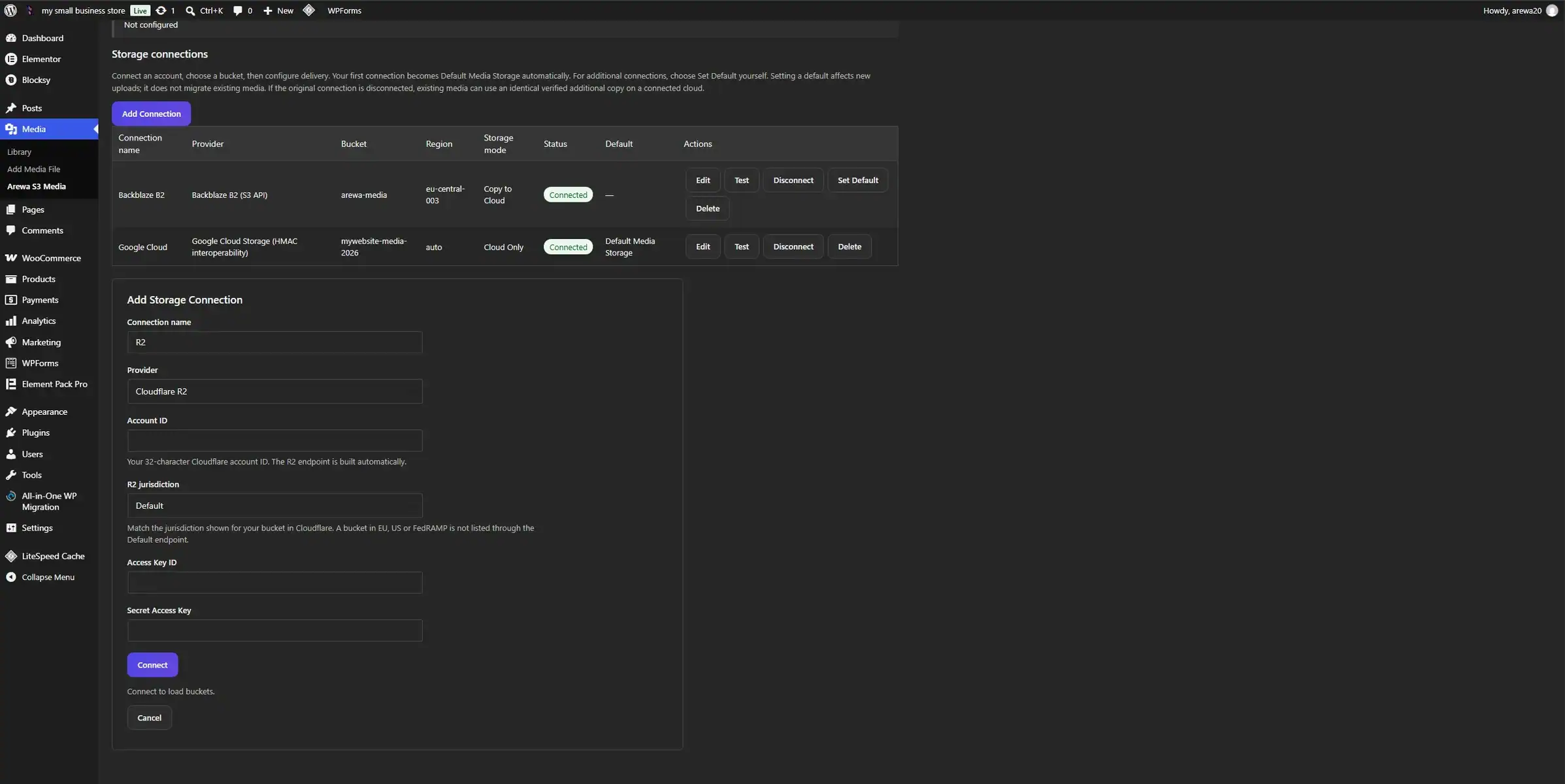
Give each connection a recognizable name, select its provider, and enter the appropriate credentials. Configure the bucket, endpoint, and region where required, then test the connection. A name such as “Editorial archive” is easier to identify than an account number when editors are choosing a destination.
A default for new media
The first verified connection saved through setup becomes Default Media Storage. Adding another connection does not automatically replace that choice. You can deliberately choose a different default later. This affects new uploads; existing attachments keep their mappings until you use an appropriate copy or migration workflow.
Storage mode and delivery settings belong to their connection. The same object key can exist in two buckets with different contents or access policies. The plugin therefore needs the connection and bucket context as well as the filename. Check the destination shown in the interface before uploading, restoring, or migrating.
Disconnect with dependencies in mind
Disconnecting stops a connection from being used normally, but it does not erase the references attached to existing media. Deletion may be blocked while an unfinished operation or an attachment still depends on it. Resolve those references through restoration or the available recovery tools before removing a connection that supplies published images.
 View Full Image
Move the files. Keep the publishing relationships.
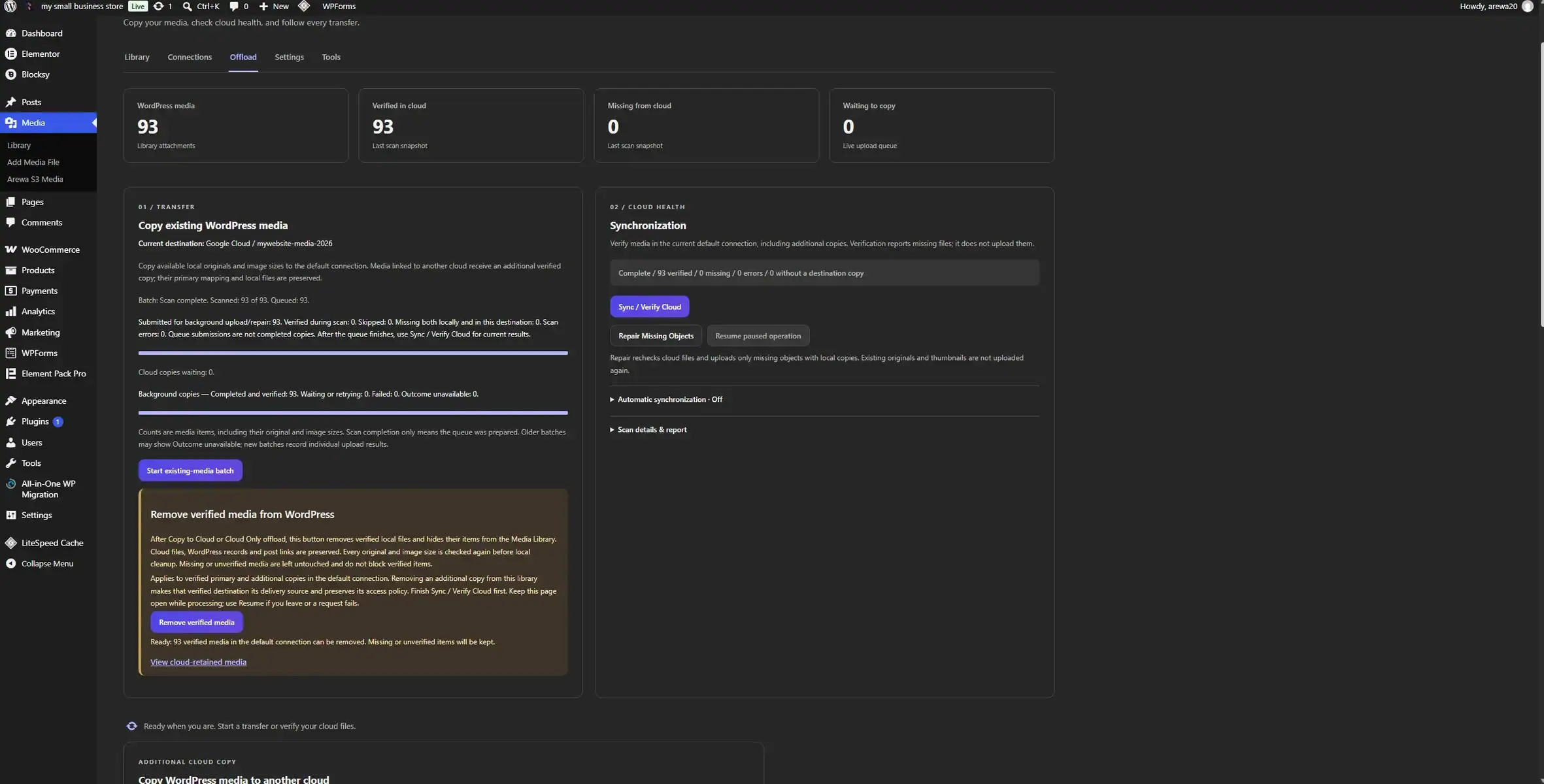
Start an existing-media batch to scan attachments and prepare background copies for the selected default destination. The workflow includes available originals and image sizes. Attachment mappings connect those objects to WordPress so posts can continue using the media they reference. Enable Automatic Media Offload when you want eligible new attachments to be copied automatically.
Filter the media you want to copy
Select Images, Videos, Audio, or Documents, then use Advanced File Type Filters to include or exclude recognized formats. Automatic offload and existing-media batches use the attachment’s type and format decision; an image’s generated sizes follow its original attachment. Excluded items remain local. These filters do not enable extra WordPress upload types or turn extension checks into content scanning.
Copy filters and image-size display controls have separate purposes. An Originals Only gallery can hide generated sizes from browsing while an eligible offload still copies the original and its mapped sizes. Review the destination, selected categories, and whether verified local files should be kept or removed before starting a batch.
Choose how local files are handled
Local keeps the normal hosting-based storage workflow. Copy to Cloud creates cloud copies while retaining local files. Cloud Only can remove eligible local files after cloud verification while retaining the WordPress attachment record. Keep backups and review verification results before choosing a mode or action that removes local copies.
Read the result, not just the scan count
“Scanned” and “queued” describe preparation. They do not mean every file arrived successfully. Background outcomes distinguish completed and verified media from waiting, retrying, failed, or unavailable results. A media item can represent an original plus several sizes, so these counters are not necessarily the number of individual objects in your bucket.
If objects appear in storage while a media item fails, inspect the reported error. One missing size, a verification failure, or a delivery problem can prevent the entire item from being considered ready. Uploading an original is only one part of completing its WordPress mapping. Resolve the cause, retry the affected work, and verify cloud status before local cleanup.
 View Full Image
Find the right file without leaving WordPress
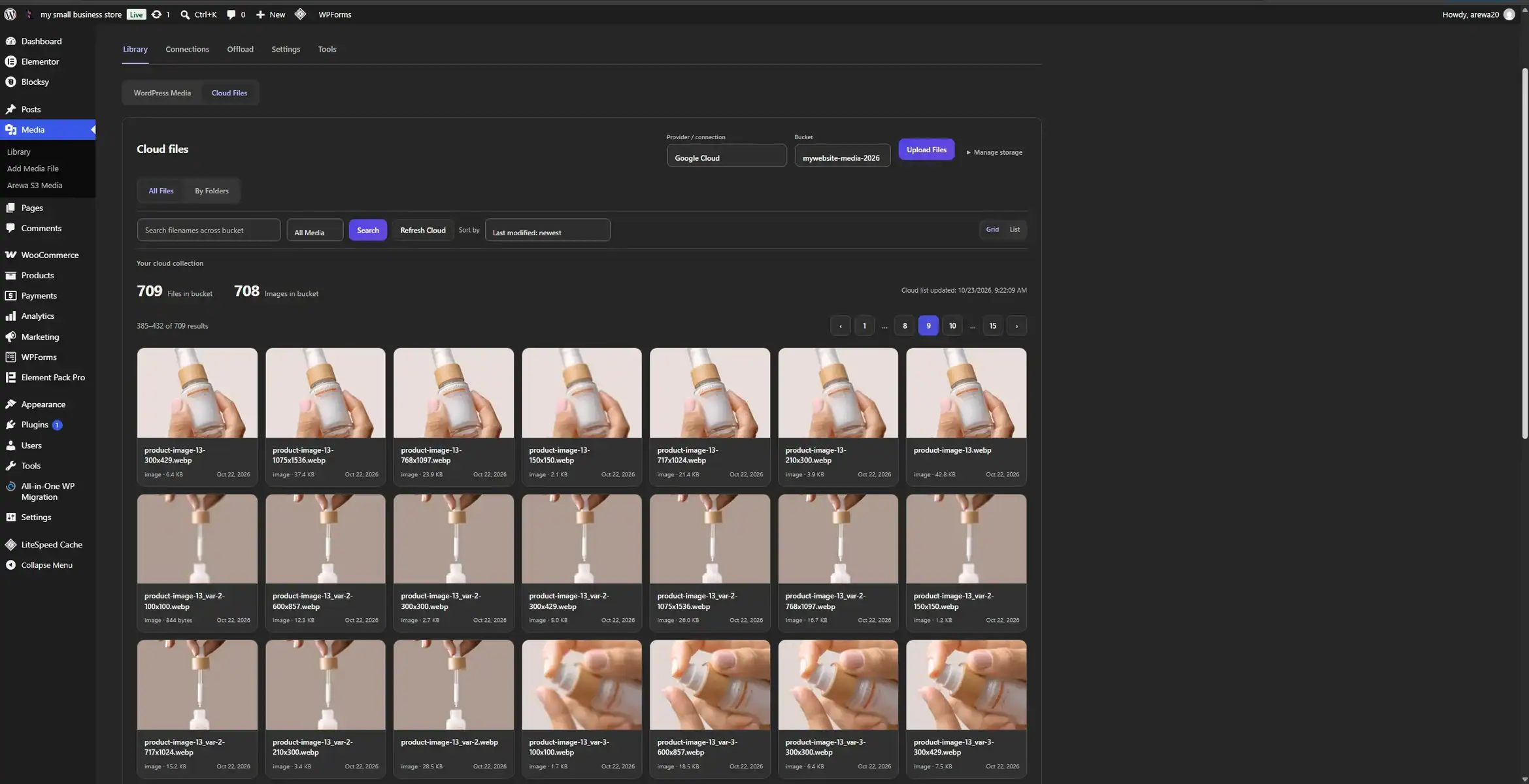
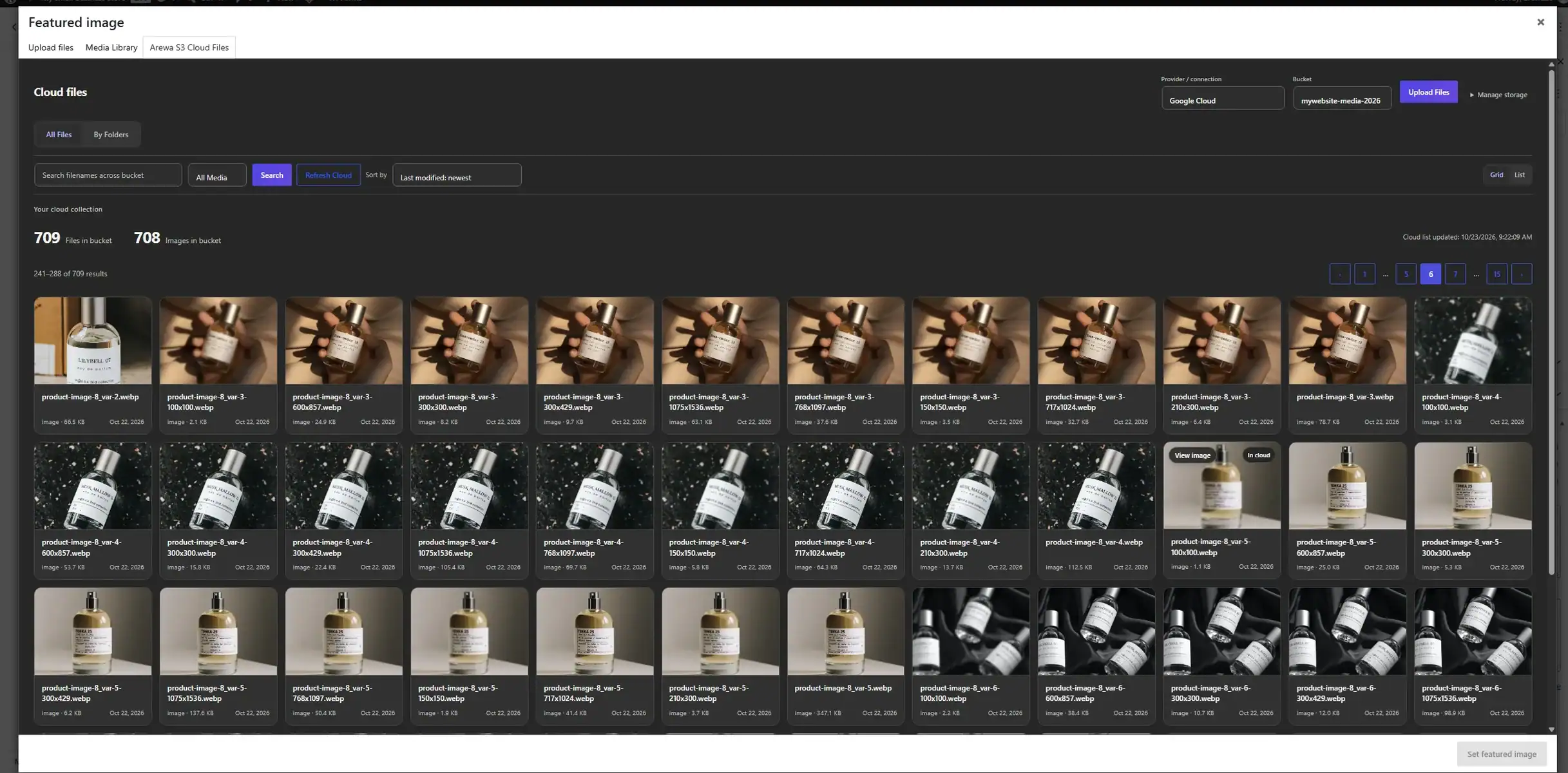
The workspace separates WordPress Media from Cloud Files. Select a connection and bucket to explore its cloud collection. All Files provides a collection-wide view, while By Folders helps you navigate the object prefixes represented as folders. Grid view emphasizes previews; List view makes file information easier to compare.
Search filenames, narrow the collection by media type, change the sort order, and move between pages. Combine these controls with the image-size view to find the right asset in a large offloaded collection. The same organization is available in Cloud Files opened from a post or a supported WordPress media picker.
Originals Only: a cleaner view of your image library
Originals Only is the initial image-size view. It hides confirmed generated image sizes from the main gallery, so a product photo with several WordPress thumbnails does not need a separate card for every size. Choose All Sizes whenever you want to browse those files individually. Filename search, media filters, sorting, and pagination work with the selected view.
Each user can save a view preference shared by the standalone Cloud Files library and native WordPress media selectors. Administrators set the site default in Settings → Cloud Library Display; users can return to that default when needed. This is a display preference, so switching views does not delete thumbnails, move cloud objects, or start an offload job.
Keep generated sizes and alternate formats together
Open Image Variants in the file details to inspect the mapped original, responsive sizes, and recognized alternate formats as one image family. Known dimensions and current catalog availability help you choose an appropriate source. A scaled or edited primary can represent the family while the original upload remains available for inspection.
Grouping uses confirmed WordPress relationships, rather than assuming that every filename ending in a size belongs to another image. Independent and unknown images remain discoverable. Missing originals leave visible orphan entries; a thumbnail is not silently presented as the original. Bucket totals still describe physical files, even when the gallery displays fewer cards.
A remote catalog is not an attachment list
Browsing an object does not automatically import it. Files uploaded outside WordPress, folder markers, and generated sizes may appear in cloud storage without being independent Media Library entries. Register or import a supported image when a WordPress workflow needs its attachment ID, metadata, or featured-image relationship.
Cloud listings can become stale after uploads or changes made in the provider dashboard. Use Refresh Cloud to update the catalog. A refreshed listing helps you find remote objects; use the media verification tools separately when you need to check whether the files linked to an attachment are complete and available.
 View Full Image
Send large files from your browser to your bucket
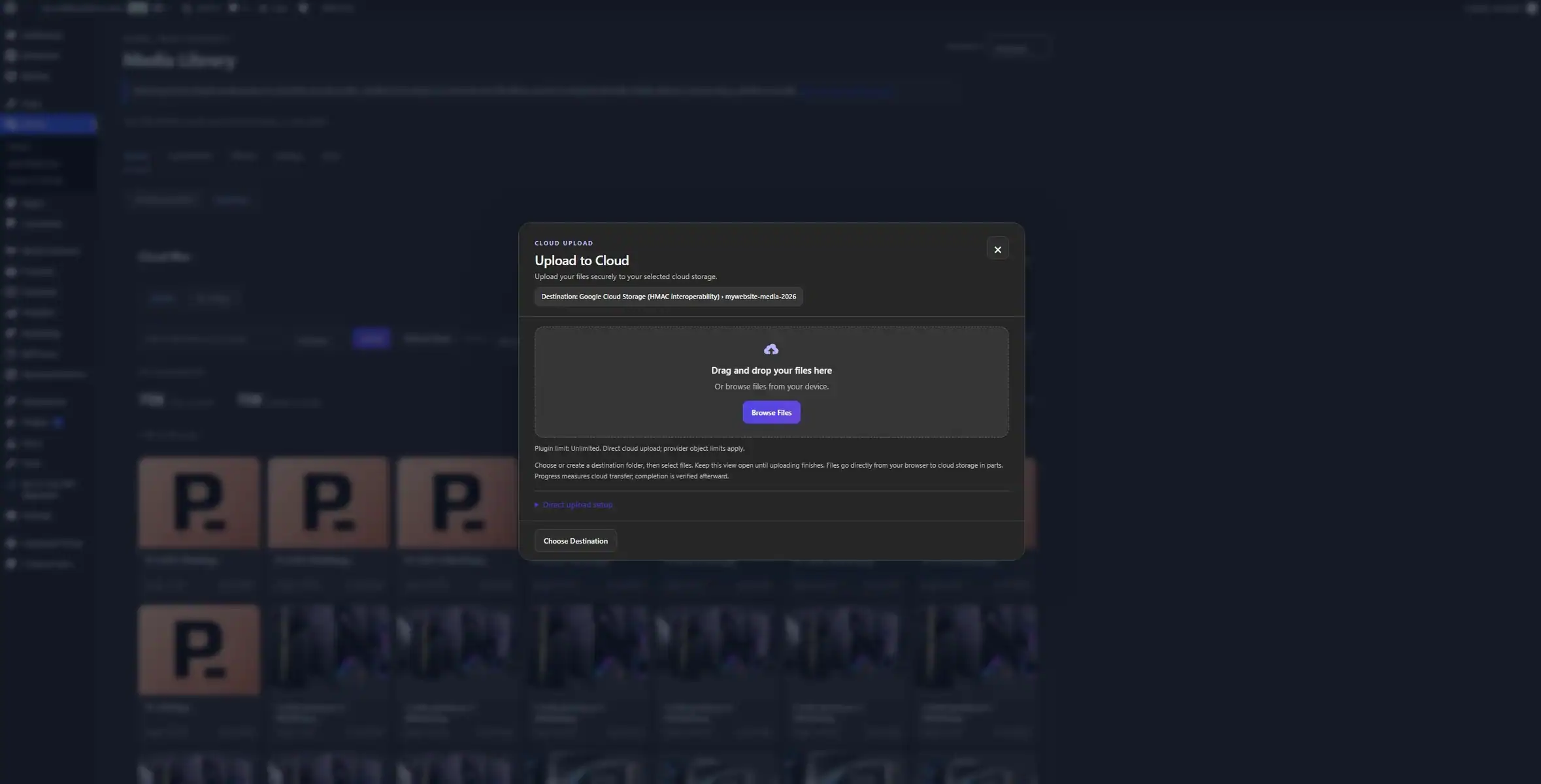
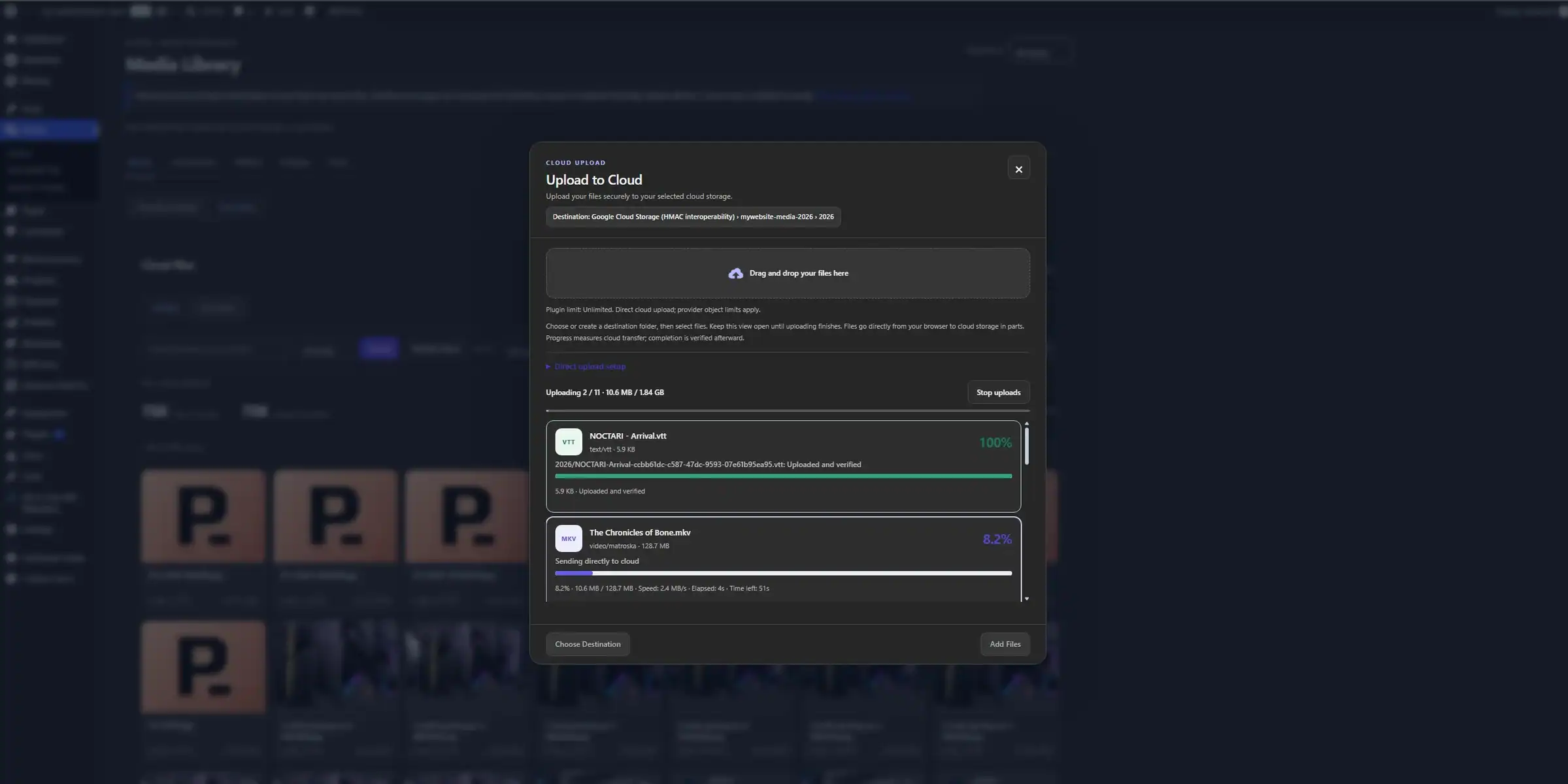
Upload to Cloud uses a direct browser-to-storage flow. WordPress authorizes the operation and checks completion through small control requests; the file body goes to the storage API in parts. This avoids routing a large video through the hosting account’s normal PHP upload request. Standard WordPress uploads and offloading existing local media still use their own server-based paths.
Choose the destination before selecting files
Open the cloud upload panel and use Choose Folder to navigate to an existing destination or create a folder. Confirm the displayed connection, bucket, and path, then browse files from your device or drag them into the upload area. Folder navigation represents object-key prefixes. This cloud upload area is separate from WordPress’s native uploader.
Follow each transfer through verification
Each queue item shows its name, type, size, transferred bytes, percentage, speed, and timing information as the upload progresses. Multipart transfer splits large files into manageable requests. Completion is verified after transfer, so a full progress bar does not by itself prove the final object is ready. Keep the view open until the queue reports its outcome.
The plugin upload limit is configurable and defaults to Unlimited. That means no additional plugin size cap, not unlimited provider capacity or an unrestricted browser. Network interruptions, provider object limits, application rules, and upload permissions still apply. Interrupted parts can be retried, but closing the view is not a promise of resumable uploading in a later session.
 View Full Image
 View Full Image
Your API credentials authorize storage operations. CORS lets browser requests from your website reach the storage endpoint in the permitted way. Configure the exact website origin and the provider’s required methods and headers. A connection test performed by WordPress can succeed even when a browser upload is blocked by CORS.
Check the provider-specific instructions for Amazon S3 CORS, Cloudflare R2 CORS, Backblaze B2 cross-origin rules, or Google Cloud Storage CORS. For IDrive e2, use its current setup guidance and the rule shown for your connection.
Bring cloud images into the publishing flow
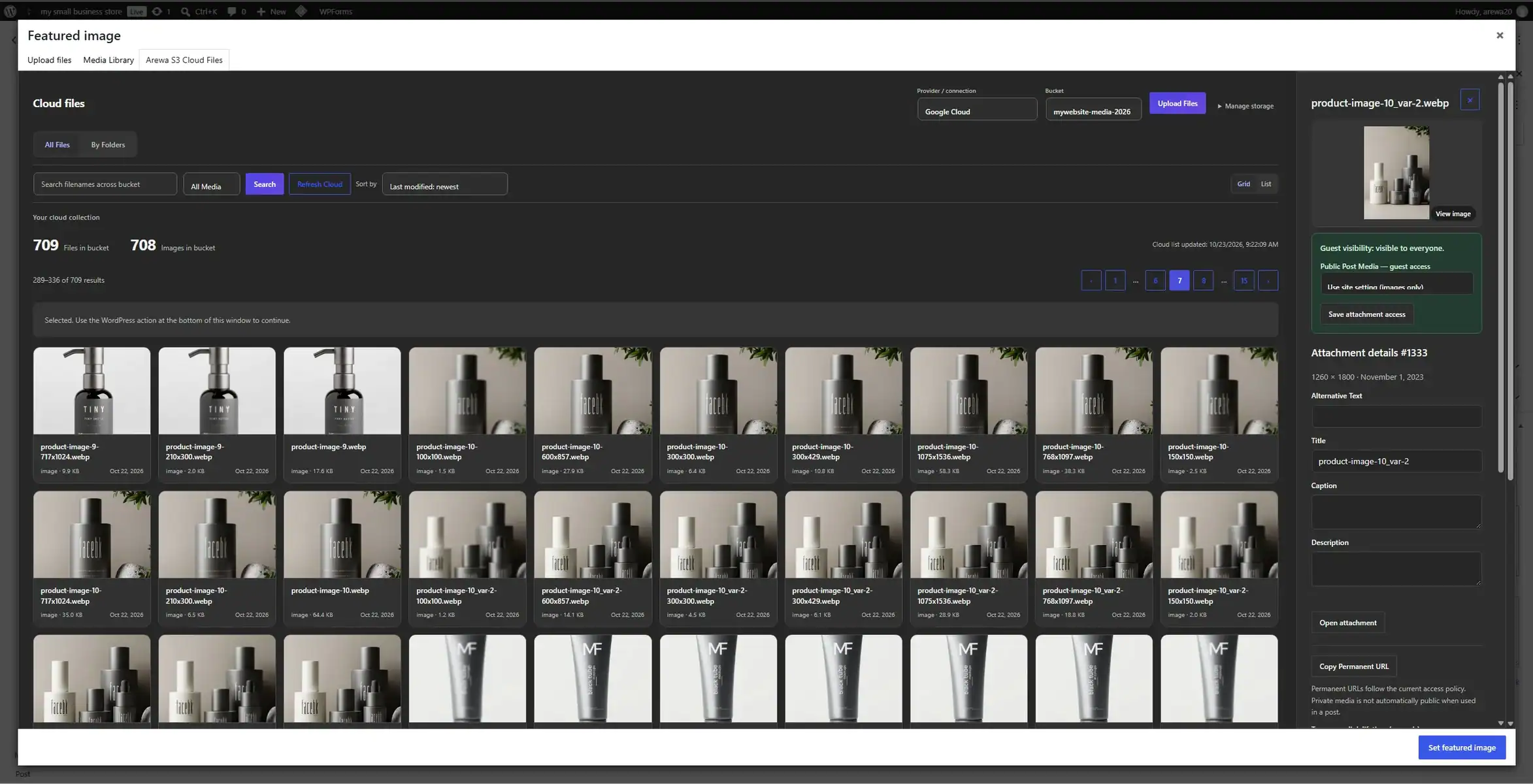
Open the WordPress media modal from a supported editor workflow and choose Arewa S3 Cloud Files. Browse the selected bucket, inspect an image, and use the available import or selection action. Where a native attachment is required, registration gives WordPress the ID and metadata needed to use that cloud image.
Keep WordPress media relationships useful
A featured image needs an attachment relationship; pasting an arbitrary object URL into a field is not equivalent. Importing a supported image allows native selection workflows to work with a WordPress record. Existing attachments and remote-only objects are different states, even when their visible filenames look alike.
Review the attachment title, caption, alt text, and description before publishing. Alt text should explain the image’s purpose in context. A descriptive filename can support organization, but it does not replace an accessible description. Avoid adding the same keyword to every image or using a caption that repeats information readers already have.
Test the page as a visitor
WordPress media library integration also matters for page builders such as Elementor when they use the native media modal. After selecting an image, check the rendered page in a signed-out session. A preview visible to an administrator does not establish that public visitors have permission to view private media.
 View Full Image
 View Full Image
Preview the image before you publish
Thumbnails help you scan a collection; opening an image lets you inspect it more carefully. The plugin’s preview and detail views expose relevant object information and available image metadata. Compare the filename, size, dimensions where available, and destination before choosing between an original and a generated variant.
This is particularly useful when a product image exists in several sizes. A small thumbnail may look acceptable in the library but unsuitable as a full-width banner. Check the available source dimensions and the page’s intended display size rather than selecting the first matching filename.
Private previews follow access rules
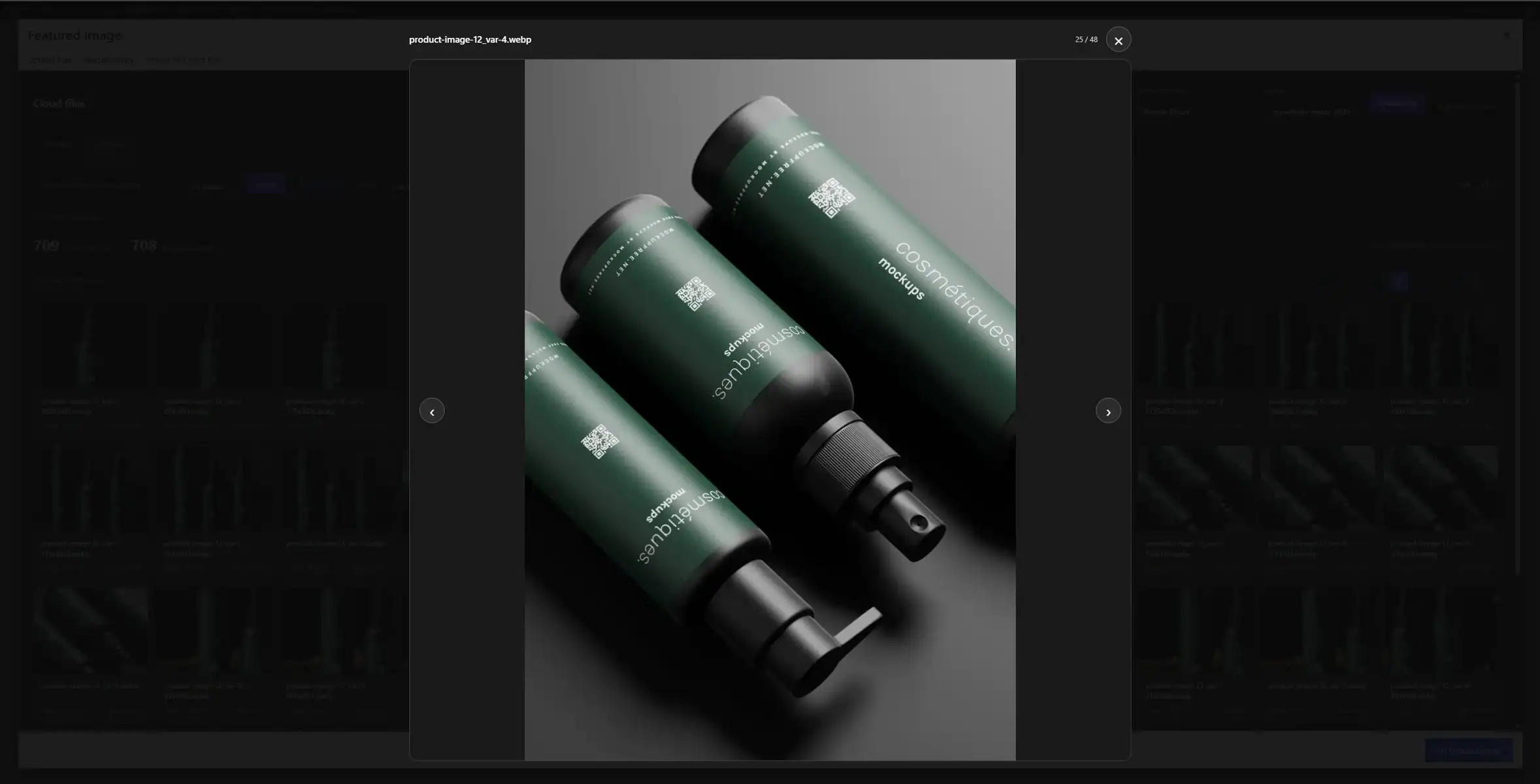
An authenticated preview can use authorized delivery even when the bucket is private. Its temporary storage URL is not a permanent public address to paste into content. Use the supported attachment workflow and configure visitor access deliberately. The screenshots on this page open in a separate full-resolution gallery so you can inspect the interface, navigate between views, and zoom into details.
 View Full Image
Know what is stored, mapped, and available
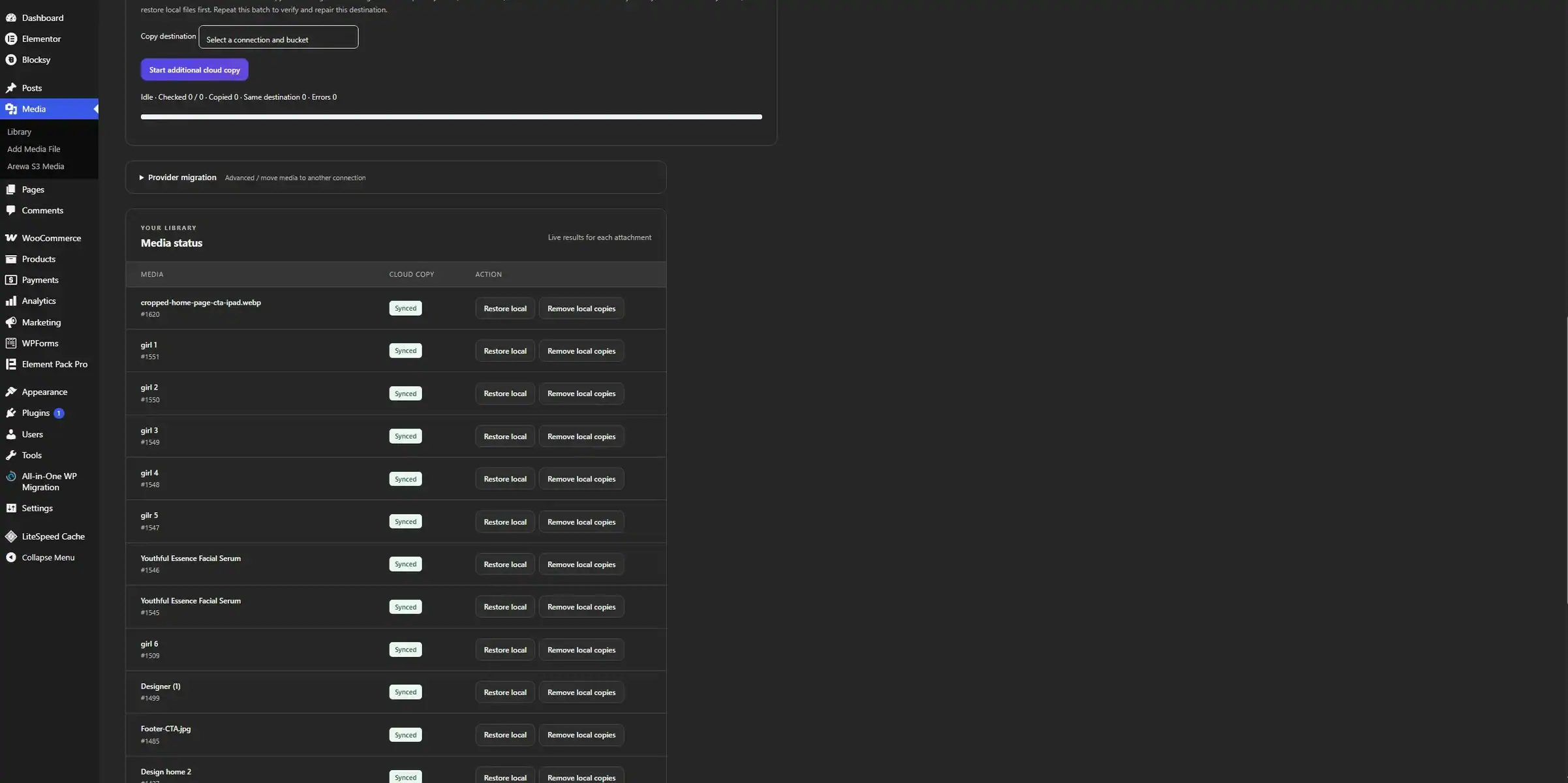
A saved mapping records where an attachment’s cloud files belong. It does not prove those files still exist. An object might have been removed manually, a credential may have changed, or a provider policy may now deny access. Synchronization checks help reveal the difference between a saved relationship and a usable cloud copy.
Use the right check for the job
Refresh Cloud updates the browser’s object listing. Sync / Verify Cloud checks the mapped media in the relevant destination. Repair Missing Objects can upload missing objects from available local files. Restore Local brings available cloud files back to the site. Each action solves a different problem; refreshing a catalog does not recreate an absent original.
Check media status after manual changes in a provider dashboard, credential rotation, migration, or a failed batch. Review the original and image sizes together. A file that exists locally may still be incomplete for the mapped attachment, while a visible cloud folder says nothing about the contents of every required object.
If both the local file and its cloud copy are missing, restoration needs another source, such as a backup. An explicit discard action for an absent-file reference does not recover the image. Replace any affected published media and resolve dependencies before deleting its connection.
 View Full Image
Make storage and access choices explicit
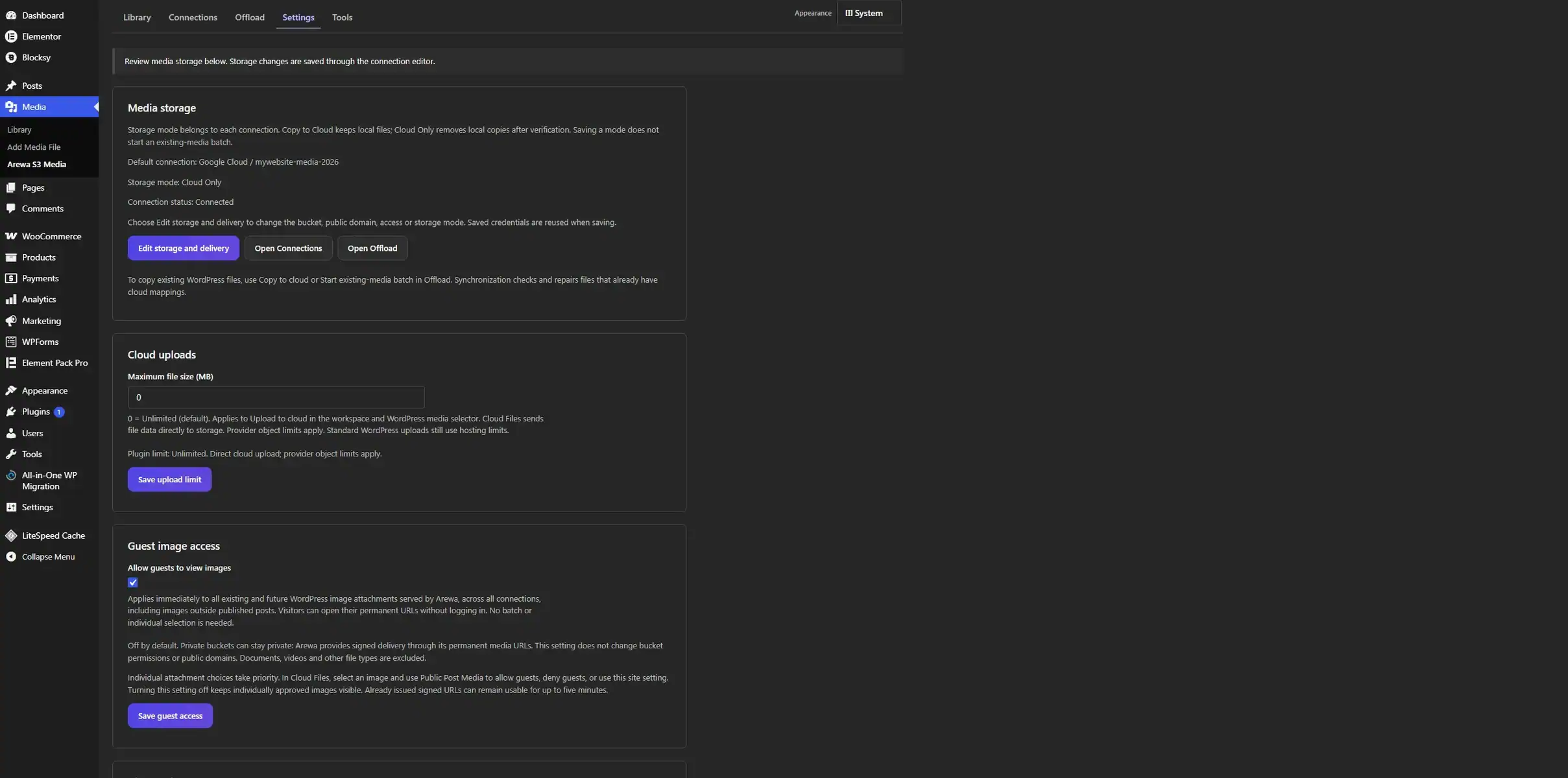
Begin with connection and delivery settings, then review site-wide controls. Storage mode determines how local and cloud copies are handled. Delivery mode determines how a visitor obtains an image. Changing one does not automatically settle the other: a successfully uploaded private object still needs a supported access path.
Set upload and sharing expectations
Configure an optional cloud upload size limit if your editorial workflow needs one. Review the available expiration controls for signed or shared access, and keep temporary links out of fields that expect permanent media references. Use the connection’s public or CDN domain only when it is correctly configured for that delivery mode.
Separate library preferences from access policies
Settings keeps media storage, cloud upload limits, the default image-size view, and diagnostics together. Use Cloud Library Display to select the site’s initial view of originals or all sizes. These choices organize the interface; they do not decide who may open a file.
Guest media access and Domain Permissions have their own Security & Privacy tab, between Settings and Tools. Review visitor access and external embedding there without scrolling through unrelated storage controls. Existing domain lists, connection choices, and guest preferences remain in place when you update the plugin.
 View Full Image
Deliver media with the access policy you intend
Public URLs
Public delivery requires an object endpoint or CDN that actually permits public access. It suits images intended for everyone, such as an open product catalog. Adding a public domain may expose objects independently of WordPress. For Cloudflare R2, the S3 API endpoint is not a public media domain; configure the appropriate public domain when choosing this mode.
Private delivery for authorized users
For WordPress private cloud media, the plugin checks access before issuing a short-lived provider URL. The stable WordPress media route and the expiring provider URL have different roles. The route can remain in published markup while the plugin evaluates access and supplies a fresh temporary destination when needed.
Temporary access through a shared link
An explicit sharing link allows access according to its sharing policy and expiration. Anyone possessing a valid link may be able to use it during that period, so handle it as an access token. Signed storage URLs expire by design. They are not permanent addresses, and copying one into a static page can produce broken media later.
Guest media access can support public images, video players, audio, and document links stored in a private bucket, subject to the selected category and individual attachment choices. It works in both signed delivery modes without changing bucket permissions. Domain Permissions adds an embedding restriction after attachment access has been checked; an approved domain cannot independently authorize a private file.
Exclude the plugin’s authorization-dependent delivery and sharing routes from inappropriate public caching. Also review existing hardcoded public or CDN URLs: those addresses can bypass WordPress delivery checks, and changing a connection setting cannot reliably rewrite every URL stored by other tools.
Plan for a growing media collection
Pagination, filtering, and catalog views help administrators work with large buckets without presenting every object at once. Large collections still need listing requests and catalog updates. Schedule verification and migration work with your hosting resources and publishing activity in mind, especially when many attachments have multiple image sizes.
Optimize the page as well as the storage
Use appropriate image dimensions and compression, and review the lazy loading supplied by your theme or page builder. Cloud storage does not make an oversized original efficient. A page displaying many full-resolution images can remain slow even if its objects are delivered reliably from a nearby region.
For public content, evaluate a CDN’s origin configuration and caching behavior. For private content, account for authorization and signed-link expiration. Compare real visitor experience across locations rather than assuming one provider is universally fastest. Request patterns and cache hit rates also affect operating costs.
Direct uploads reduce hosting request-body pressure for large files, but WordPress still handles authorization, metadata, and completion checks. Browser memory, connection stability, and provider limits remain relevant. Begin with a representative file, then test a larger queue before making bulk upload part of a production editorial process.
Choose who can access your media and where it can be embedded
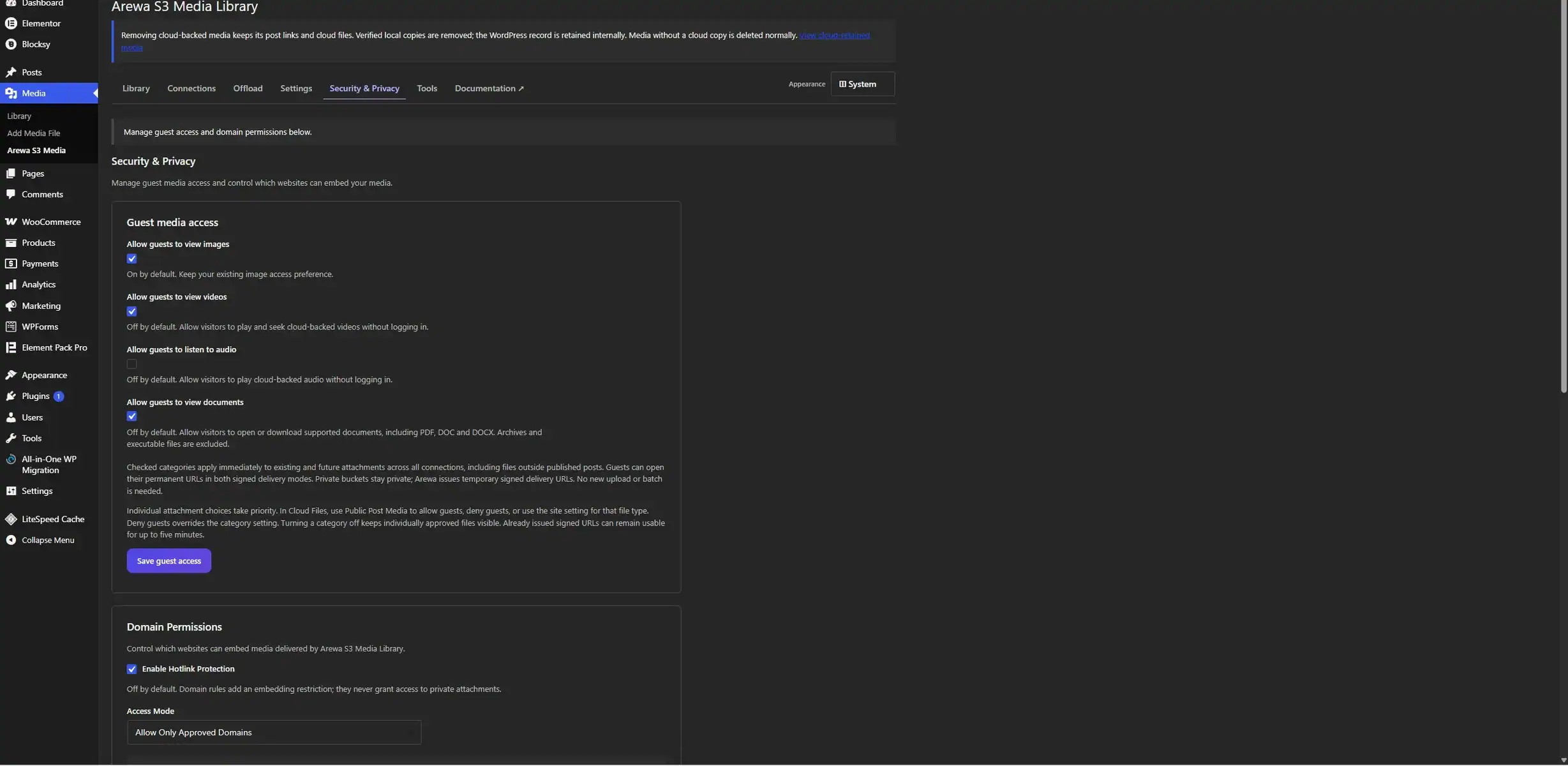
The dedicated Security & Privacy tab brings Guest media access and Domain Permissions together, between Settings and Tools. Configure visitor access separately from the rules for other websites embedding your media.
Guest media access
Choose guest access independently for images, videos, audio, and documents.
Domain Permissions
Allow approved websites or block specific domains with optional subdomain rules.
Test Domain Rules
Check the saved policy and review the coverage of each storage connection.
 View Full Image
Four independent guest access controls
Use Allow guests to view images, Allow guests to view videos, Allow guests to listen to audio, and Allow guests to view documents to decide which categories visitors can open without signing in. Images are enabled initially; video, audio, and document access require an administrator to opt in. Saved preferences take priority on an existing installation.
The selected categories apply to existing and future mapped WordPress attachments across connections, including files outside published posts. Both signed delivery modes honor these grants. Private buckets can remain private while Arewa supplies short-lived provider URLs. Individual attachment choices take priority: a guest denial blocks that attachment even when its category is enabled, while an individual approval remains effective when the category is turned off.
Allow approved domains or block specific websites
Enable Domain Permissions when you want browser hotlink protection on Arewa’s controlled media routes. Choose Allow Only Approved Domains or Block Specific Domains, then add hostnames or full HTTP/HTTPS URLs. URLs contribute their hostname only. Matching is exact unless you explicitly choose Include Subdomains; approving example.com never approves example.com.attacker.test.
Hotlink protection is off by default, so updating does not unexpectedly block existing embeds. Your configured WordPress and site hostnames remain approved. Select protected images, videos, audio, and documents independently; only Images is preselected initially. A permitted domain still needs to satisfy the attachment’s existing access policy. Domain rules do not make private files public.
Choose how to handle a missing Referer
The recommended Allow option keeps ordinary direct access compatible when the browser omits Referer. Block — Strict denies missing-header requests when protection applies, but may also affect privacy tools, apps, and legitimate visitors. The warning checkbox is informational: it can be saved checked or unchecked. The Requests Without Referer selector controls strict mode.
Valid temporary sharing links remain exempt unless you explicitly apply Domain Permissions to them. Editors with the required attachment permissions retain supported editing previews. Use Test Domain Rules to simulate a referring hostname, media category, or missing header against the saved policy, then verify the actual page while signed out. A simulated result does not prove real browser or CDN behavior.
Understand the coverage of hotlink protection
Referer can be missing or forged, so this is best-effort browser hotlink protection, not authentication or DRM. Arewa checks applicable rules before a signed redirect or local delivery. Approved video and audio delivery continues to use the provider’s range support for playback and seeking.
The coverage panel flags public or CDN delivery configurations that may expose another route to the same object. Direct public bucket, CDN, or static uploads URLs can bypass WordPress checks. An issued provider-signed URL can remain usable until it expires, for up to five minutes. Use a private origin and suitable CDN rules for stronger coverage; exclude protected delivery routes from shared caching, or enforce the same policy at the edge before cached responses are served. The plugin does not change bucket permissions or install CDN rules automatically.
Keep credentials and upload responsibilities clear
Use dedicated storage credentials with the permissions needed for the selected bucket and workflow. Arewa encrypts saved credentials and checks WordPress capabilities for protected operations. Direct uploads do not send the storage secret key to the browser. Consult Amazon S3 security best practices and the equivalent provider guidance when setting permissions.
Extension checks are not antivirus scanning or a full inspection of file contents. Storage providers receive the files you send them, and direct browser uploads contact those providers. Review your privacy requirements, keep operational access to your storage account, and retain the backups needed to recover media. These controls complement hosting security and careful administrator access.
Step-by-Step Cloud Storage Setup Guides
Each provider has its own credentials, endpoint format, permissions, and bucket configuration. Follow the corresponding walkthrough, test a small upload, and check the result as both an administrator and a visitor. Keep your first configuration simple before adding a CDN, private sharing, or a larger migration.
How to Connect Amazon S3 to WordPress with Arewa S3 Media Library
Prepare the bucket, credentials, and delivery choices for an Amazon S3 WordPress plugin workflow. Follow the connection walkthrough before transferring your existing media.
Read Tutorial
How to Connect Google Cloud Storage to WordPress with Arewa S3 Media Library
Understand the Google Cloud Storage WordPress connection, including the bucket name and interoperability credentials. Use the guide to prepare a destination you can verify.
Read Tutorial
How to Connect Cloudflare R2 to WordPress with Arewa S3 Media Library
Connect an R2 bucket and distinguish its storage API endpoint from a public media domain. Choose delivery settings that match who should see your images.
Read Tutorial
How to Connect Backblaze B2 to WordPress with Arewa S3 Media Library
Prepare a Backblaze B2 bucket and S3-compatible connection. Check the endpoint, application key scope, and delivery policy before starting a media batch.
Read Tutorial
How to Connect IDrive e2 to WordPress with Arewa S3 Media Library
Set up IDrive e2 with the correct storage endpoint, credentials, and bucket. Follow the connection guide, then verify a representative image in WordPress.
Read TutorialFrequently asked questions
Practical answers for setup, uploads, delivery, and day-to-day media management.
What is Arewa S3 Media Library?
It is a WordPress plugin that connects media workflows to supported cloud object storage. You can browse remote files, offload WordPress attachments, upload files directly to a bucket, and configure delivery. WordPress keeps attachment records for publishing relationships; the storage provider holds the associated cloud objects.
Which storage providers can I connect?
The plugin includes Amazon S3, Google Cloud Storage, Cloudflare R2, Backblaze B2, and IDrive e2 connections, plus compatible S3 services where supported. Each service has different credentials and configuration requirements. Start with the matching setup guide and verify the operations you plan to use instead of assuming all S3 endpoints behave identically.
Can I connect multiple accounts without changing my default?
Yes. Connections keep their own provider, credentials, bucket, and relevant settings. The first verified connection becomes the initial default; subsequent connections do not automatically replace it. Choosing a new default affects new uploads. Existing mapped media needs an explicit copy or migration workflow when you want to move its storage relationship.
Does offload work with existing WordPress media?
Yes. Start an existing-media batch for the selected destination. It scans attachments and prepares background work for available originals and sizes. Wait for completed and verified outcomes rather than treating the scan count as proof of success. Check failed items and retain backups before removing local files.
What is the difference between Copy to Cloud and Cloud Only?
Copy to Cloud retains local files while creating cloud copies. Cloud Only can remove eligible local files after verification while preserving the WordPress attachment record. Neither mode makes a database backup unnecessary. Before local cleanup, confirm the original and required sizes are available and that website visitors can access them through the intended delivery policy.
Can I upload a large video directly to cloud storage?
Cloud Files uses multipart browser-to-cloud uploading, so the file body does not pass through the normal WordPress PHP upload request. Choose a destination, select files, and keep the view open through verification. The default plugin limit is Unlimited, but provider limits, browser resources, network stability, and application restrictions still apply.
Why do API permissions not remove the need for CORS?
API permissions authorize storage operations. CORS controls whether a browser can make the cross-origin requests used by the uploader. Before sending a part, the browser may make an OPTIONS preflight request. Valid credentials can pass a server-side connection test while a missing or mismatched CORS response still blocks the browser transfer.
How should I configure CORS for direct uploads?
Use the exact origin of the WordPress admin page, including its scheme and any nonstandard port. Configure the methods and request headers required by the actual upload flow using your provider’s format. Amazon S3, R2, Backblaze B2, IDrive e2, and Google Cloud do not share one universal policy format. Preserve existing rules and avoid wildcard origins for credentialed requests.
Why can an upload still fail after adding CORS?
The origin, method, or requested headers may not match the rule, or the request may fail for a different reason. Check the browser’s network response and provider error for expired authorization, missing multipart permissions, signing problems, or an incorrect endpoint. A generic browser network error alone cannot prove that CORS is the only cause.
Why are cloud images missing from a public page?
Check whether delivery is public or requires authorization. Confirm the mapped object exists, the endpoint is correct, and the visitor has the required access. A public domain must actually serve the object; a private image needs an authorized route. Also inspect stale page caches and temporary signed URLs that were pasted directly into content.
What does Allow Guests to View Images do?
In Security & Privacy, it controls inherited guest access for existing and future WordPress image attachments served by Arewa across connections. Images are enabled initially unless a saved preference says otherwise. Individual attachment choices take priority. Separate switches handle videos, audio, and documents. None of these choices changes bucket permissions; review images outside published posts before enabling broad guest access.
How do public URLs, signed URLs, and sharing links differ?
A public URL relies on public provider or CDN access. Private delivery checks authorization before issuing an expiring storage URL. An explicit sharing link grants access according to its policy and expiration. Keep stable WordPress media references in publishing workflows rather than treating a temporary signed storage URL as a permanent image address.
Can I use a CDN with Amazon S3 or Backblaze B2?
A compatible CDN can sit in front of an appropriately configured storage origin. Configure the origin address, access permissions, domain, and cache behavior for your chosen arrangement. Public delivery and private authorization need different cache strategies. A CDN domain entered in the plugin is not, by itself, a complete or tested CDN configuration.
Can I insert cloud images into posts or Elementor pages?
Use Arewa S3 Cloud Files in the native WordPress media modal where supported. Import or register the selected image when the workflow needs an attachment ID, then choose it for your post, featured image, or page-builder field. Review its alt text and caption, and test the published page while signed out.
Why does Cloud Files differ from the WordPress Media Library?
A bucket can contain originals, generated sizes, external uploads, and objects without WordPress attachment records. The Media Library lists attachments. Originals Only hides confirmed generated sizes from the cloud gallery, while Image Variants keeps related files inspectable. Independent or unknown images remain visible. Browsing a remote file does not automatically register it or remove any files.
How do I refresh status or recover a missing image?
Refresh Cloud updates the object catalog; Sync / Verify Cloud checks mapped media. Repair Missing Objects uses available local files, while Restore Local uses available cloud copies. If neither source contains the required file, recover it from a backup or replace it. Removing a missing-file reference resolves a link but does not recreate the image.
Can I show only original images in the cloud library?
Yes. Originals Only is the initial image-size view, and All Sizes lets you browse confirmed generated sizes individually. Each user can save a preference shared by Cloud Files and WordPress media selectors. Administrators choose the site default in Settings → Cloud Library Display. Search, sorting, media filtering, and pagination follow the selected view.
Does grouping image sizes delete thumbnails or alternate formats?
No. Grouping is a display feature based on confirmed WordPress relationships. Image Variants lists the mapped original, generated sizes, and recognized alternate formats with available details. Switching views does not delete, move, or resize objects. Independent, unknown, and orphaned images remain discoverable rather than being hidden solely because of a filename pattern.
Can guests play videos and audio or open documents from a private bucket?
Yes, when an administrator enables the corresponding video, audio, or document switch in Security & Privacy → Guest media access, or approves an attachment individually. The switches apply to existing and future mapped attachments in both signed modes. They start disabled, and an explicit guest denial for an attachment takes priority. The image switch alone does not grant access to these file types.
Can I control which websites embed my cloud media?
Domain Permissions lets administrators allow approved hostnames or block specific domains for selected media categories on Arewa-controlled routes. Exact matching is the default; subdomains require explicit inclusion. Protection is off initially. Referer can be missing or forged, and direct public bucket or CDN URLs may bypass WordPress, so this is best-effort hotlink protection rather than authentication or DRM. Existing private attachment permissions still apply.