Connect Backblaze B2 to WordPress
Table of Contents
Managing a growing WordPress media library can become challenging as your website accumulates images, videos, PDFs, and other files. Large media libraries consume server disk space, increase backup sizes, and make storage management more complicated.
Arewa S3 Media Library helps you connect WordPress to cloud storage providers such as Backblaze B2, allowing you to copy existing media, automatically offload new uploads, manage cloud files, and deliver media through public or signed URLs.
In this step-by-step tutorial, you’ll learn how to create a Backblaze B2 bucket, generate S3-compatible API credentials, connect your account to Arewa S3 Media Library, configure storage and delivery settings, migrate existing WordPress media, and optionally serve public files through Cloudflare CDN.
What You’ll Need
Before starting, make sure you have:
- A WordPress website with Arewa S3 Media Library installed and activated.
- A Backblaze account with B2 Cloud Storage enabled.
- Permission to create buckets and application keys.
- An optional domain managed by Cloudflare if you want to configure a custom CDN domain.
Step 1: Create a Backblaze B2 Account
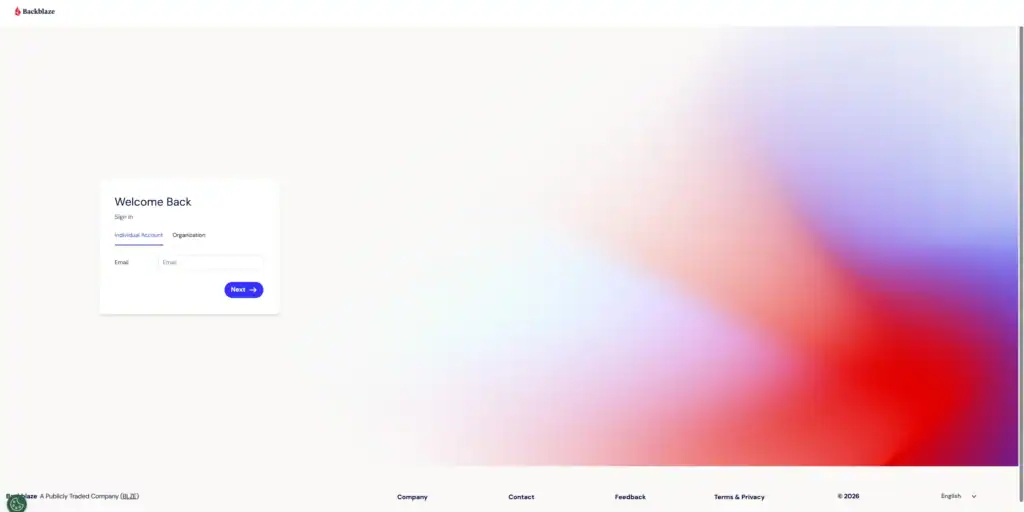
Visit Backblaze and create an account, or sign in to your existing account.
Once logged in, open the Backblaze dashboard and locate B2 Cloud Storage.
If B2 Cloud Storage is not yet enabled, activate it in your account settings.
Backblaze B2 is an object storage service that supports an S3-compatible API, allowing compatible WordPress plugins to manage files without requiring Amazon S3 itself.
Step 2: Create a Backblaze B2 Bucket
From the Backblaze dashboard:
- Navigate to B2 Cloud Storage → Buckets.
- Click Create a Bucket.
- Enter a unique bucket name, such as
my-wordpress-media. - Select the appropriate privacy setting.
- Configure the remaining bucket settings.
- Click Create a Bucket.
Public vs. Private Buckets
Backblaze B2 supports two main bucket visibility settings.
Public Bucket
Files can be downloaded without authentication when their URLs are known. This is suitable for public website images, thumbnails, and other media intended for unrestricted access.
Private Bucket
Files require authorized access. This is useful for protected documents, membership content, and media delivered through temporary signed URLs. For private media delivery with Arewa S3 Media Library, select a private bucket. You can also create separate public and private buckets if your website requires both types of media.
Find Your Bucket Endpoint
Open the bucket details and locate its S3-compatible endpoint.
For example:
The endpoint and region depend on your Backblaze account. Always use the values displayed in your own dashboard.
Arewa S3 Media Library can automatically detect the appropriate endpoint and region when connecting to an accessible bucket.
Step 3: Generate Backblaze B2 Application Keys
To connect WordPress to Backblaze B2, you need an Application Key ID and an Application Key.
These credentials allow Arewa S3 Media Library to communicate with Backblaze through its S3-compatible API.
Create an Application Key
- Open B2 Cloud Storage → Application Keys.
- Click Add a New Application Key.
- Enter a descriptive key name, such as
Arewa-S3-WordPress. - Choose which bucket the key can access.
- Select Read and Write access.
- Enable Allow List All Bucket Names if you are restricting the key to a specific bucket and want automatic bucket discovery.
- Create the application key.
The required capabilities include reading, listing, uploading, and deleting files if you intend to use the plugin’s complete media-management features.
Save Your Credentials
- Backblaze displays two important values:
- Application Key ID: Used as the S3-compatible Access Key ID.
- Application Key: Used as the S3-compatible Secret Access Key.
- Copy and store both credentials securely.
The secret Application Key is displayed only when it is created. If you lose it, you must generate a replacement. Do not use the Backblaze master application key for the S3-compatible API.
Step 4: Open Arewa S3 Media Library in WordPress
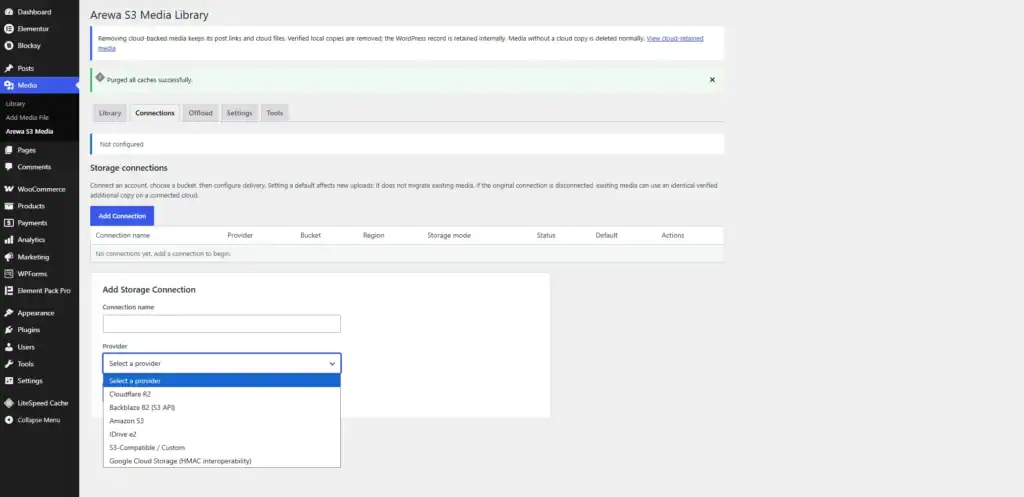
- Sign in to your WordPress administration dashboard.
- Navigate to:
- Media → Arewa S3 Media → Connections
- This page manages your cloud storage connections.
- Click Add Connection to begin.
Choose a Connection Name
- In the Connection name field, enter a recognizable name.
- Example:
Backblaze B2- This name helps you distinguish the connection from other cloud storage providers.
Select Your Provider
- Open the Provider dropdown and choose:
- Backblaze B2 (S3 API)
- The plugin displays the fields required to authenticate with Backblaze.
Step 5: Connect Your Backblaze B2 Account
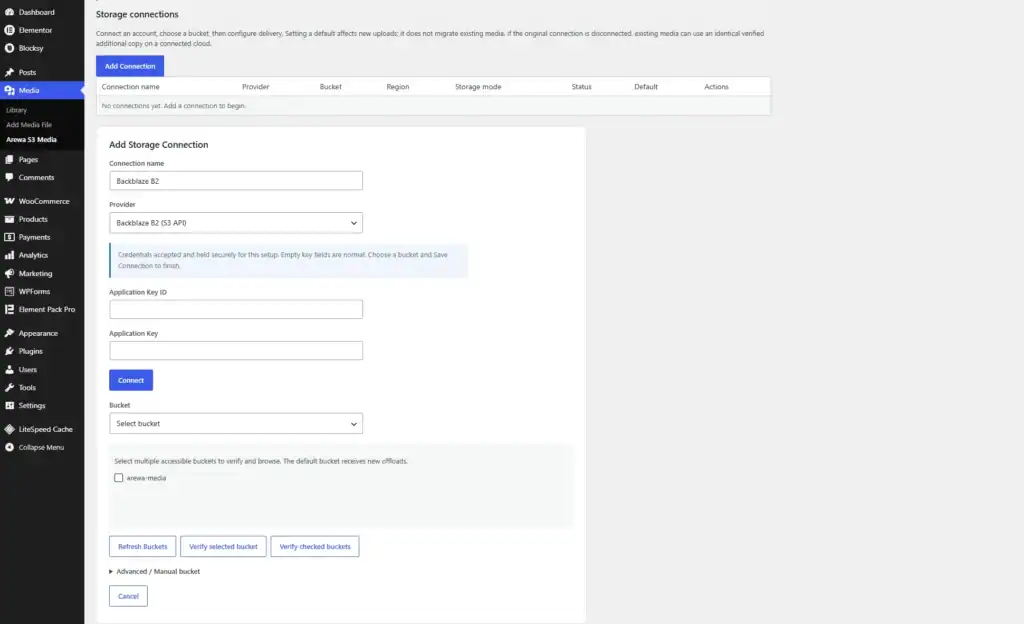
Enter the credentials generated in Step 3.
| Plugin Field | Backblaze Credential |
|---|---|
| Connection name | Backblaze B2 |
| Provider | Backblaze B2 (S3 API) |
| Application Key ID | Your Backblaze keyID |
| Application Key | Your Backblaze applicationKey |
Click Connect.
The plugin authenticates with Backblaze B2 and retrieves the buckets accessible to your credentials.
Why Do the API Fields Become Empty?
- After a successful connection, the Application Key ID and Application Key fields may appear empty.
- This is intentional and does not mean the connection failed.
- Arewa S3 Media Library securely retains the credentials for the connection setup without displaying them again in the input fields.
- You can use Use saved credentials when returning to an existing configuration.
Step 6: Select and Verify Your Bucket
- After connecting successfully, Arewa S3 Media Library automatically discovers the available buckets.
- You will see a Bucket dropdown and a list of accessible buckets.
- The plugin supports selecting multiple accessible buckets for verification and browsing.
Select Your Main Bucket
- Open the Bucket dropdown.
- Select the bucket you want to use.
- Click Verify selected bucket.
The plugin checks whether it can access the selected bucket.
You can also use:
- Refresh Buckets: Reload the list of accessible buckets.
- Verify checked buckets: Verify multiple selected buckets.
- Advanced / Manual bucket: Configure a bucket manually when automatic discovery is unavailable.
Automatic Region and Endpoint Detection
- After selecting and verifying a bucket, the plugin can display its detected region and endpoint.
- Example:
- Region:
eu-central-003— Automatically detected - Endpoint:
https://s3.eu-central-003.backblazeb2.com— Automatically detected - These values are examples. Your actual endpoint may differ.
Step 7: Configure the Storage Mode
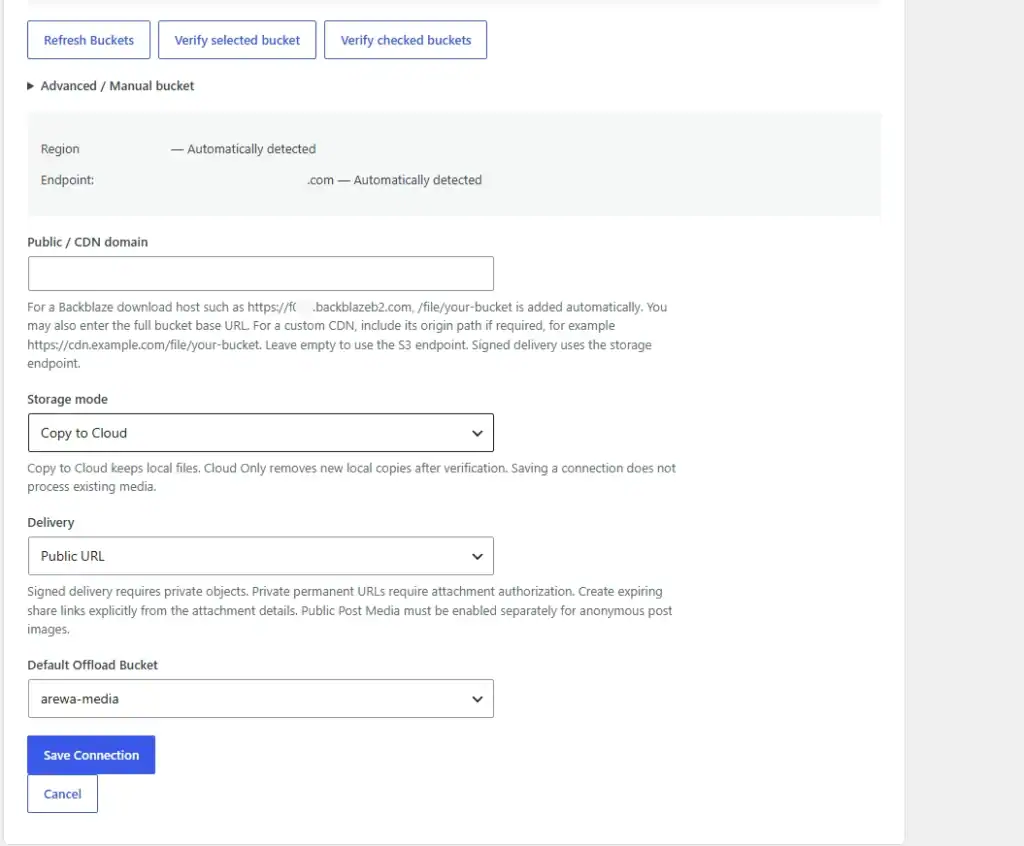
- Arewa S3 Media Library provides three storage modes:
- Local, Copy to Cloud, and Cloud Only.
- Choosing the correct mode determines how new WordPress uploads are handled.
Option 1: Local
- WordPress stores media on your hosting server without automatically copying it to cloud storage.
- Choose Local when you want to keep the traditional WordPress media storage behavior.
Option 2: Copy to Cloud
- This mode copies uploaded media to Backblaze B2 while preserving the original files on your WordPress hosting server.
- Benefits include:
- Maintaining a local copy.
- Creating an additional cloud copy.
- Keeping local originals available.
- Supporting a gradual transition to cloud storage.
This is a good starting option for websites that want to test cloud offloading before removing local media.
Option 3: Cloud Only
- Cloud Only is intended for websites that want to use cloud storage as their primary media destination.
- The plugin uploads media to Backblaze B2 and retains local files initially, allowing you to verify successful cloud copies.
- After verification, you can use the plugin’s cleanup feature to remove eligible local files.
- Important: Selecting Cloud Only does not mean you should immediately delete files manually from your hosting server.
- Always verify cloud copies before removing local media.
Storage Mode Comparison
| Feature | Local | Copy to Cloud | Cloud Only |
|---|---|---|---|
| Keep local originals initially | Yes | Yes | Yes |
| Automatically offload new media | No | Yes | Yes |
| Maintain a cloud copy | No | Yes | Yes |
| Intended for verified local cleanup | No | No | Yes |
Step 8: Configure Media Delivery
The plugin supports three delivery methods.
Public URL
- Choose Public URL when your media should be accessible without authentication.
- This is suitable for publicly accessible website images, thumbnails, and other unrestricted files.
- The underlying bucket and delivery endpoint must permit public downloads.
Signed URL for Anyone With the Link
- This mode uses signed URLs to provide temporary access to private files.
- Anyone possessing a valid, unexpired signed link may access the corresponding file.
- It is useful for temporary sharing, but possession of the link is sufficient for access.
Signed URL for Authorized Users
- This mode is intended for media that should only be delivered to authorized WordPress users.
- Arewa S3 Media Library uses WordPress-side authorization and signed delivery to control access.
- This option is useful for protected media, private documents, and membership-related content.
- Important: Do not treat a signed URL as permanent access control after it has been issued. Anyone who obtains a valid signed URL may be able to use it until it expires. Use the plugin’s authorization settings and an appropriate private bucket for protected content.
Step 9: Configure a Public or CDN Domain
The Public / CDN domain field allows you to specify a custom delivery URL.
For example:
- For a Backblaze B2 download hostname, the plugin can automatically append the appropriate bucket path.
- If you use a custom CDN domain, include the required origin path according to your CDN configuration.
For example:
- This configuration is useful when your CDN expects the Backblaze B2 native download path.
- You can leave the field empty to use the default S3-compatible endpoint.
- For private signed delivery, the signed URL must remain compatible with the storage endpoint and the signing configuration. A custom CDN hostname cannot always replace the signed origin hostname directly.
- We’ll configure Cloudflare CDN for public media later in this guide.
Step 10: Select the Default Offload Bucket
- Under Default Offload Bucket, select the bucket that should receive new media uploads.
- Example:
my-wordpress-media- This is particularly useful if your connection includes multiple verified buckets.
- The default bucket determines the destination for new offloaded WordPress media.
- After configuring your connection, click:
- Save Connection
- Your Backblaze B2 connection is now configured.
Step 11: Copy Existing WordPress Media to Backblaze B2
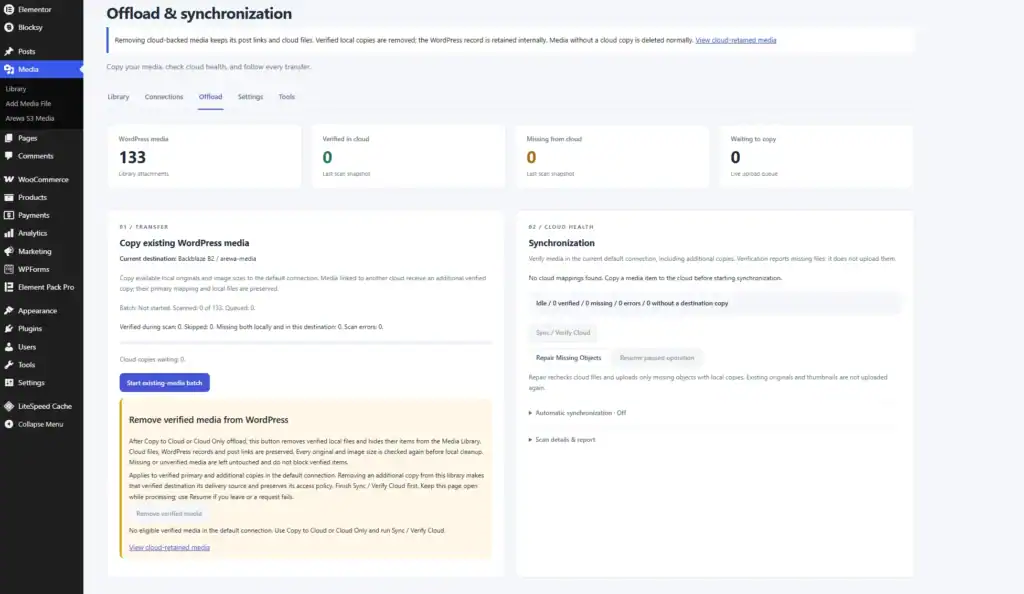
- Connecting a bucket does not automatically migrate your entire existing media library.
- To copy existing media, navigate to:
- Media → Arewa S3 Media → Offload
- The Offload dashboard provides tools for transferring and verifying WordPress media.
Start an Existing-Media Batch
- Locate the section:
- Copy existing WordPress media
- This section displays the current default storage destination.
- For example:
Current destination: Backblaze / my-wordpress-media- Click:
- Start existing-media batch
- Arewa S3 Media Library scans your WordPress attachments and submits eligible files for cloud copying.
- The plugin is designed to preserve the primary mapping between WordPress attachments and their cloud copies.
- Existing original files and generated image sizes are considered during the transfer process.
Monitor the Transfer
The dashboard may display:
- Number of scanned attachments.
- Number of queued files.
- Verified copies.
- Skipped items.
- Missing originals.
- Scan errors.
- Submitting files to the background queue does not mean every file has already finished uploading.
- Wait for the transfer to complete before performing cleanup.
Step 12: Copy WordPress Media to an Additional Cloud
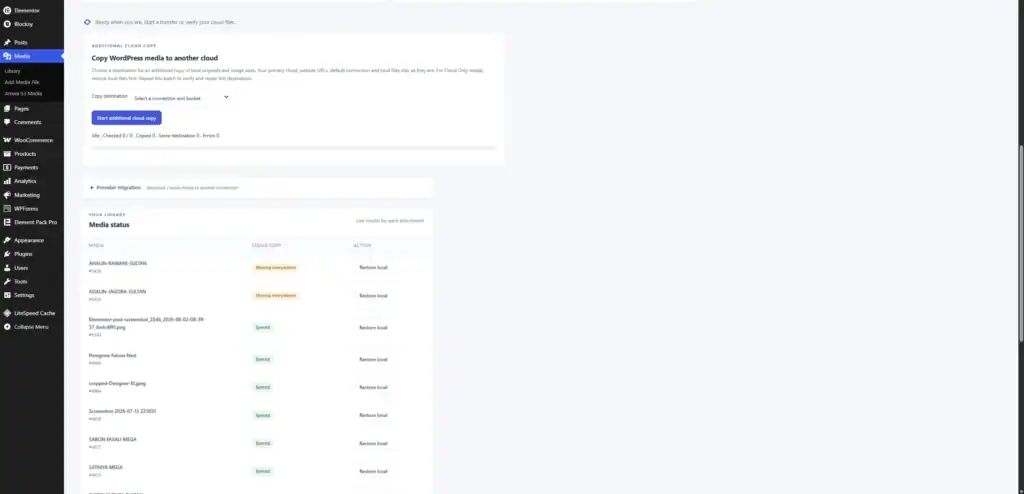
- Arewa S3 Media Library also supports additional cloud copies.
- This is useful if you want to store the same WordPress media in more than one cloud provider.
- For example, you might use Backblaze B2 as your primary storage and another provider as an additional destination.
- In the Offload page, locate:
Copy WordPress media to another cloud
Then:
- Open Copy destination.
- Select the additional cloud connection.
- Click Start additional cloud copy.
- Wait for the transfer to complete.
- Verify the resulting cloud copies.
- This process allows you to create additional copies without necessarily changing the default offload destination.
- Additional copies are useful for redundancy, migrations, and testing different storage providers.
- They should not be treated as a complete backup strategy unless you also maintain suitable versioning, recovery procedures, and independent backups.
Step 13: Synchronize and Verify Cloud Files
- After copying your media, open the Synchronization section of the Offload page.
- Click:
- Sync / Verify Cloud
- The plugin checks the current default cloud connection and reports whether WordPress attachments have corresponding cloud objects.
- The dashboard includes indicators such as:
- Verified in cloud: Files confirmed in cloud storage.
- Missing from cloud: Files whose expected cloud copies were not found.
- Waiting to copy: Files awaiting processing.
- You may also see:
- Repair Missing Objects
- This feature checks for missing cloud files and attempts to upload eligible missing objects when local copies are available.
Review the Media Status
Scroll down to the Media status section.
Each attachment displays its cloud status.
Examples include:
- Synced: A verified cloud copy is available.
- Missing everywhere: The required file could not be found in the checked locations.
You can use the available recovery actions when appropriate.
Do not remove local originals if important files are still missing or unverified.
Step 14: Remove Verified Local Media to Save Hosting Space
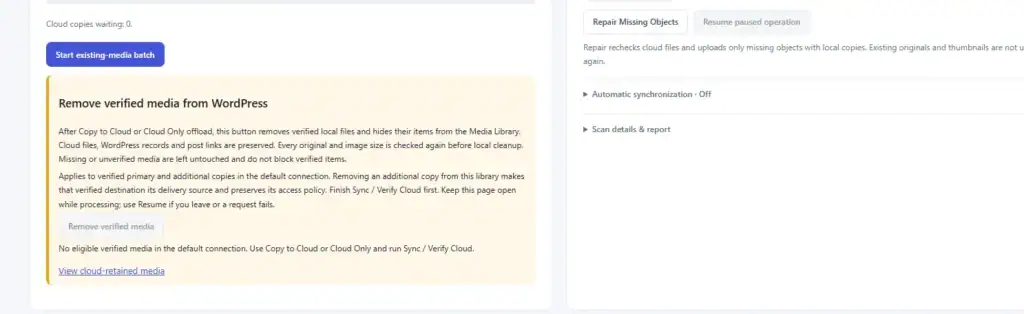
- One of the benefits of cloud offloading is reducing the amount of disk space used by WordPress uploads.
- Arewa S3 Media Library includes:
- Remove verified media
- This feature appears below the existing-media transfer section.
- It is intended for use after cloud copies have been verified.
When Should You Use It?
Use this feature only when you have intentionally selected Cloud Only storage and are ready to remove eligible local copies.
Before proceeding:
- Finish the cloud transfer.
- Run Sync / Verify Cloud.
- Confirm that the required cloud copies are verified.
- Test important images and media URLs.
- Maintain a separate backup of critical content.
- Click Remove verified media.
The plugin checks eligible originals and generated image sizes before local cleanup.
According to its cleanup workflow, WordPress attachment records and post references are preserved internally, while verified local files can be removed.
Missing or unverified media are not eligible for normal verified cleanup.
Warning: Do not use this operation as a substitute for backups. Deleting the only remaining local copy increases your dependence on cloud storage availability and your recovery setup.
Step 15: Understand Private Media URLs
- When you configure private delivery, the media URL shown in WordPress may use a local-looking address.
- For example:
https://example.com/arewa-media/4877/file-name.webp- This is a WordPress delivery URL managed by the plugin.
- It is not necessarily the physical location of the file on your hosting server.
- After authorization, the plugin can redirect the request to a temporary signed Backblaze B2 URL.
- A signed URL may look like this:
https://s3.eu-central-003.backblazeb2.com/my-wordpress-media/path/file-name.webp?X-Amz-Algorithm=AWS4-HMAC-SHA256&...- The signed URL contains authentication parameters, including its creation time, expiration period, and cryptographic signature.
Why Does the Signed URL Expire?
- Temporary signatures limit how long a generated link can be used.
- For example, a URL with an expiration value of 300 seconds is valid for approximately five minutes from its signing time.
- The plugin can generate a fresh signed URL for subsequent authorized requests.
- This allows private media to remain protected at the storage level without exposing your Backblaze API credentials to visitors.
Step 16: Browse Your Backblaze B2 Files Inside WordPress
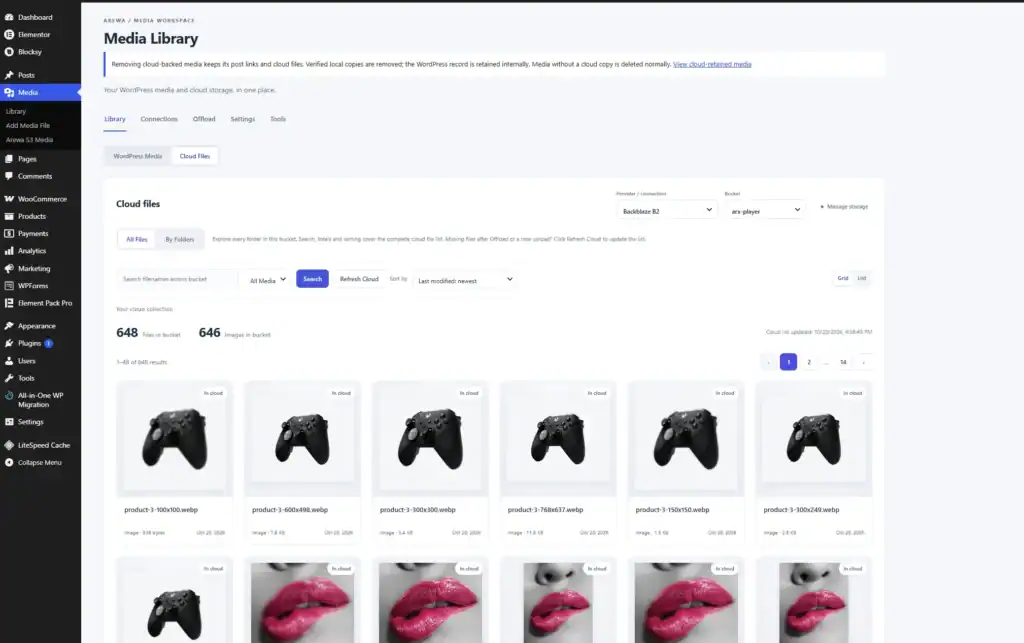
- Arewa S3 Media Library includes a cloud file browser.
- Navigate to:
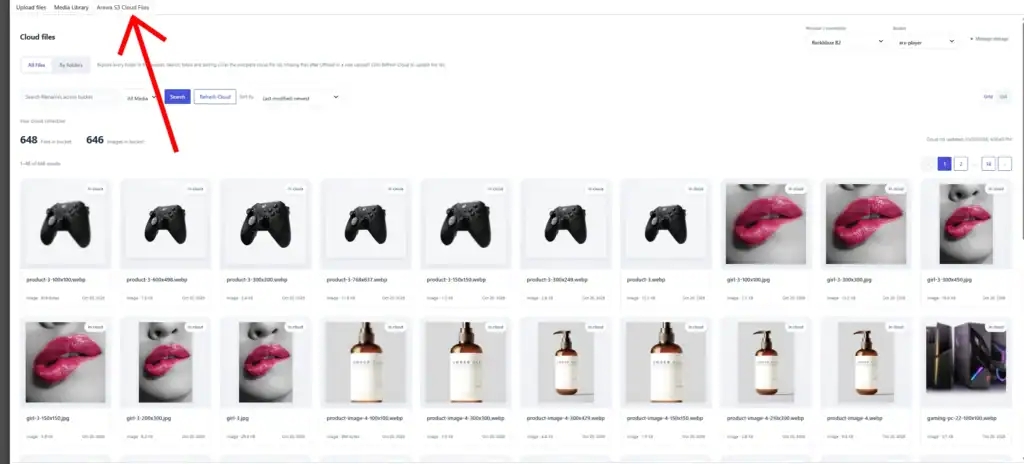
Media → Arewa S3 Media → Library → Cloud Files
This interface allows you to browse cloud objects without leaving WordPress.
Select Your Cloud Provider
Use the Provider / connection dropdown to select:
Backblaze B2- Then select your bucket.
All Files View
Choose All Files to browse the bucket’s files.
The interface supports:
- File thumbnails.
- Filenames and file types.
- File sizes.
- Modification dates.
- Search across the bucket.
- Sorting.
- Grid and list views.
- Pagination.
By Folders View
- Choose By Folders to explore files using their folder-style paths.
- This is useful when your bucket contains thousands of objects organized by year, month, or application-specific directories.
- The cloud library provides a WordPress-style interface for managing and exploring your remote media collection.
Step 17: Configure Cloudflare CDN for Public Backblaze B2 Files
- Cloudflare can help deliver publicly accessible Backblaze B2 media through a custom domain.
- For example:
- Original Backblaze URL:
https://f000.backblazeb2.com/file/my-wordpress-media/example.webp- Custom CDN URL:
https://cdn.example.com/example.webp- The
f000hostname is illustrative. Your actual Backblaze download hostname may be different. - This section covers public media only.
- Private Signed URLs require a separate authenticated delivery configuration.
17.1 Make Your Bucket Public
In the Backblaze dashboard:
- Open B2 Cloud Storage → Buckets.
- Locate the bucket containing public media.
- Open its settings.
- Change its visibility to Public.
- Save the changes.
Only do this for buckets containing files intended for unrestricted public access.
If your bucket contains protected documents or membership content, keep it private and use a separate public bucket for CDN delivery.
17.2 Find Your Backblaze Download Hostname
- Open a publicly accessible file in Backblaze B2.
- Find its friendly download URL.
- Example:
https://f000.backblazeb2.com/file/my-wordpress-media/example.webp- The hostname is:
f000.backblazeb2.com- Use your actual hostname for the next step.
17.3 Create a Cloudflare DNS Record
Sign in to Cloudflare.
Select your domain and open:
DNS → Records → Add record
Configure:
| Field | Value |
|---|---|
| Type | CNAME |
| Name | cdn |
| Target | Your Backblaze download hostname |
| Proxy status | Proxied |
| TTL | Auto |
For example, cdn.example.com can point to f000.backblazeb2.com.
Enable the orange Cloudflare proxy.
Save the record.
17.4 Configure a Cloudflare URL Rewrite Rule
- Backblaze B2’s native public download URLs contain the bucket name and
/file/prefix. - To serve files through shorter URLs, configure a Cloudflare URL Rewrite Rule.
- In Cloudflare, open:
- Rules → Transform Rules → Create Rule
- Choose a URL rewrite rule.
- Set the rule to match requests for:
cdn.example.com- Configure the path rewrite using a dynamic expression:
concat("/file/my-wordpress-media", http.request.uri.path)- Replace
my-wordpress-mediawith your actual bucket name. - For example, Cloudflare transforms:
https://cdn.example.com/example.webp- into an origin request for:
https://f000.backblazeb2.com/file/my-wordpress-media/example.webp- Save and deploy the rule.
- This keeps your public CDN URLs shorter and prevents the CDN hostname from being used as an unrestricted proxy for arbitrary bucket paths.
17.5 Configure SSL/TLS
- In Cloudflare, open:
- SSL/TLS → Overview
- Use Full (Strict) where supported by your origin configuration.
- Backblaze B2 supports secure HTTPS downloads.
- Test your custom domain after the DNS and rewrite settings have propagated.
17.6 Configure Cloudflare Caching
- Cloudflare can cache eligible public media to reduce repeated requests to the origin.
- Open:
- Caching → Cache Rules
- Create a rule for your public CDN hostname if you need custom caching behavior.
- Choose caching settings appropriate to your content.
- For example, public images that rarely change can use longer cache durations.
- Avoid caching protected or user-specific media as publicly accessible CDN content.
- Cloudflare’s standard cache behavior depends on file extensions, origin headers, and applicable cache rules.
17.7 Enter Your CDN Domain in Arewa S3 Media Library
- Return to:
- WordPress → Media → Arewa S3 Media → Connections
- Edit your Backblaze B2 connection.
- Find:
- Public / CDN domain
- Enter the delivery base URL matching your Cloudflare rewrite configuration.
- For the short-path configuration above, the base URL is:
- If you use a CDN configuration that retains
/file/bucket-namein the public URL, include that required path in the plugin’s CDN domain field. - Make sure the URL generated by the plugin matches the path structure expected by Cloudflare.
- Save the connection and test a public image.
- Important: Do not use this public CDN setup as a replacement for the plugin’s private Signed URL delivery system.
Step 18: Cloudflare CDN and Private Signed URLs
- If your Backblaze B2 bucket is private, ordinary public CDN delivery will not work.
- A private file requires an authenticated request to Backblaze.
- Arewa S3 Media Library can generate signed S3-compatible URLs, but those signatures depend on the exact request details, including the hostname used during signing.
- Changing only the hostname of an already-signed URL can invalidate its signature.
- For private CDN delivery, use a compatible authenticated proxy or Cloudflare Worker that securely requests the private object from Backblaze.
- The proxy must preserve authorization requirements and avoid exposing secret application keys.
- For the simplest secure configuration, leave the Public / CDN domain field empty when using the plugin’s default signed delivery, unless you have configured and tested a compatible private CDN.
Step 19: Troubleshooting Common Connection Problems
No Buckets Found After Connecting
- Check that your Backblaze Application Key has the necessary permissions.
- If the key is restricted to a specific bucket, enable Allow List All Bucket Names to support automatic bucket discovery.
- You can also use the plugin’s Advanced / Manual bucket option where appropriate.
Access Denied
- Check that the Application Key has sufficient permissions to read, write, list, and delete objects as required by the operation.
- Also verify that you selected the correct bucket.
Images Are Not Loading
- Check the selected delivery method.
- For Public URL delivery, confirm that the files are publicly accessible through the configured origin or CDN.
- For private delivery, verify that the plugin is generating valid signed URLs and that the visitor has the required WordPress authorization.
Cloud Files Are Missing
- Open the Offload dashboard and run:
- Sync / Verify Cloud
- Review the missing-file report.
- If local copies exist, use Repair Missing Objects where appropriate.
Cloudflare CDN Returns 404
- Verify that your DNS CNAME points to the correct Backblaze download hostname.
- Also check the URL Rewrite Rule and confirm that it uses the correct bucket name.
Signed URLs Stop Working
- Signed URLs expire by design.
- Generate a new URL through the plugin rather than attempting to reuse an expired link.
- Also check that no CDN rule changes the signed URL’s host, path, or query parameters.
Step 20: Final Checklist
Before considering your Backblaze B2 integration complete, verify the following:
- Backblaze B2 bucket created.
- Application Key ID and Application Key generated.
- Arewa S3 Media Library connected successfully.
- Bucket selected and verified.
- Region and endpoint detected.
- Storage mode selected.
- Delivery method configured.
- Default Offload Bucket selected.
- Connection saved.
- Existing media copied, if needed.
- Cloud synchronization completed.
- Media status reviewed.
- Local files removed only when eligible and intended.
- Cloud Files library working.
- Cloudflare CDN tested, if configured.
Conclusion
Connecting Backblaze B2 to WordPress with Arewa S3 Media Library gives you more control over how your website stores, organizes, and delivers media files.
You can keep local copies, offload media to cloud storage, manage additional cloud destinations, browse cloud files directly from WordPress, and use temporary signed URLs for private content.
For public media, Cloudflare CDN provides an additional option for delivering files through your own domain.
Whether you manage a small WordPress blog, a media-heavy website, or a large content library, Arewa S3 Media Library helps bring your WordPress and cloud storage workflows together in one interface.
Get started with Arewa S3 Media Library and connect your WordPress media library to Backblaze B2.

[…] Backblaze B2 […]
[…] Backblaze B2 […]