How to Connect Cloudflare R2 to WordPress with Arewa S3 Media Library
Table of Contents
Cloudflare R2 is an S3-compatible object storage service that allows websites and applications to store images, videos, documents, and other files without the traditional egress bandwidth charges associated with many object storage providers.
If your WordPress website contains thousands of images, videos, PDFs, or other media files, Cloudflare R2 can help you move media storage away from your hosting server.
With Arewa S3 Media Library, you can connect Cloudflare R2 to WordPress, automatically offload new uploads, copy existing media, manage multiple cloud buckets, browse cloud files, and configure public or private delivery.
This complete guide explains how to create a Cloudflare R2 bucket, generate S3 API credentials, find your Account ID, choose the correct R2 jurisdiction, connect your bucket to Arewa S3 Media Library, and configure a custom domain for public media delivery.
1. What You’ll Need
Before starting, make sure you have:
- A WordPress website.
- Arewa S3 Media Library installed and activated.
- A Cloudflare account with R2 access enabled.
- Permission to create R2 buckets and API tokens.
- An optional domain managed through Cloudflare DNS.
You do not need to configure an external CDN service to get started because Cloudflare R2 integrates with Cloudflare’s network.
However, connecting a custom domain is recommended when you want to deliver public media using your own branded URLs.
2. Create a Cloudflare Account
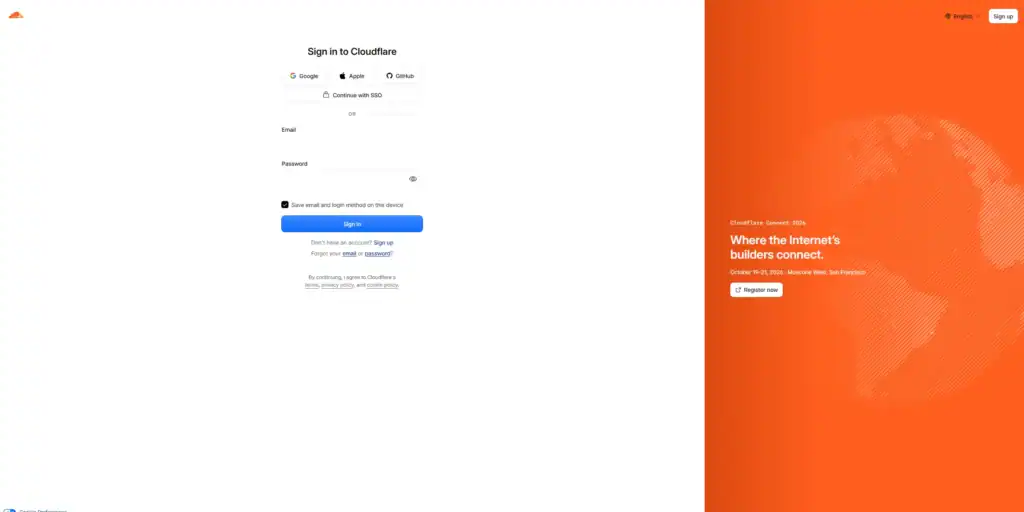
Visit the official Cloudflare Dashboard and sign in.
If you do not have an account, create one and complete any required verification or billing setup for R2.
From your Cloudflare dashboard, navigate to:
R2 Object Storage
Depending on your dashboard version, R2 may appear under Storage & databases.
Open R2 Object Storage to access your buckets and storage settings.
3. Create a Cloudflare R2 Bucket
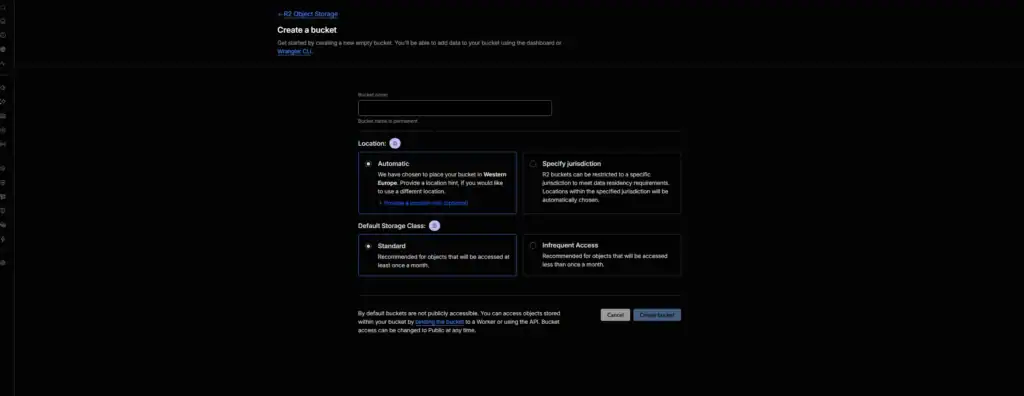
From the R2 dashboard:
- Click Create bucket.
- Enter a unique bucket name.
- Choose the appropriate location or jurisdiction settings.
- Review the configuration.
- Click Create bucket.
Example bucket name:
wordpress-media
Cloudflare R2 bucket names are used by the S3-compatible API to identify the storage destination.
Bucket Location and Jurisdiction
- Cloudflare R2 supports location-related controls, including jurisdiction restrictions.
- The location settings available during bucket creation may depend on your account and the R2 features supported in your environment.
- A location hint is not the same as a jurisdiction restriction.
- For example, choosing a location hint does not necessarily mean your bucket belongs to the EU jurisdiction.
- If you require a particular jurisdiction, select the appropriate jurisdiction setting when creating the bucket.
4. Understand Cloudflare R2 Jurisdictions
Arewa S3 Media Library supports four R2 jurisdiction options:
| Jurisdiction | Description |
|---|---|
| Default | Standard R2 bucket endpoint |
| EU jurisdiction | European Union jurisdiction-restricted R2 buckets |
| US jurisdiction | United States jurisdiction-restricted R2 buckets |
| FedRAMP jurisdiction | FedRAMP-specific R2 environment, where available |
Default
- Choose Default for ordinary Cloudflare R2 buckets that do not use a special jurisdiction-restricted endpoint.
- This is the standard option for many websites.
EU Jurisdiction
- Choose EU jurisdiction when your R2 bucket was created within Cloudflare’s EU jurisdiction.
- This option is intended for buckets that use EU jurisdiction restrictions.
US Jurisdiction
Choose US jurisdiction when your R2 bucket uses the US jurisdiction.
FedRAMP Jurisdiction
- Choose FedRAMP jurisdiction only when your bucket belongs to the corresponding Cloudflare environment and your account has access to it.
- Important: The jurisdiction selected in Arewa S3 Media Library must match the actual jurisdiction of your R2 bucket.
- Choosing the wrong jurisdiction may prevent bucket discovery or cause connection errors.
5. Find Your Cloudflare Account ID
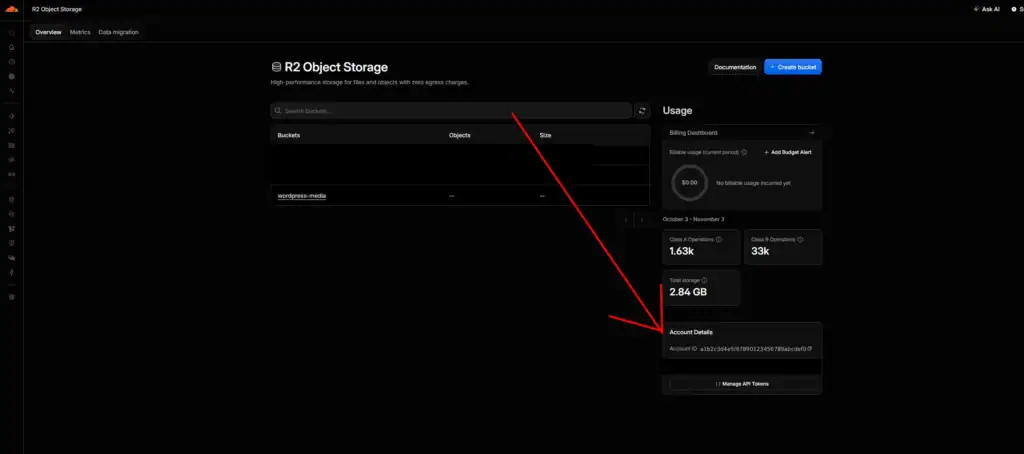
- Unlike Backblaze B2, Cloudflare R2 requires an additional identifier:
- Account ID
- This identifies the Cloudflare account associated with your R2 storage.
How to Find Your Account ID
- Open the Cloudflare dashboard.
- Navigate to R2 Object Storage.
- Open the R2 overview or API information.
- Locate your Account ID.
- Copy the value.
- A Cloudflare Account ID is a 32-character hexadecimal identifier.
- Example format:
a1b2c3d4e5f67890123456789abcdef0- This is an illustrative value, not a real account credential.
- Keep the Account ID available because you will enter it in Arewa S3 Media Library.
6. Generate Cloudflare R2 API Credentials
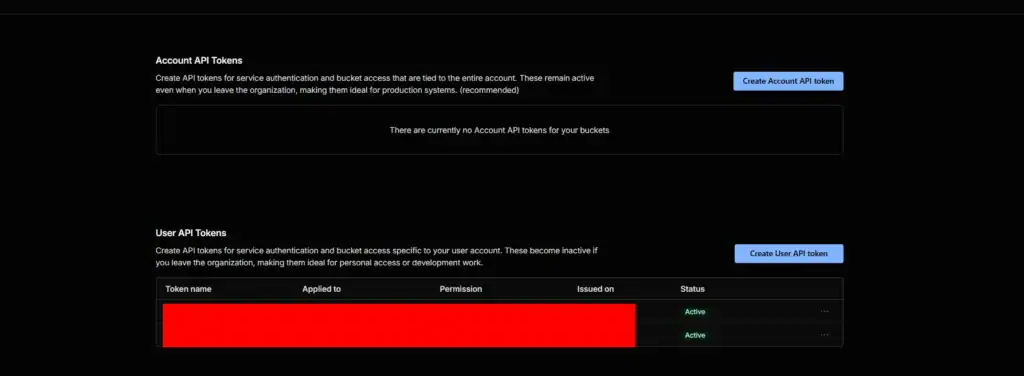
- To connect Arewa S3 Media Library to R2, you need S3-compatible API credentials.
- Cloudflare provides these credentials through R2 API token creation.
Create an R2 API Token
- Open R2 Object Storage.
- Find Manage R2 API Tokens or the equivalent API token management section.
- Click Create API token.
- Enter a descriptive token name.
Example:
Arewa-S3-Media-Library
Select Permissions
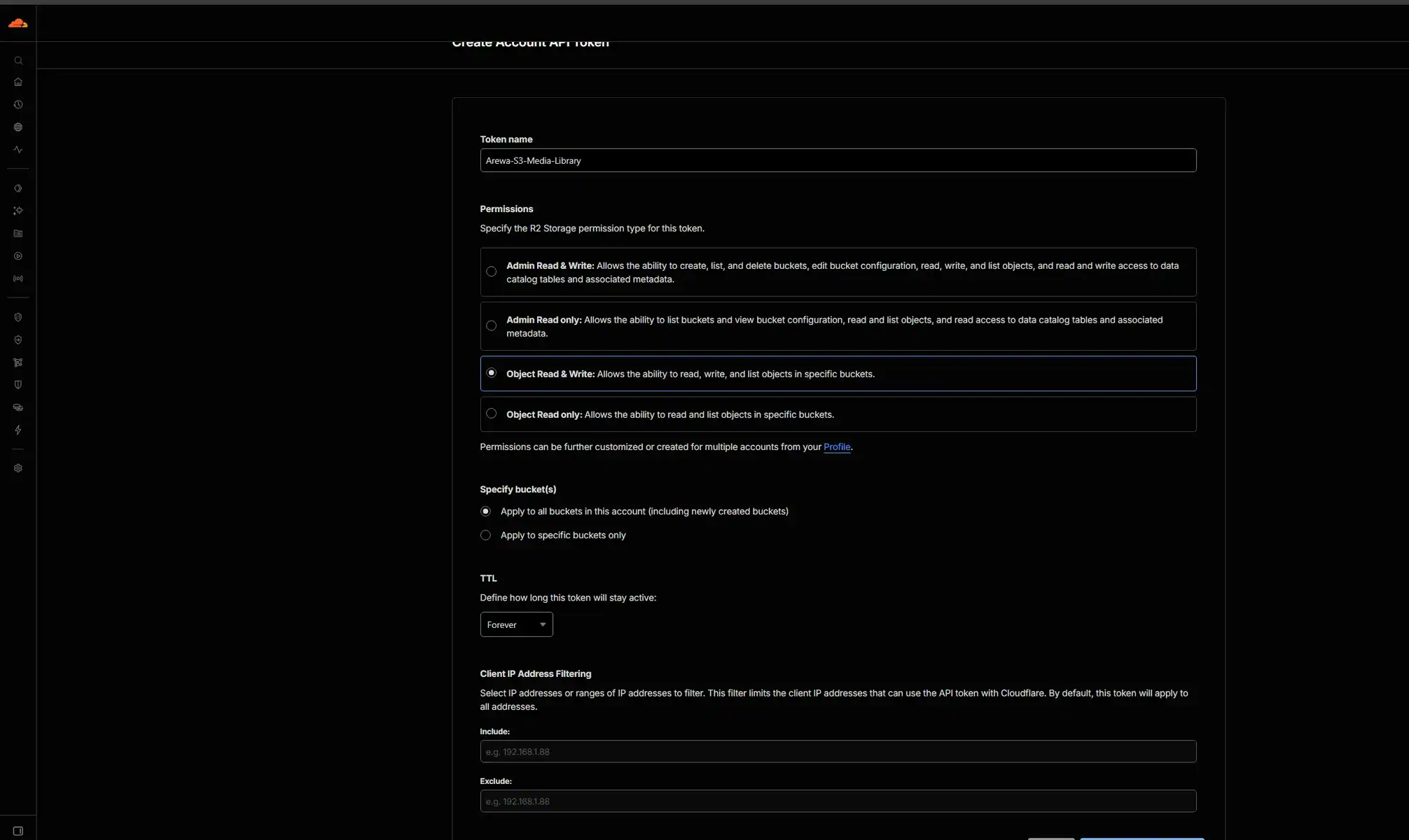
- For complete media-management functionality, choose permissions that allow reading and writing R2 objects.
- A suitable permission level is:
- Object Read & Write
- Use the narrowest available scope that supports your required plugin features.
- Where possible, restrict the token to the buckets you intend to connect.
Create the Token
After reviewing the settings, create the API token.
Cloudflare displays S3-compatible credentials, including:
- Access Key ID
- Secret Access Key
Copy both values securely.
The Secret Access Key may not be shown again after leaving the credentials screen.
Important: Use the S3-compatible Access Key ID and Secret Access Key generated for R2. Do not substitute a general Cloudflare API token string or Global API Key.
7. Open Arewa S3 Media Library in WordPress
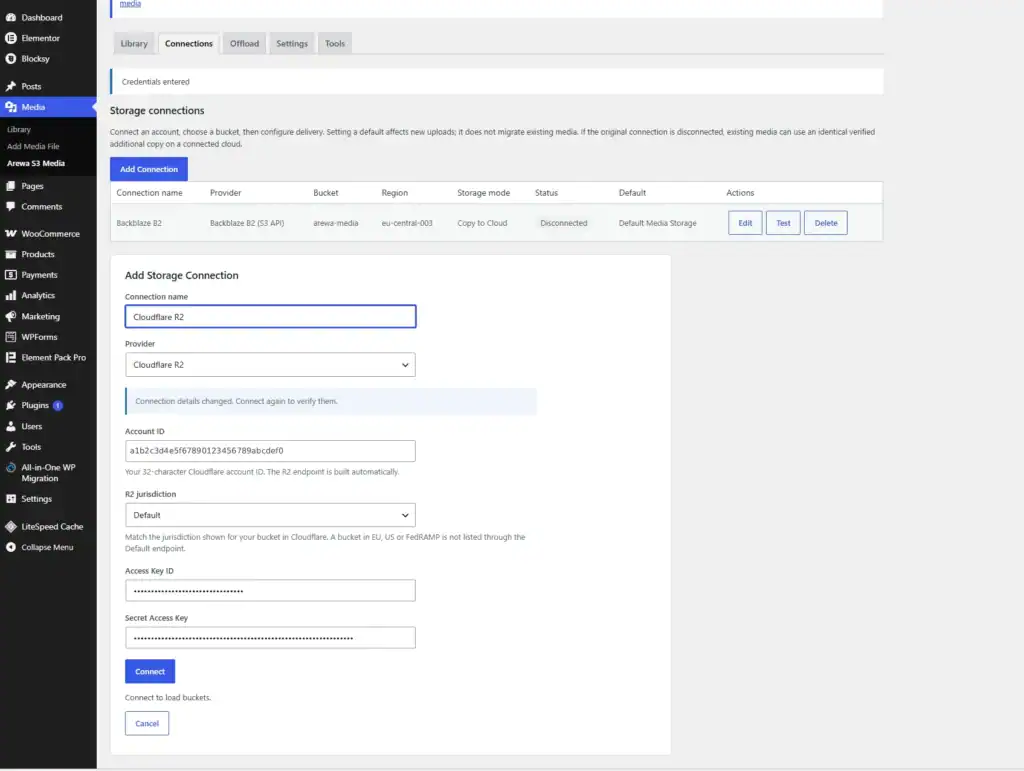
Sign in to your WordPress administration dashboard.
Navigate to:
Media → Arewa S3 Media → Connections
Click:
Add Connection
The plugin opens the Add Storage Connection form.
Enter a Connection Name
In the Connection name field, enter a descriptive name.
Example:
Cloudflare R2
You can create multiple connections if you use several R2 accounts or storage destinations.
Select Cloudflare R2
Open the Provider dropdown.
Choose:
Cloudflare R2
The plugin displays the fields required for this provider.
8. Connect Cloudflare R2 to WordPress
Complete the connection form.
| Field | Value |
|---|---|
| Connection name | Cloudflare R2 |
| Provider | Cloudflare R2 |
| Account ID | Your 32-character Cloudflare Account ID |
| R2 jurisdiction | Default, EU, US, or FedRAMP |
| Access Key ID | Your R2 S3 Access Key ID |
| Secret Access Key | Your R2 S3 Secret Access Key |
Account ID
- Paste the Account ID copied from your Cloudflare dashboard.
- Arewa S3 Media Library uses this identifier to construct the R2 endpoint.
R2 Jurisdiction
- Select the jurisdiction corresponding to your bucket.
- For most ordinary R2 buckets, choose:
Default
If your bucket uses an EU, US, or FedRAMP jurisdiction-restricted environment, choose the matching option.
API Credentials
- Paste your Access Key ID and Secret Access Key.
- Make sure you are using the credentials generated for R2’s S3-compatible API.
Connect
- After entering all required information, click:
- Connect
- Arewa S3 Media Library attempts to authenticate with Cloudflare R2 and discover the accessible buckets.
- For security, the plugin may clear the visible API credential fields after a successful connection.
- This is expected behavior.
9. Automatic Endpoint and Region Configuration
One of the advantages of the Cloudflare R2 connection in Arewa S3 Media Library is that you do not need to manually enter the endpoint or region.
The plugin automatically constructs the appropriate R2 endpoint using:
- Your Cloudflare Account ID.
- Your selected R2 jurisdiction.
For a standard R2 account, the S3-compatible endpoint follows this format:
Replace ACCOUNT_ID with your actual Cloudflare Account ID.
Cloudflare R2 commonly uses the S3 region value:
auto
For jurisdiction-restricted buckets, the plugin uses the corresponding jurisdiction-aware configuration.
Important: The region value auto is used for S3 API compatibility. It does not mean Cloudflare automatically moves a bucket between jurisdictions.
10. Select and Verify Your R2 Bucket
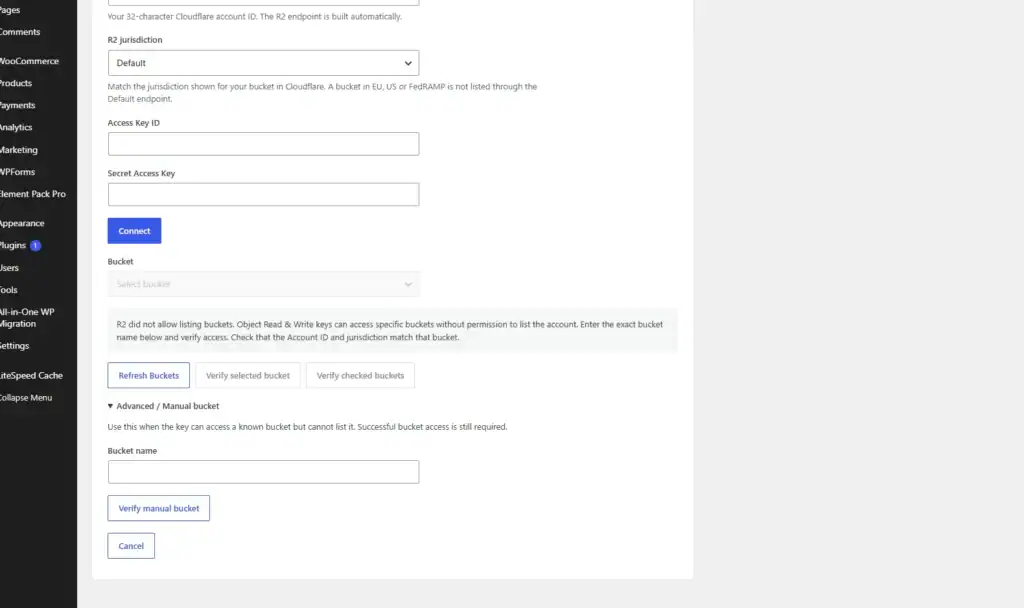
After connecting successfully, The plugin requires adding the bucket manually. R2 buckets Name.
Verify manual bucket
- Enter the name of the bucket you want to use.
- Press Verify manual bucket.
- Click Verify selected bucket.
- Wait for verification.
Example bucket:
wordpress-media
What If Your Bucket Does Not Appear?
Check that:
- Your Account ID is correct.
- The R2 API credentials are valid.
- The token has access to the bucket.
- The selected jurisdiction matches the bucket.
- The token has the necessary bucket-listing permissions.
If the token is restricted to specific buckets, automatic discovery may be limited.
Use the plugin’s manual bucket option when appropriate.
11. Configure Your Storage Mode
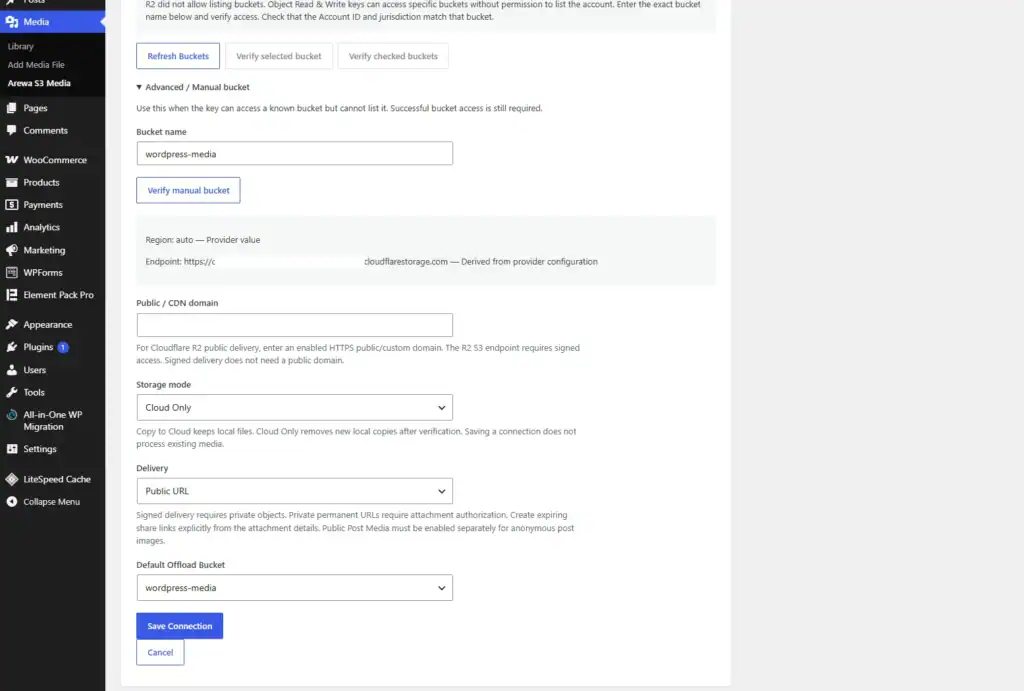
After verifying the bucket, configure how WordPress should handle uploaded files.
Arewa S3 Media Library supports three storage modes.
Local
- Files remain on your WordPress hosting server.
- New uploads are not automatically copied to R2.
- This option maintains traditional WordPress media storage behavior.
Copy to Cloud
- The plugin copies uploaded media to Cloudflare R2 while preserving the original files on your hosting server.
- This option is useful when you want to maintain local originals and additional cloud copies.
Cloud Only
- Cloud Only is intended for websites that want to use cloud storage as their primary media destination.
- The plugin uploads media to R2 while initially preserving local copies for verification.
- After successful verification, eligible local files can be removed using the plugin’s cleanup feature.
- Important: Cloud Only does not mean that all local files are deleted immediately after upload.
Always verify cloud copies before performing cleanup.
Storage Mode Comparison
| Feature | Local | Copy to Cloud | Cloud Only |
|---|---|---|---|
| Keep local originals initially | Yes | Yes | Yes |
| Automatically copy new media to R2 | No | Yes | Yes |
| Maintain a cloud copy | No | Yes | Yes |
| Intended for verified local cleanup | No | No | Yes |
12. Configure Media Delivery
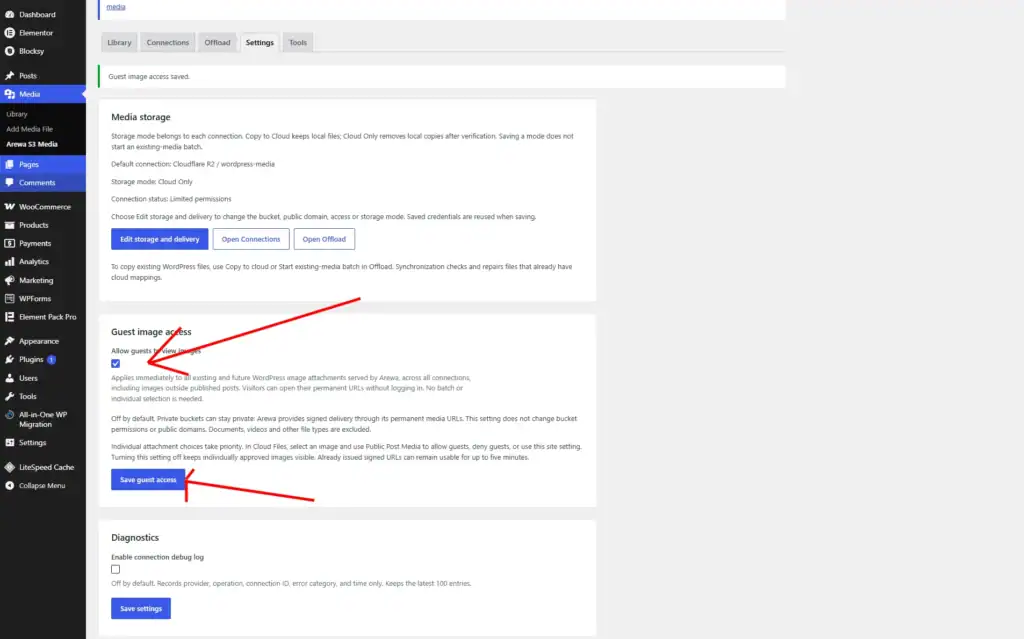
Very important: If you want to use Arewa S3 Media Library with a Public URL / Public Bucket or CDN domain. The plugin requires a public/CDN domain and cannot connect to the R2 S3 API endpoint: The R2 S3 API endpoint does not serve public media. And if you use Signed URL for authorized users and want visiting users to see the images or file, you must go to plugin settings, check the box “Allow guests to view images” and click Save guest access
Configure a Custom Domain for Cloudflare R2
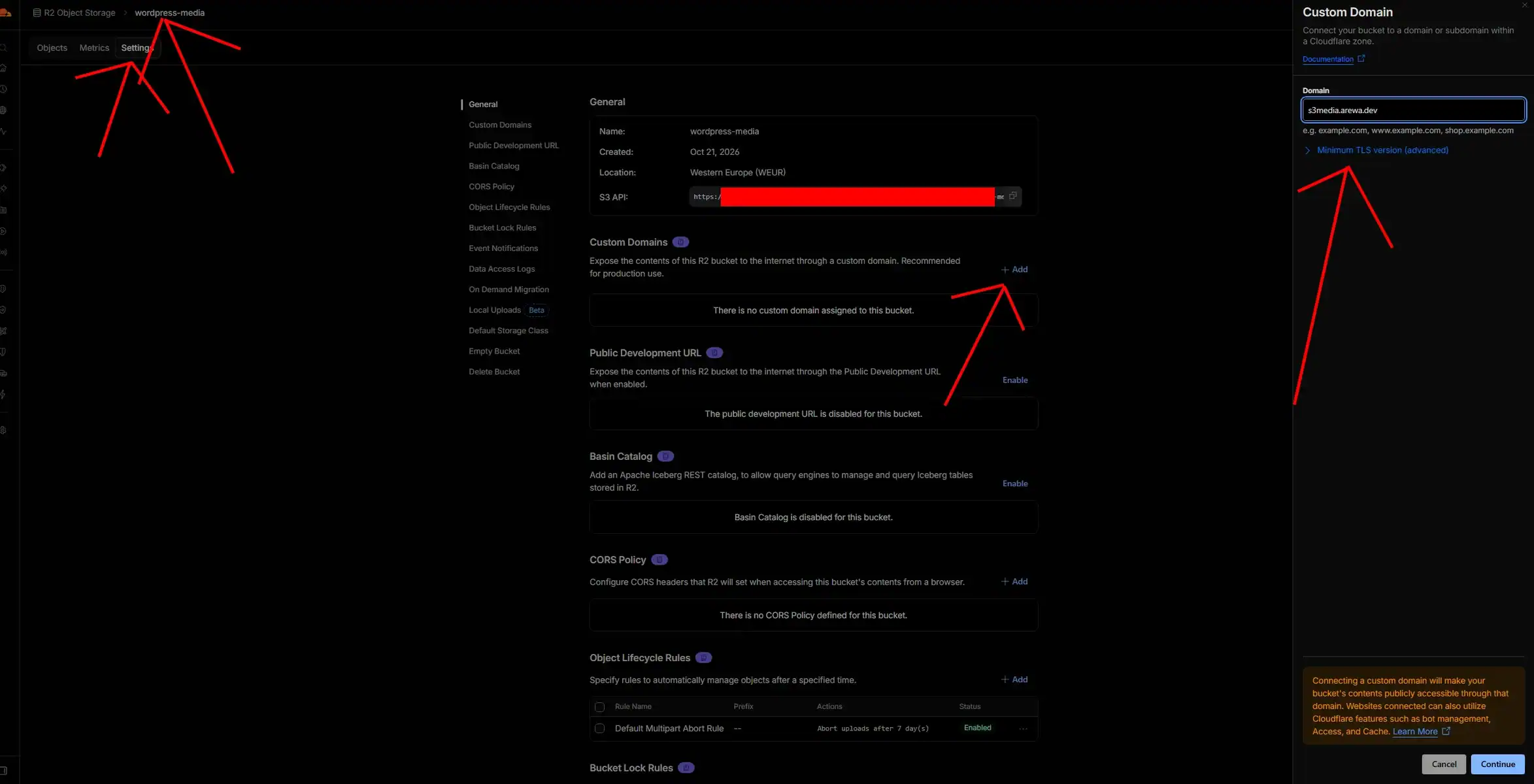
- One of Cloudflare R2’s useful features is the ability to connect a custom domain directly to a bucket.
- For example, you can serve public media using:
instead of a temporary development URL.
Open Your R2 Bucket
Sign in to the Cloudflare dashboard.
Navigate to:
R2 Object Storage → Your Bucket → Settings
Find the section for:
Custom Domains or Public Development URL
The exact layout may vary depending on your Cloudflare dashboard version.
Add a Custom Domain
Under Custom Domains, click: Add.
Enter the hostname you want to use.
Example:
media.example.com
The domain must be managed in a compatible Cloudflare zone.
Cloudflare will guide you through connecting the hostname to the bucket.
Configure DNS
When the domain is managed through Cloudflare, the R2 custom-domain workflow can create or manage the required DNS configuration.
Follow the instructions displayed in the dashboard.
Avoid creating conflicting DNS records manually.
If a record already exists for the hostname, you may need to remove or modify it before completing the connection.
Enable Public Access
- A custom domain provides public access to objects in the connected bucket.
- Therefore, only use it for files intended to be publicly accessible.
- If your bucket contains private or membership-protected media, do not expose it through a public custom domain.
- Instead, use a separate public bucket or a compatible authenticated delivery system.
Test Your Custom Domain
Upload a test image to your R2 bucket.
For example:
example.webp
Then open:
https://media.example.com/example.webp
If the custom domain is active and the object is publicly accessible, the image should load.
You can now use this hostname for public WordPress media delivery.
13. Configure the R2 Domain in Arewa S3 Media Library
Return to your WordPress dashboard.
Navigate to:
Media → Arewa S3 Media → Connections
Find your Cloudflare R2 connection and click:
Edit
Locate:
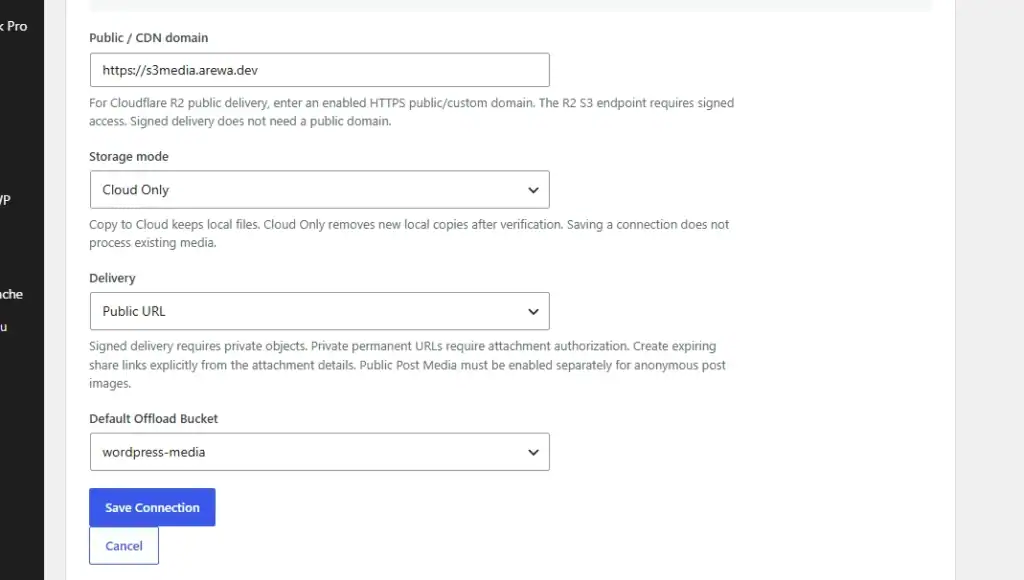
Public / CDN domain
Enter your connected R2 custom domain.
Example:
Save the connection.
When using Public URL delivery, the plugin can use the configured public domain as the base URL for cloud media.
Make sure the resulting object paths match the files stored in R2.
Example
R2 object key:
2026/10/example.webp
Public media URL:
https://media.example.com/2026/10/example.webp
The actual key structure may differ depending on how the plugin organizes files in the bucket.
14. Cloudflare R2 and Private Signed URLs
Cloudflare R2 supports S3-compatible presigned URLs for private object access.
However, there is an important limitation:
An R2 S3 presigned URL is not automatically compatible with an R2 public custom domain.
- S3 signatures depend on request details, including the hostname.
- For example, a URL signed for an R2 S3 API endpoint cannot simply be converted into a valid signed URL by replacing the hostname with
media.example.com. - For private media delivery, use the plugin’s supported signed endpoint or implement a compatible authenticated proxy.
Signed URL for Anyone With the Link
- This mode allows temporary access to a private object using a valid signed URL.
Signed URL for Authorized Users
And if you use Signed URL for authorized users and you want guests users to view the images or file, you must go to plugin settings, check the box “Allow guests to view images” and click Save guest access
- This mode adds WordPress-side authorization before providing access to the private object.
- For protected membership content, use private R2 storage and verify the authorization workflow.
- Do not enable public bucket delivery for files that should remain protected.
15. Select the Default Offload Bucket
Under:
Default Offload Bucket
Select the R2 bucket that should receive new WordPress uploads.
Example:
wordpress-media
If you have multiple connected cloud providers, the default destination determines where new media is automatically offloaded.
Changing the default does not automatically migrate previously uploaded media.
Click:
Save Connection
Your Cloudflare R2 connection is now configured.
Copy Existing WordPress Media to Cloudflare R2
If your WordPress website already contains media files, you can copy them to Cloudflare R2.
Navigate to:
Media → Arewa S3 Media → Offload
Find:
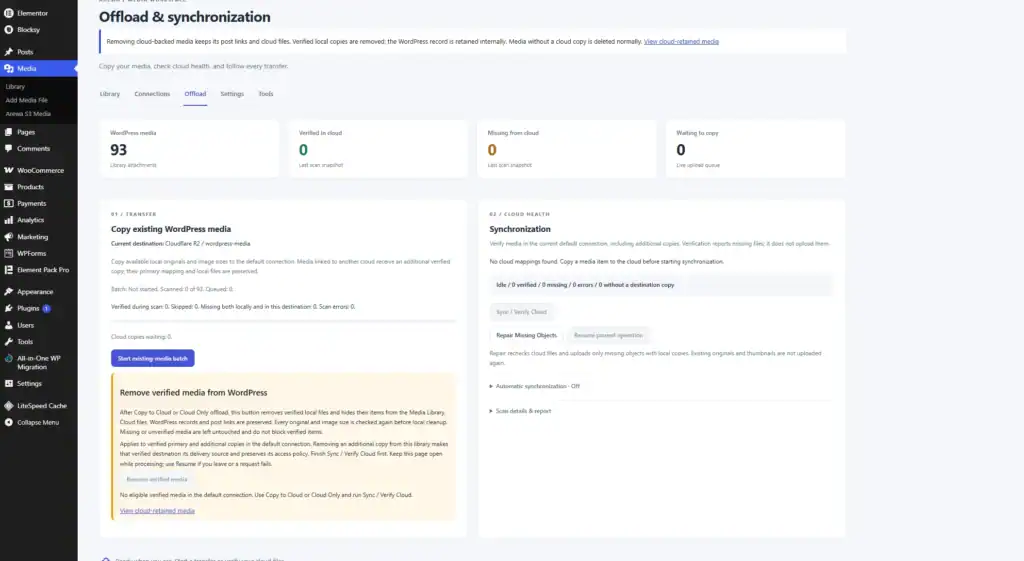
Copy existing WordPress media
Click:
Start existing-media batch
The plugin scans existing WordPress attachments and submits eligible media for background copying.
What Happens During Offloading?
The plugin processes eligible original media files and generated image sizes according to its transfer workflow.
The Offload dashboard may display:
- Scanned attachments.
- Queued files.
- Verified cloud copies.
- Skipped files.
- Missing originals.
- Scan errors.
Wait until background processing is complete before performing cleanup.
Important: The existing-media batch uses the current default storage connection.
16. Copy Media to an Additional Cloud Provider
Arewa S3 Media Library supports multiple cloud storage connections.
For example, you could use Cloudflare R2 as your default destination and Backblaze B2 or IDrive e2 as an additional storage provider.
In the Offload page, locate:
Copy WordPress media to another cloud
Then:
- Open Copy destination.
- Select the additional cloud connection.
- Click Start additional cloud copy.
- Wait for the transfer.
- Verify the additional cloud copies.
This allows you to maintain media across multiple cloud providers.
Additional cloud copies can support redundancy and migration workflows, but they do not replace an independent backup strategy.
17. Synchronize and Verify R2 Media
After copying your files, open the Synchronization section of the Offload dashboard.
Click:
Sync / Verify Cloud
The plugin checks whether the expected cloud objects are available.
You may see:
Verified in cloud
The number of verified cloud copies.
Missing from cloud
Files whose expected cloud copies could not be found.
Waiting to copy
Files awaiting transfer processing.
Repair Missing Objects
If missing cloud objects are detected, use:
Repair Missing Objects
The plugin checks eligible missing objects and attempts to upload them when suitable local copies are available.
Review Media Status
Scroll down to:
Media status
Each attachment displays its cloud-copy status.
Examples include:
Synced: The expected cloud copy is verified.
Missing everywhere: The required file was not found in the checked locations.
Resolve missing or unverified files before removing local originals.
18. Remove Verified Local Media to Save Hosting Space
If you selected Cloud Only, you can reduce hosting disk usage after verifying your cloud copies.
In the Offload page, find:
Remove verified media
Before using this feature:
- Finish the cloud transfer.
- Run Sync / Verify Cloud.
- Confirm that the required files are verified.
- Test important media URLs.
- Maintain an independent backup.
- Click Remove verified media.
The plugin checks eligible original files and generated image sizes before cleanup.
According to its cloud-retention workflow, WordPress attachment records and post references are preserved internally while eligible verified local files are removed.
Do not use this feature when you intend to keep local originals as part of your storage strategy.
19. Browse Cloudflare R2 Files Inside WordPress
Arewa S3 Media Library includes a cloud file browser.
Navigate to:
Media → Arewa S3 Media → Library → Cloud Files
Choose:
Provider / connection: Cloudflare R2
Then select the desired bucket.
All Files
The All Files view provides a WordPress-style cloud media browser.
You can browse:
- File thumbnails.
- Filenames.
- File types.
- File sizes.
- Modification dates.
You can also search, sort, and navigate through the bucket using pagination.
By Folders
Select By Folders to browse the bucket according to its folder-style object paths.
This is particularly useful when your R2 bucket contains thousands of files.
You can manage and explore your cloud collection without switching between WordPress and Cloudflare.
20. Troubleshooting Common Cloudflare R2 Problems
Invalid Account ID
Check that you entered the correct 32-character Cloudflare Account ID.
Do not enter your domain’s Zone ID instead.
Connection Failed
Verify:
- Account ID.
- R2 jurisdiction.
- Access Key ID.
- Secret Access Key.
- Token permissions.
No Buckets Found
Check whether the R2 API token can access and list the required buckets.
Also verify that the selected jurisdiction matches the bucket.
Access Denied
Confirm that your API token has the required permissions for the operation.
For uploads and deletion, read-only credentials are insufficient.
Images Return 403 Forbidden
Check whether you are using public or private delivery.
Public URLs require a working public endpoint.
Private files require valid authorized or signed requests.
Custom Domain Does Not Work
Check that the custom domain is connected to the correct R2 bucket and that its status is active.
Verify the hostname and the object key.
Signed URLs Fail on the Custom Domain
Do not replace the S3 API hostname in an already-signed URL.
Use the original signed endpoint or a compatible authenticated proxy.
Media Is Missing from R2
Open the Offload dashboard.
Run:
Sync / Verify Cloud
Then review the missing-file report and use Repair Missing Objects when appropriate.
21. Cloudflare R2 vs. Backblaze B2 vs. IDrive e2
All three providers offer S3-compatible storage, but their connection workflows differ in Arewa S3 Media Library.
| Feature | Cloudflare R2 | Backblaze B2 | IDrive e2 |
|---|---|---|---|
| S3-compatible API | Yes | Yes | Yes |
| Account ID required | Yes | No | No |
| Manual endpoint entry | No | No | Yes |
| Manual region entry | No | No | Yes |
| Jurisdiction selector | Yes | No | No |
| Automatic bucket discovery | Supported | Supported | Supported |
| Cloud offloading | Supported | Supported | Supported |
| Private signed URLs | Supported | Supported | Supported |
| Custom domain | R2 bucket settings | CDN/DNS setup | Region-level CNAME setup |
These differences refer to the provider-specific connection workflows in Arewa S3 Media Library.
22. Final Setup Checklist
Before completing your Cloudflare R2 integration, confirm:
- Cloudflare R2 account enabled.
- R2 bucket created.
- Account ID copied.
- R2 API token created.
- Access Key ID and Secret Access Key saved.
- Correct jurisdiction selected.
- Cloudflare R2 connected to Arewa S3 Media Library.
- Bucket discovered and verified.
- Storage mode configured.
- Delivery method selected.
- Default Offload Bucket selected.
- Connection saved.
- Existing media copied, if needed.
- Cloud verification completed.
- Media status reviewed.
- Verified local cleanup performed only when intended.
- Cloud Files library tested.
- Custom domain tested, if enabled.
Conclusion
Cloudflare R2 provides an S3-compatible storage option for WordPress websites that need flexible media storage and delivery.
With Arewa S3 Media Library, you can connect R2 using your Account ID and S3 credentials, automatically discover buckets, offload WordPress uploads, copy existing media, manage additional cloud destinations, and browse cloud files directly from WordPress.
The plugin also supports public and private media delivery workflows, allowing you to choose the configuration that fits your website.
Whether you’re managing a WordPress blog, a content platform, or a large media library, Arewa S3 Media Library helps you organize and manage cloud storage from one interface.
