How to Connect Google Cloud Storage to WordPress with Arewa S3 Media Library
Table of Contents
Google Cloud Storage (GCS) is an object storage service from Google Cloud that allows websites to store images, videos, PDFs, and other files in cloud buckets.
With Arewa S3 Media Library, WordPress users can connect Google Cloud Storage through its S3-compatible interoperability interface, upload media to GCS, copy existing WordPress files, verify cloud objects, and manage their media library from one dashboard.
Unlike some S3-compatible storage providers, Google Cloud Storage requires a specific authentication setup.
You need a Google Cloud project, a storage bucket, a service account with appropriate permissions, and an HMAC access key.
This guide explains each step, including how to configure private storage, generate HMAC credentials, connect your bucket to WordPress, and use a custom domain for public media.
Step 1: Create a Google Cloud Project
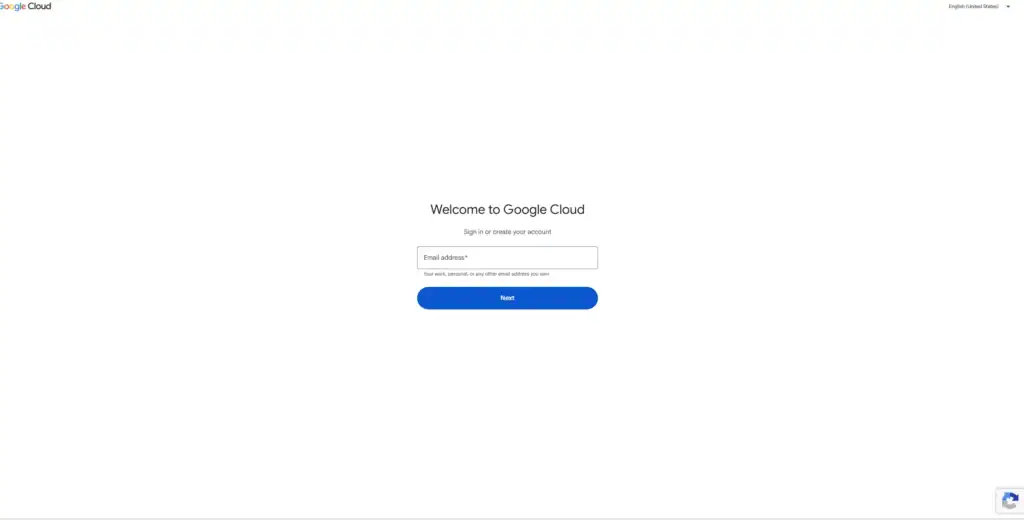
First, open the Google Cloud Console.
Sign in with your Google account.
If you are using Google Cloud for the first time, complete any required account and billing setup.
Create a Project
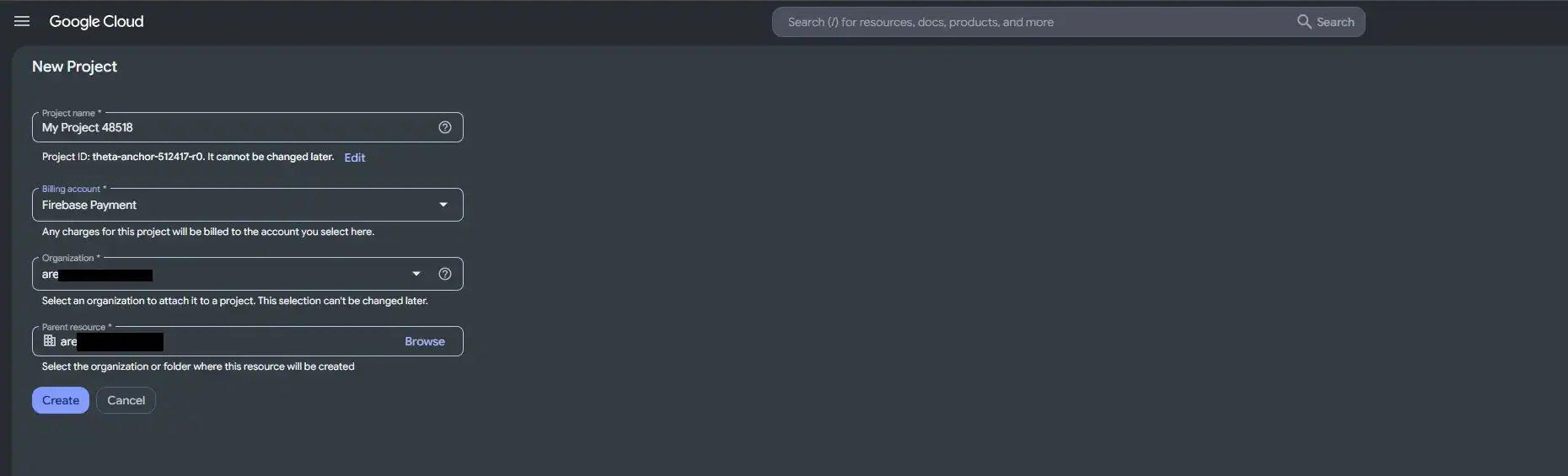
- Click the project selector at the top of the Google Cloud Console.
- Select New Project.
- Enter a project name, such as
WordPress Media Storage. - Select your organization or location if applicable.
- Click Create.
Google Cloud creates a project with a unique Project ID.
For example:
wordpress-media-2026
Find Your Project ID
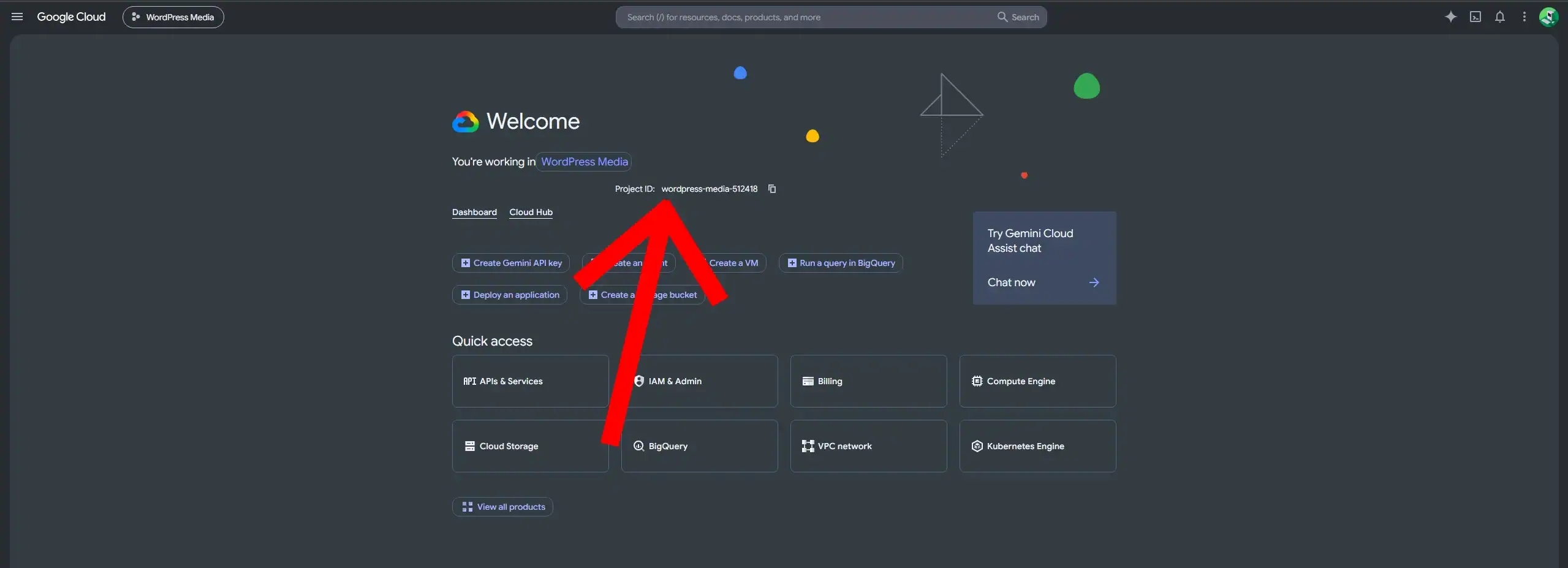
Open:
Google Cloud Console → IAM & Admin → Settings
Alternatively, open the project dashboard.
Copy the value labeled Project ID.
Do not confuse these three identifiers:
| Identifier | Example | Purpose |
|---|---|---|
| Project name | WordPress Media Storage | Human-readable project name |
| Project ID | wordpress-media-2026 | Identifies your Google Cloud project |
| Project number | 123456789012 | Numeric project identifier |
Arewa S3 Media Library requires the Project ID, not the project name.
Keep this value for the WordPress connection.
Step 2: Create a Google Cloud Storage Bucket
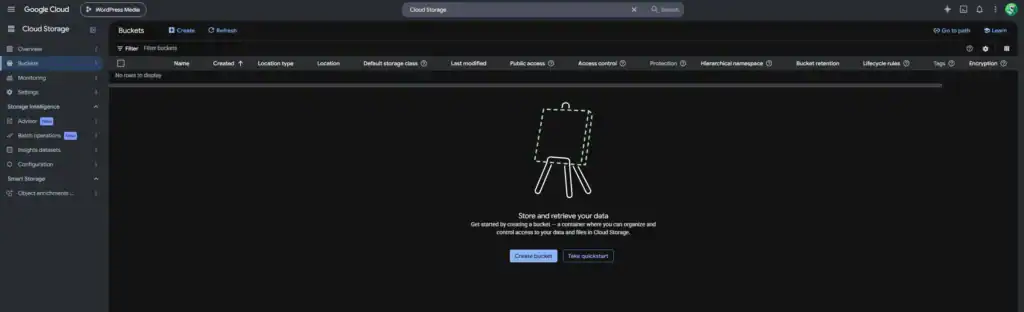
In the Google Cloud Console, open:
Click Create.
Choose a Bucket Name
Enter a unique bucket name.
Example:
mywebsite-media-2026
Bucket names must meet Google Cloud Storage naming requirements and cannot conflict with names already in use.
You will enter this exact bucket name in Arewa S3 Media Library.
Do not include gs://, https://, or a folder path.
Choose the Bucket Location
Google Cloud Storage offers different location types.
Region: Stores data in a selected geographical region.
Dual-region: Uses a supported pair of regions.
Multi-region: Uses a broader geographical location.
For example, you may choose an EU multi-region or a European regional location, depending on your requirements.
Location selection affects pricing, data placement, and potentially latency.
Choose a location based on your visitors, compliance requirements, and expected storage costs.
Select a Storage Class
Google Cloud offers storage classes such as:
- Standard
- Nearline
- Coldline
- Archive
For WordPress images and other frequently accessed media, Standard is usually the most appropriate starting point.
Nearline, Coldline, and Archive are designed for less frequently accessed data and have different minimum storage duration and retrieval pricing characteristics.
Configure Access Control
For a modern WordPress integration, select:
Uniform bucket-level access
This means object permissions are controlled through IAM instead of individual object ACLs.
Uniform access works well with service accounts and bucket-level permissions.
Configure Public Access Prevention
If your website will use private media or signed URLs, keep public access prevention enabled.
This helps prevent anonymous access to objects.
If you intend to make an entire dedicated bucket publicly readable, you will need an access configuration that permits public access.
Do not make a bucket public if it contains private documents, protected videos, or membership-only content.
Configure Data Protection
For a basic media bucket, review the following settings:
Soft delete: Retains deleted objects temporarily according to the configured policy. Disabling it can reduce related storage charges, but removes that recovery protection.
Object versioning: Retains previous object versions when enabled.
Retention policies: Can prevent deletion or modification for a specified period.
Choose these settings according to your backup and recovery requirements.
Create the Bucket
- Review the configuration.
- Click:
- Create
- Your Google Cloud Storage bucket is ready.
- However, WordPress still needs permission to access it.
Step 3: Create a Google Cloud Service Account
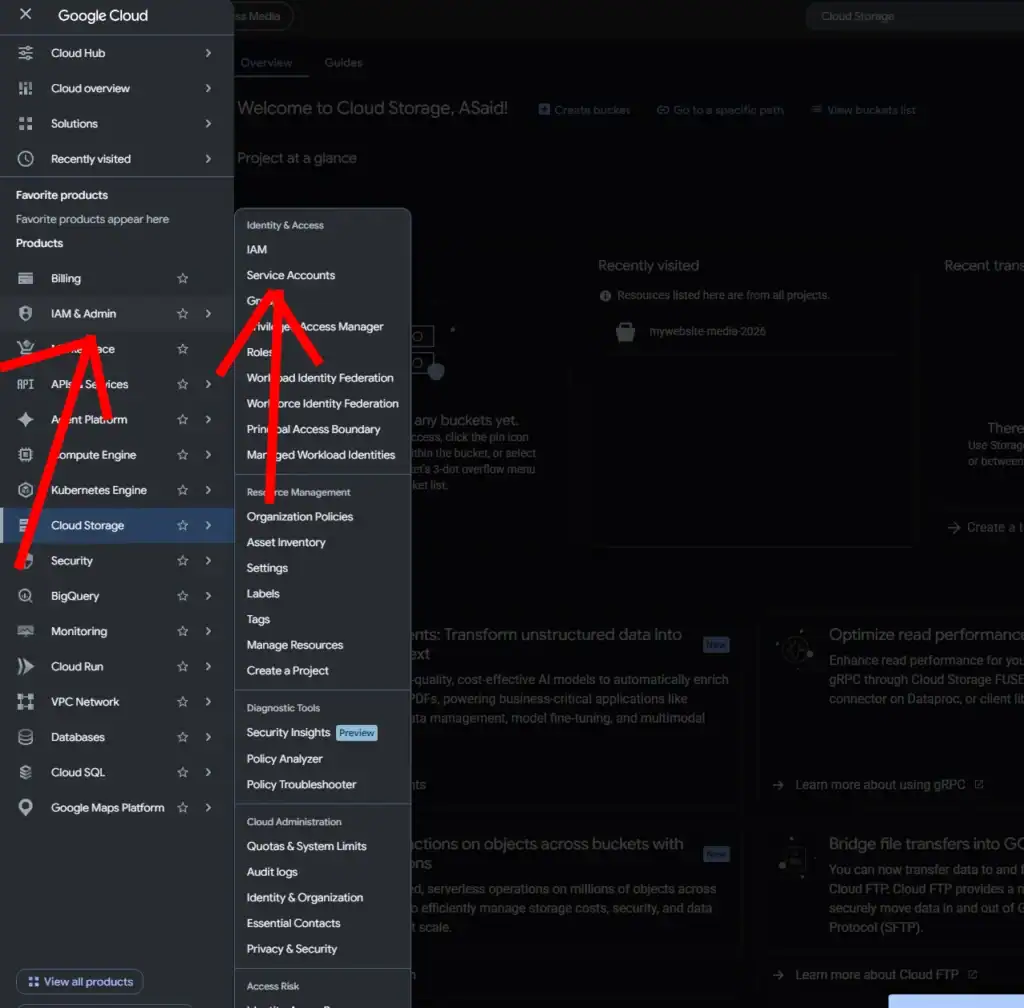
A service account is an identity used by applications to access Google Cloud resources.
For Arewa S3 Media Library, create a dedicated service account rather than using personal Google account credentials.
Navigate to:
IAM & Admin → Service Accounts
Click:
Create Service Account
3.1 Enter Service Account Details
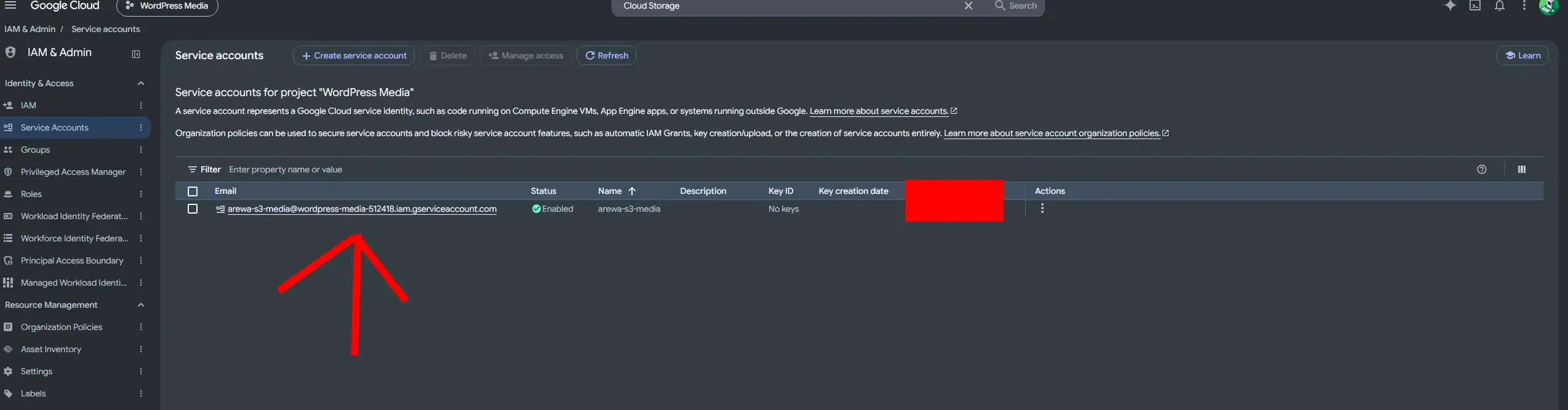
Use a descriptive name.
Example:
arewa-s3-media
Google Cloud generates a service account ID.
Its email address will resemble:
arewa-s3-media@wordpress-media-2026.iam.gserviceaccount.com
Click Create and Continue.
3.2 Assign Permissions
You can assign permissions during creation or afterward.
For better security, we recommend granting storage access directly on the intended bucket instead of granting broad access across the entire project.
Finish creating the service account.
Then proceed to the next step.
Important: You do not need to download a JSON service account key for this integration. Arewa S3 Media Library uses HMAC credentials instead.
Step 4: Grant the Service Account Access to Your Bucket
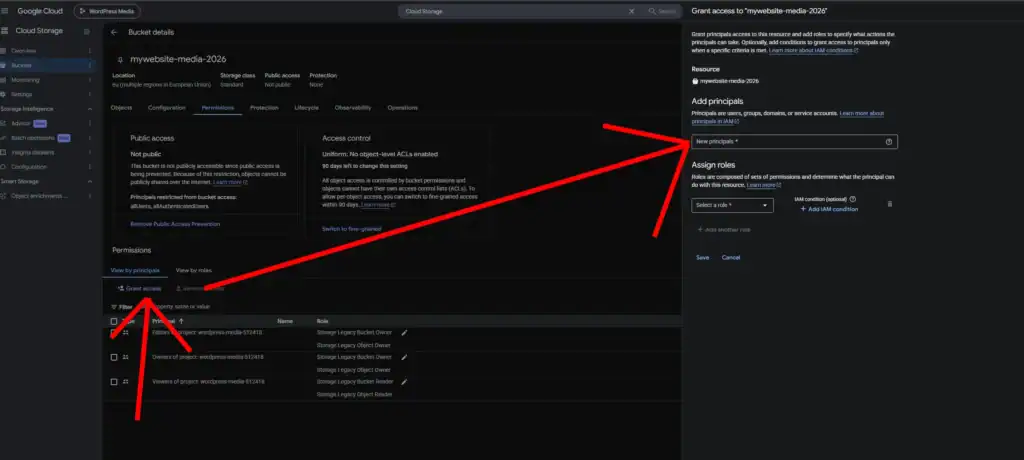
Open:
Cloud Storage → Buckets
Select the bucket created earlier.
Open the:
Permissions
tab.
Click:
Grant Access
Add the Service Account
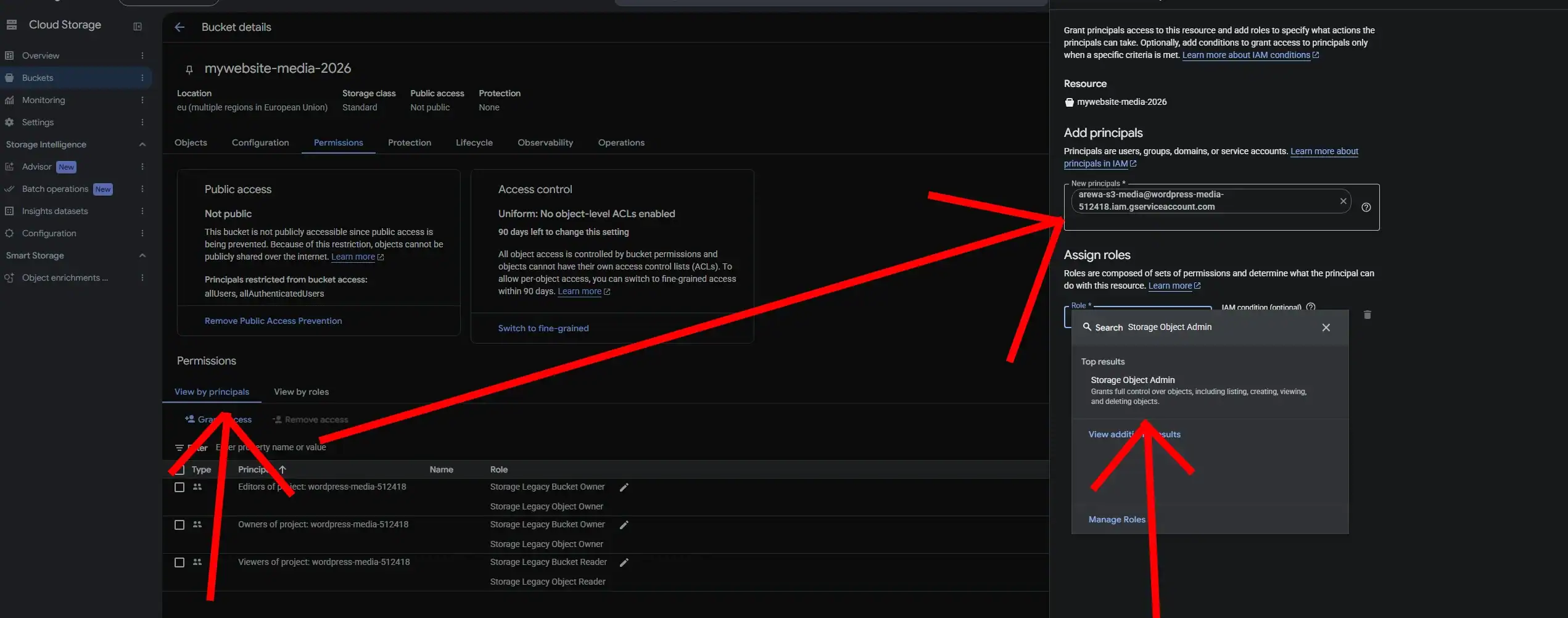
Under New principals, enter your service account email.
Example:
arewa-s3-media@wordpress-media-2026.iam.gserviceaccount.com
Select the IAM Role
For a media library that needs to upload, read, list, and delete objects, select:
Cloud Storage → Storage Object Admin
The role identifier is:
roles/storage.objectAdmin
This provides broad object-management permissions within the resource where the role is granted.
For a WordPress media integration, it supports common operations such as uploading objects, retrieving files, listing media, and deleting objects.
4.3 Save Permissions
Click:
Save
Your service account can now manage objects in the selected bucket.
Why Bucket-Level Permissions Are Recommended
Assigning Storage Object Admin at the project level can grant access to objects across multiple buckets.
Assigning the role directly to the intended bucket limits its scope.
For example, if your project contains:
wordpress-mediaprivate-backupscustomer-documents
You can grant the plugin access only to wordpress-media.
This reduces unnecessary exposure of unrelated files.
Do You Need Storage Bucket Viewer?
Not necessarily.
Arewa S3 Media Library’s Google Cloud Storage connection uses the bucket name supplied by the user and verifies that specific bucket directly.
Therefore, account-wide bucket discovery is not required for the basic connection.
If your plugin later uses features that need additional bucket metadata or bucket discovery, review the exact required permissions separately.
Step 5: Understand Google Cloud HMAC Authentication
Google Cloud Storage supports an interoperability interface called the XML API.
This allows compatible software to interact with GCS using authentication patterns similar to Amazon S3.
Arewa S3 Media Library uses:
Google Cloud Storage (HMAC interoperability)
An HMAC key contains two values:
HMAC access ID: Identifies the key associated with your service account.
HMAC secret: A secret value used to cryptographically sign storage requests.
These are different from OAuth credentials and JSON service account keys.
You must generate an HMAC key specifically for Cloud Storage interoperability.
Step 6: Generate Google Cloud HMAC Keys
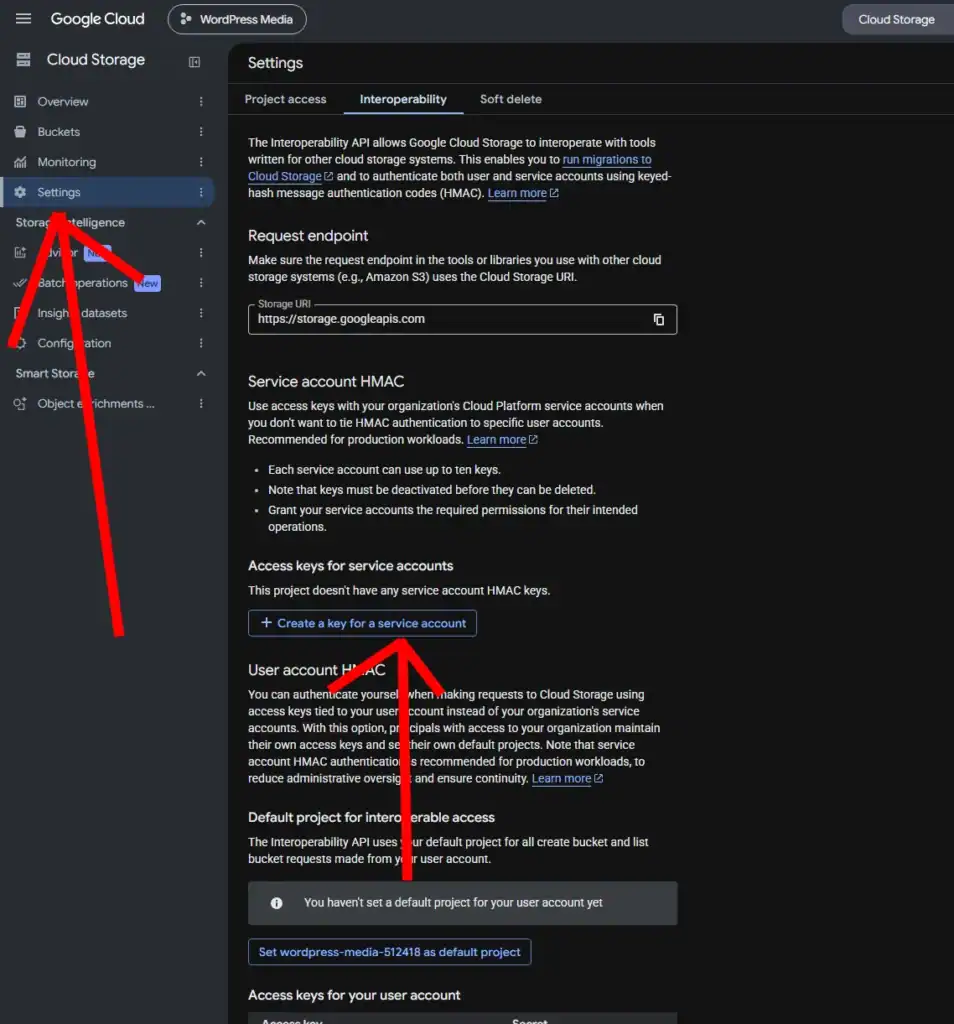
Open the Google Cloud Console.
Navigate to:
Cloud Storage → Settings → Interoperability
Find:
Service account HMAC
Click:
Create a key for a service account
Select Your Service Account
Choose the service account created earlier.
Example:
arewa-s3-media@wordpress-media-2026.iam.gserviceaccount.com
Create the Key
Click:
Create key
Google Cloud generates:
- Access ID
- Secret
Copy both values immediately and store them securely.
The secret is displayed when the key is created and cannot be recovered later if lost.
Confirm the Key Is Active
After creating the key, verify that its status is:
Active
A newly created HMAC key may take a short time to become usable.
If authentication fails immediately after creation, wait briefly and try again.
Security Recommendations
Never publish your HMAC secret.
Do not store it in public repositories or frontend JavaScript.
If a key is exposed, create a replacement, update the WordPress connection, and deactivate the compromised key.
Step 7: Open Arewa S3 Media Library in WordPress
Sign in to your WordPress dashboard.
Navigate to:
Media → Arewa S3 Media → Connections
Click:
Add Connection
The plugin displays the storage connection form.
Select the Provider
Open the Provider dropdown.
Choose:
Google Cloud Storage (HMAC interoperability)
The plugin displays the Google Cloud-specific configuration fields.
Step 8: Enter Your Google Cloud Storage Credentials
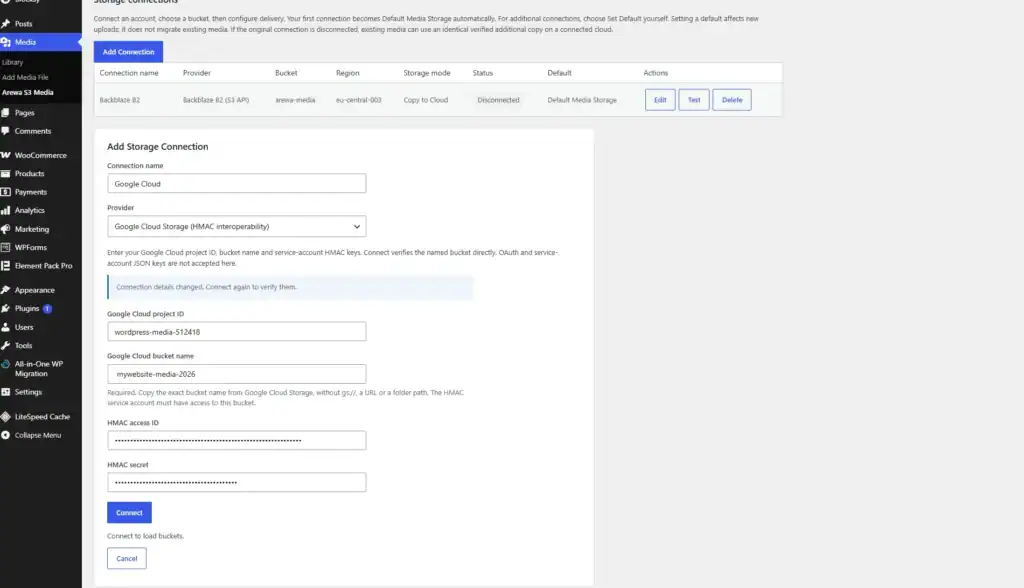
Complete the form using the information collected in the previous steps.
Connection Name
Enter a descriptive name.
Example:
Google Cloud Storage
Google Cloud Project ID
Enter your project’s unique ID.
Example:
wordpress-media-2026
Google Cloud Bucket Name
Enter the exact name of the bucket.
Example:
mywebsite-media-2026
Do not enter:
gs://mywebsite-media-2026
Do not enter:
https://storage.googleapis.com/mywebsite-media-2026
Only the bucket name is required.
HMAC Access ID
Paste the Access ID generated under Cloud Storage interoperability settings.
HMAC Secret
Paste the corresponding HMAC secret.
Example Connection Configuration
| Field | Example |
|---|---|
| Connection name | Google Cloud Storage |
| Provider | Google Cloud Storage (HMAC interoperability) |
| Google Cloud project ID | wordpress-media-2026 |
| Google Cloud bucket name | mywebsite-media-2026 |
| HMAC access ID | Your service account HMAC Access ID |
| HMAC secret | Your HMAC secret |
Connect
Click:
Connect
Arewa S3 Media Library attempts to authenticate using the supplied HMAC credentials and verify the named bucket.
Unlike providers that automatically list accessible buckets, the Google Cloud connection identifies the destination from the bucket name entered by the user.
This makes it possible to use a service account restricted to a specific bucket.
After successful authentication, the plugin may clear the visible credential fields to avoid exposing secrets in the connection form.
Step 9: Verify the Google Cloud Bucket
Once the connection succeeds, continue with bucket verification and configuration.
The plugin should recognize the selected bucket and make the available storage settings accessible.
If verification fails, check:
- The Project ID is correct.
- The bucket name is exact.
- The HMAC key is active.
- The HMAC key belongs to the intended service account.
- The service account has permissions on the bucket.
- Google Cloud organization policies allow HMAC authentication.
Google Cloud Endpoint
For the standard Cloud Storage XML API, the endpoint is:
https://storage.googleapis.com
Arewa S3 Media Library uses its Google Cloud provider configuration to communicate with this endpoint.
You do not need to manually enter an AWS-style regional endpoint in the Google Cloud connection form.
Step 10: Configure Storage Mode and Delivery
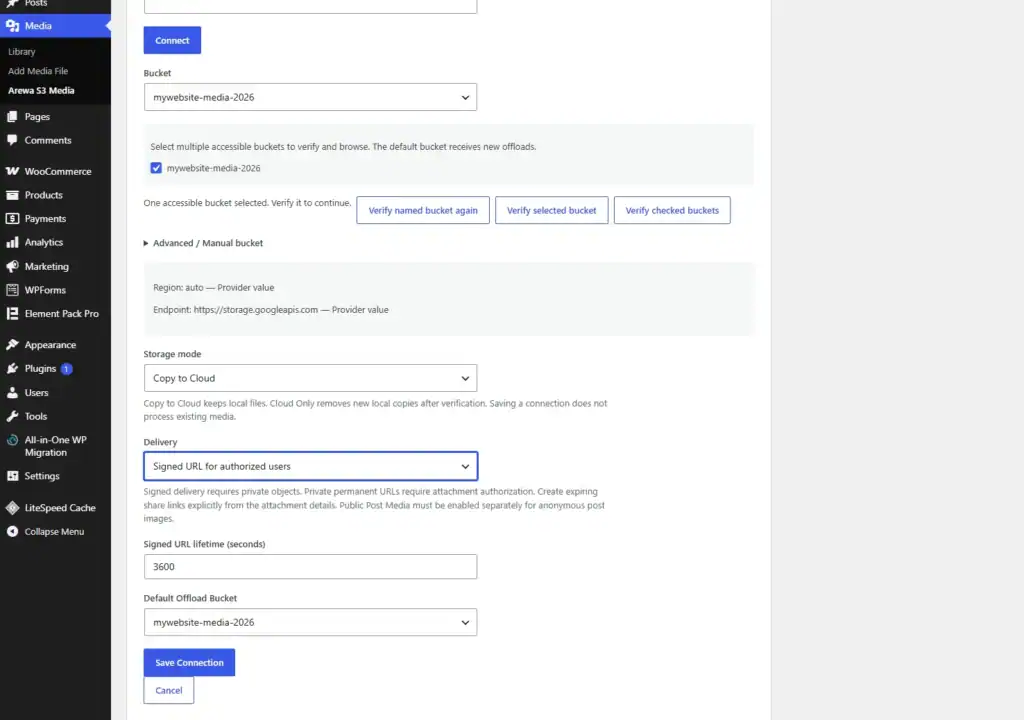
After verifying your bucket, choose how WordPress should use Google Cloud Storage.
Storage Mode
Arewa S3 Media Library provides three storage modes:
| Mode | Behavior |
|---|---|
| Local | Keeps media on the WordPress server without automatic cloud offloading |
| Copy to Cloud | Copies media to GCS while keeping local originals |
| Cloud Only | Copies media to GCS and allows eligible verified local files to be removed afterward |
For your first connection test, Copy to Cloud is a practical choice.
Delivery
Choose the appropriate delivery option.
Public URL
For media that should be accessible without authentication. The bucket or public delivery endpoint must allow access.
Signed URL for anyone with the link
Generates temporary access links for private files.
Signed URL for authorized users
Uses WordPress-side authorization before granting access to private media.
For membership content and protected downloads, use private storage with the appropriate signed delivery mode.
Default Offload Bucket
Select the connected Google Cloud Storage bucket as the default destination if you want new WordPress uploads to be copied there.
Click:
Save Connection
Your Google Cloud Storage connection is ready.
Step 11: Test the Connection with a WordPress Image
Before migrating your existing media library, perform a simple test.
- Open the WordPress Media Library.
- Upload a small image.
- Wait for the plugin’s cloud upload process.
- Open Google Cloud Storage.
- Navigate to your bucket.
- Confirm that the uploaded image exists.
- Test the image through the delivery method selected in WordPress.
If the bucket is private, a direct unsigned URL may return:
403 AccessDenied
That is expected.
A private object should only be accessible through a properly authorized request or valid signed URL.
Step 12: Copy Existing WordPress Media to Google Cloud Storage
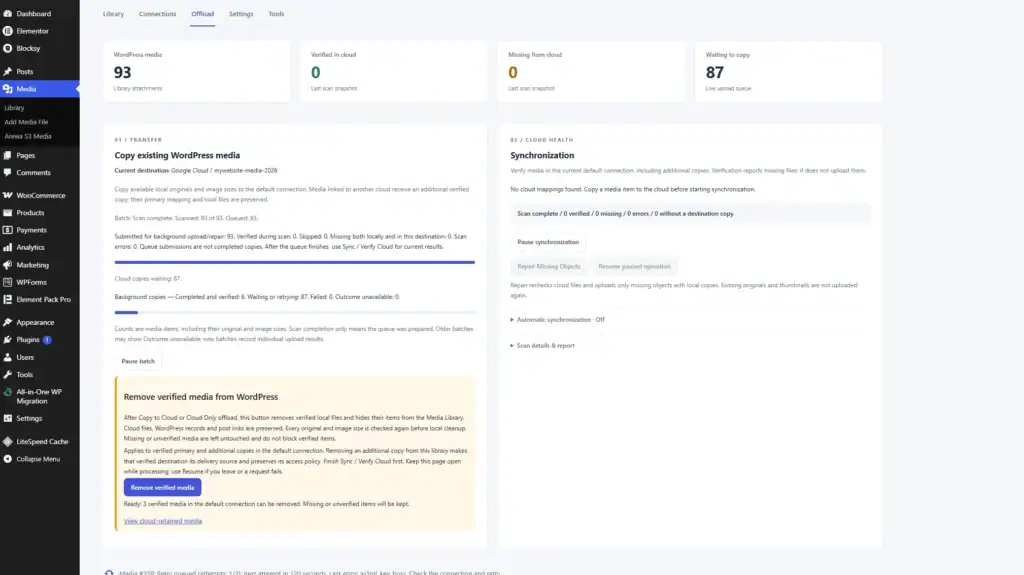
To transfer existing media, navigate to:
Media → Arewa S3 Media → Offload
Find:
Copy existing WordPress media
Click:
Start existing-media batch
The plugin scans existing attachments and submits eligible files for background copying to the default cloud destination.
Wait for the transfer queue to finish.
Then click:
Sync / Verify Cloud
This checks whether the expected cloud copies exist.
If Some Objects Are Missing
Review the synchronization report.
Use:
Repair Missing Objects
when appropriate and when eligible local copies are available.
Remove Local Originals
If your connection uses Cloud Only, you can use:
Remove verified media
after confirming that the cloud copies are complete and accessible.
Do not remove unverified files.
Maintain a separate backup before deleting local originals.
How to Fix WordPress Images Not Displaying After Cloud Offload
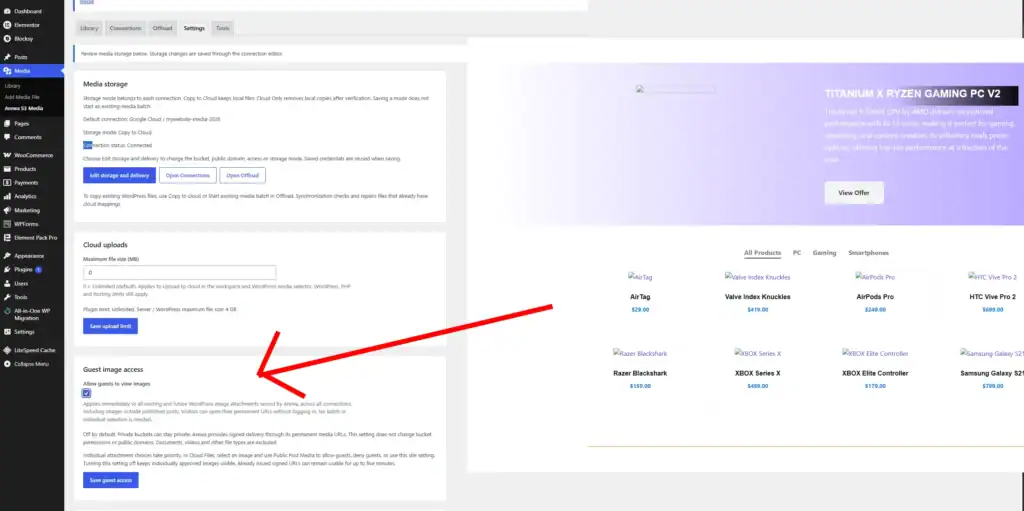
If you selected Signed URL for authorized users or Signed URL for anyone with the link as your media delivery method, you may notice that some images stop appearing on your public website after completing the cloud offload process.
For example, product images, featured images, thumbnails, and other WordPress media may appear as broken images for visitors who are not logged in.
This can happen when guest access to images is disabled in Arewa S3 Media Library.
Step 1: Open Arewa S3 Media Library Settings
Sign in to your WordPress administration dashboard.
Navigate to:
Media → Arewa S3 Media → Settings
Scroll down until you find the section:
Guest image access
Step 2: Enable Guest Image Access
Find the option:
Allow guests to view images
Enable the checkbox.
This setting allows visitors who are not logged in to view WordPress image attachments delivered through Arewa S3 Media Library, including images stored in private cloud buckets.
The plugin can provide temporary signed image URLs without requiring visitors to sign in.
Step 3: Save Your Changes
Click:
Save guest access
The new setting takes effect immediately. You do not need to repeat the offload process or upload your images again.
Step 4: Verify Your Website Images
Open your website in a private or incognito browser window.
Check that the following images display correctly:
- WordPress featured images and thumbnails.
- WooCommerce product images.
- Images inside posts and pages.
- Images used by Elementor and other supported WordPress components.
If your website uses a caching plugin or CDN, clear the relevant caches if images still appear broken.
Important: Does This Make Your Cloud Bucket Public?
No. Enabling Allow guests to view images does not change your cloud bucket’s permissions or make the entire bucket publicly accessible.
Instead, Arewa S3 Media Library allows approved image attachments to be delivered to guest visitors through its signed URL system.
The setting applies to WordPress image attachments served by the plugin, across connected cloud storage providers.
Documents, videos, and other non-image files are excluded from this guest image setting.
Security note: Enable this option only if the affected images are intended to be publicly visible. Visitors may be able to access approved image attachments through temporary signed URLs, even when the underlying cloud bucket remains private.
If your website contains restricted images, keep guest access disabled for those images or use the plugin’s individual attachment access controls.
Still Seeing Broken Images?
If the images remain unavailable after enabling guest access:
- Confirm that your cloud connection is active.
- Open Offload and run Sync / Verify Cloud.
- Check whether the affected images have verified cloud copies.
- Confirm that the selected delivery method is configured correctly.
- Clear any WordPress or CDN caches that may still contain expired image URLs.
You can also review individual image permissions in Library → Cloud Files.
Tip: For public WordPress websites using private cloud storage, enabling Allow guests to view images is an important configuration step when using signed URL delivery.
Step 13: Configure a Public Google Cloud Storage Bucket
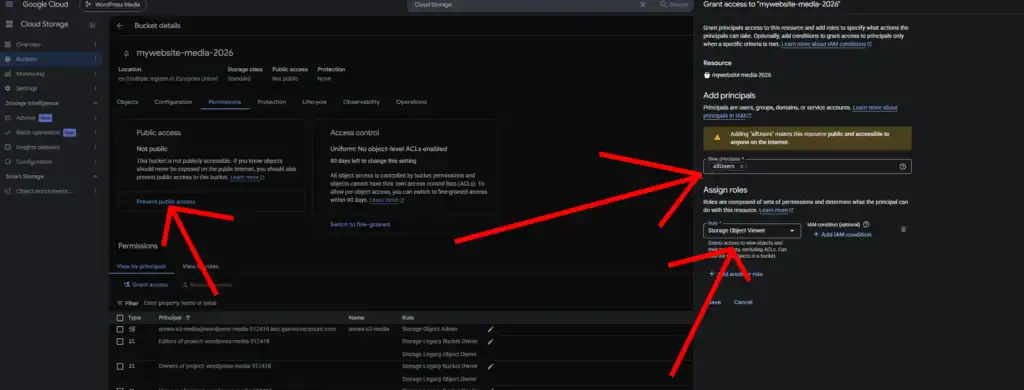
This step is optional.
If your WordPress website publishes public images, you may choose to make a dedicated media bucket publicly readable.
Do not use this configuration for protected or membership-only files.
Review Public Access Prevention
Open:
Cloud Storage → Buckets → Your Bucket
Go to the bucket’s configuration settings.
Check:
Public access prevention
If public access prevention is enforced, anonymous access cannot be granted.
To make the bucket public, the setting must permit public access, and any organization-level policy must also allow it.
- In Permissions section
- Press Remove Public access prevention
13.2 Grant Public Read Access
Open:
Permissions → Grant Access
Under New principals, enter: allUsers
Choose:
Storage Object Viewer
Save the changes.
This allows anonymous users to read objects in the bucket.
Warning: This applies to the bucket’s objects, not just a single WordPress image.
Use a separate bucket for public content if you also store private media.
13.3 Test a Public Image
Suppose your bucket is:
mywebsite-media-2026
And the object key is:
2026/10/example.webp
The public URL follows this format:
https://storage.googleapis.com/mywebsite-media-2026/2026/10/example.webp
Open the URL in an incognito browser window.
If the object exists and public access is correctly configured, the image should load.
Step 14: Configure a Custom Domain for Google Cloud Storage
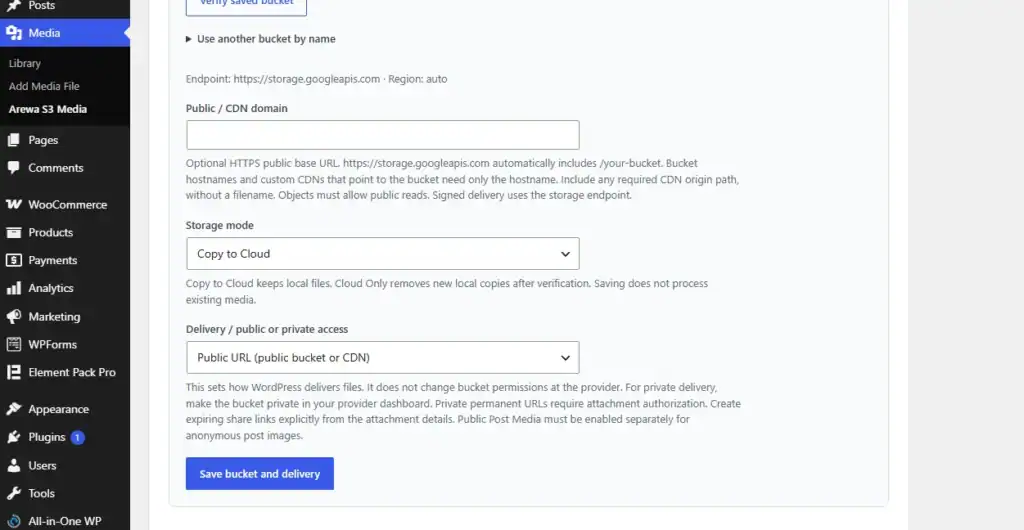
Google Cloud Storage does not provide the same direct HTTPS custom-domain workflow as Cloudflare R2.
For example, you may want to deliver public WordPress images through:
There are several ways to achieve this.
Option A: Google Cloud HTTPS Load Balancer
For a production environment, Google Cloud supports using an external Application Load Balancer with a backend bucket and an HTTPS certificate.
A typical setup involves:
- Creating a backend bucket connected to your Cloud Storage bucket.
- Configuring an external Application Load Balancer.
- Creating or attaching an HTTPS certificate.
- Configuring the frontend hostname.
- Pointing your domain’s DNS to the load balancer.
- Testing public media delivery.
Cloud CDN can also be enabled where appropriate.
This approach provides an HTTPS custom domain but introduces additional Google Cloud resources and potential charges.
Option B: Cloudflare Worker for Public Files
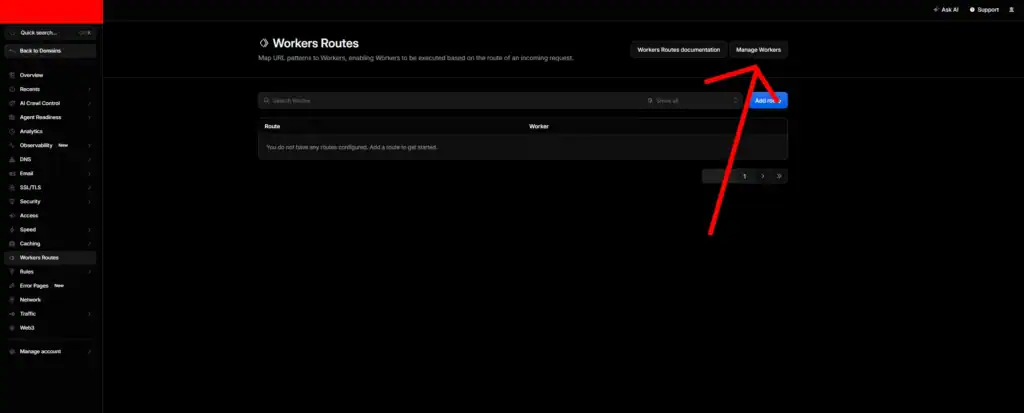
- Open cloudflare Workers Routes
- Click Manage Workers
- and then click Create application
- Choose Start with Hello World!
- Give it a name, for example, My media CDN
- Click Deploy
- Click Edit code
- Replace the code with the following code
- Replace “const BUCKET = “mywebsite-media-2026″; and ” with your Google Cloud bucket name
- Click Deploy
For example:
const BUCKET = "mywebsite-media-2026";

export default {
  async fetch(request) {
    if (request.method !== "GET" && request.method !== "HEAD") {
      return new Response("Method Not Allowed", {
        status: 405
      });
    }

    const incoming = new URL(request.url);

    if (incoming.pathname === "/") {
      return new Response("Google Cloud Storage Proxy is running", {
        status: 200,
        headers: {
          "Content-Type": "text/plain; charset=utf-8"
        }
      });
    }

    // Accept both:
    // / mywebsite-media-2026/folder/file.jpg
    // /folder/file.jpg

    let path = incoming.pathname;

    if (path.startsWith(`/${BUCKET}/`)) {
      path = path.slice(BUCKET.length + 1);
    }

    // Reconstruct the original Google Storage URL.
    // Preserve signed query parameters.
    const originUrl =
      `https://storage.googleapis.com/${BUCKET}${path}${incoming.search}`;

    const headers = new Headers();

    // Support partial video/audio downloads.
    if (request.headers.has("Range")) {
      headers.set("Range", request.headers.get("Range"));
    }

    const response = await fetch(originUrl, {
      method: request.method,
      headers,
      redirect: "manual"
    });

    const responseHeaders = new Headers(response.headers);

    // Do not cache private signed responses by default.
    responseHeaders.set("Cache-Control", "private, no-store");

    return new Response(response.body, {
      status: response.status,
      headers: responseHeaders
    });
  }
};- Return to Workers Routes
- Tap Add a route
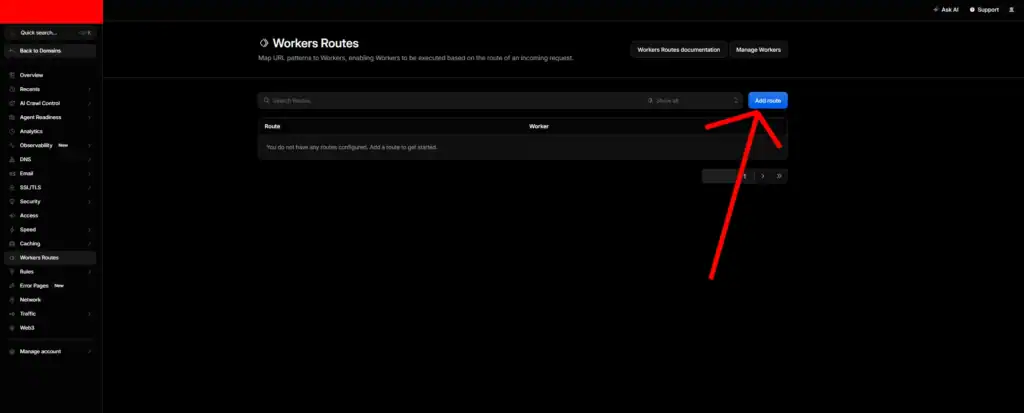
- Find your Worker example mymediacdn
- Add route example “cdn.example.com/*”
- Click save

Check the DNS
Go to Cloudflare → example.com → DNS → Records.
To use a Worker Route, cdn.example.com needs a DNS record with Cloudflare proxying enabled (orange cloud).
If the record does not exist yet and the subdomain is not being used by another service, you can create the following record:
| Field | Value |
|---|---|
| Type | AAAA |
| Name | cdn |
| IPv6 address | 100:: |
| Proxy status | Proxied (orange cloud) |
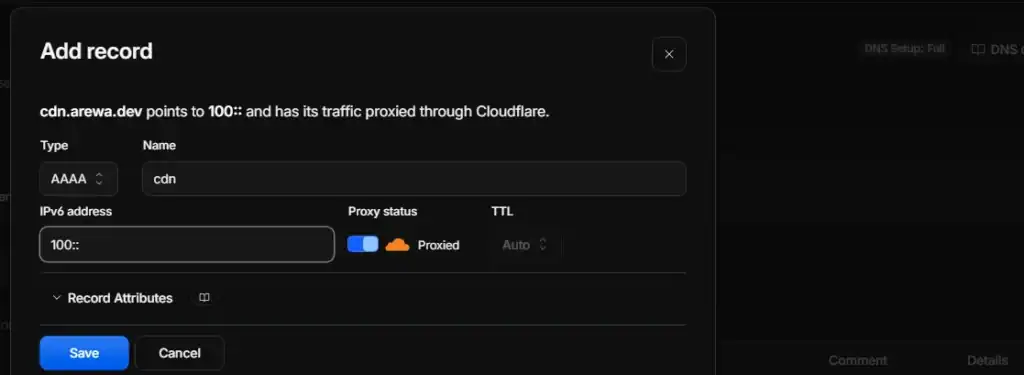
This record allows Cloudflare to receive requests and execute the Worker. It does not point directly to Google Cloud Storage.
If a valid proxied DNS record for media already exists, you do not need to create another one.
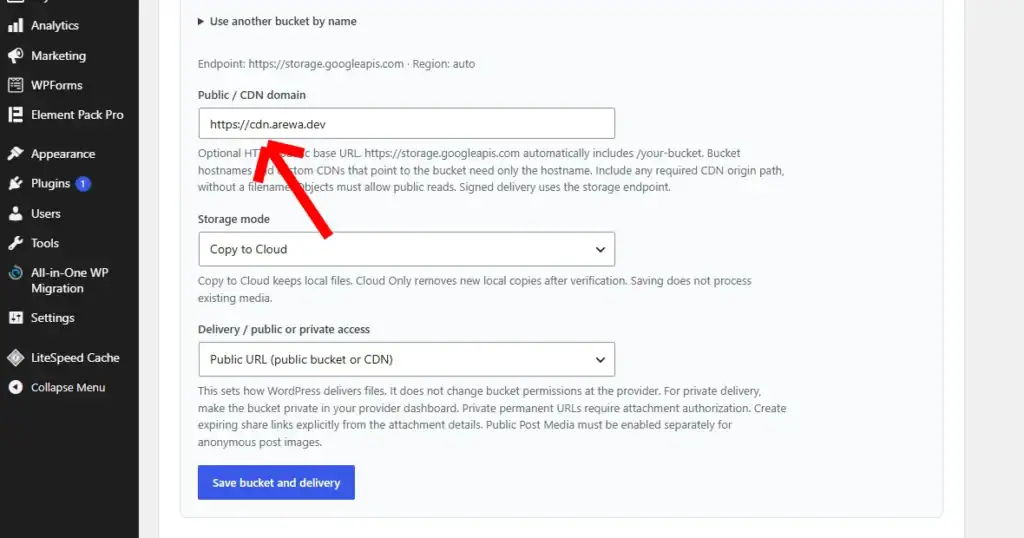
Now in Arewa S3 Media Library, Google Cloud, click Edit. In the Public/CDN domain field, add your CDN with “https://” example https://cdn.example.com
https://cdn.example.com/2026/10/example.webp
The Worker can retrieve:
https://storage.googleapis.com/mywebsite-cdn-2026/2026/10/example.webp
Result
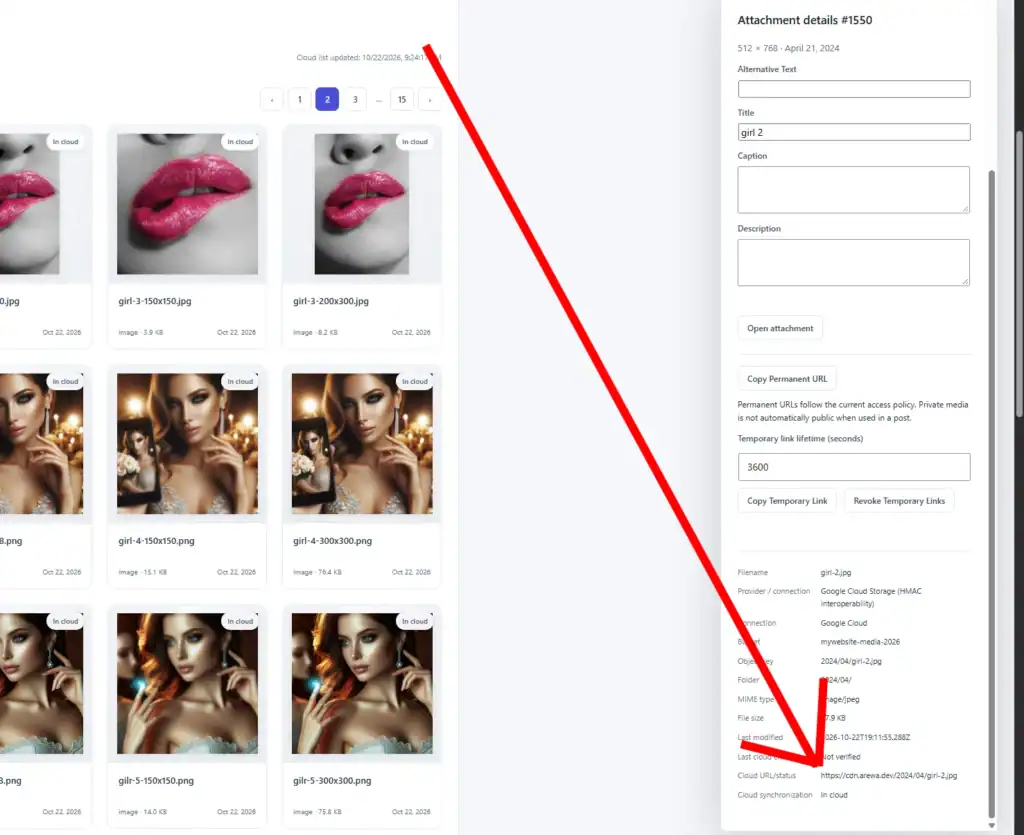
Step 15: Understand Google Cloud Signed URLs
Google Cloud Storage supports V4 signed URLs for temporary access to private objects.
A signed URL contains query parameters such as:
X-Goog-Algorithm
X-Goog-Credential
X-Goog-Date
X-Goog-Expires
X-Goog-SignedHeaders
X-Goog-Signature
These parameters allow Google Cloud Storage to validate the signed request.
Example
An unsigned object URL may look like:
https://storage.googleapis.com/mywebsite-media-2026/private/image.webp
For a private bucket, anonymous access to that URL is denied.
A correctly generated signed URL includes the required signature parameters and can grant temporary access.
Important Limitation with Custom Domains
You cannot simply replace:
storage.googleapis.com
with:
cdn.example.com
inside an existing signed URL.
V4 signing includes request information such as the hostname.
Changing the hostname without generating a compatible signature can invalidate the request.
For this reason, Arewa S3 Media Library should use the correct Google Cloud Storage endpoint when generating signed URLs.
If you need a custom domain for protected files, implement a compatible authenticated proxy or delivery architecture.
Step 16: Browse Google Cloud Files Inside WordPress
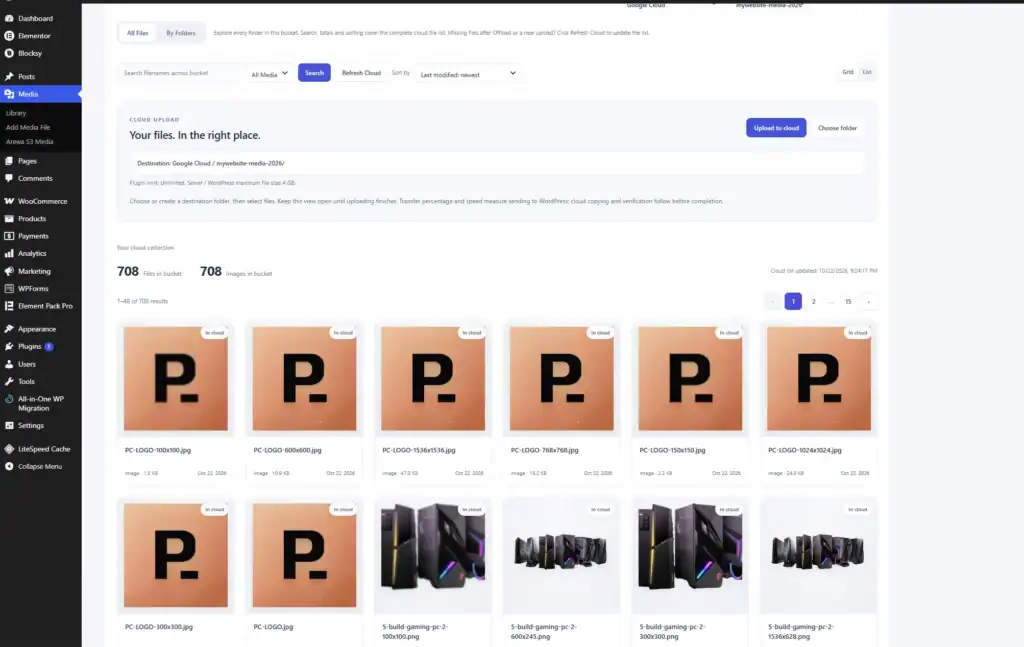
After connecting Google Cloud Storage, open:
Media → Arewa S3 Media → Library → Cloud Files
Select your Google Cloud connection and bucket.
The plugin provides two browsing modes.
All Files
Browse the bucket’s objects in a media-library-style interface.
Depending on the file type and available previews, you can view filenames, thumbnails, sizes, and modification information.
Use search, sorting, and pagination to navigate large collections.
By Folders
Browse object keys using their folder-style paths.
For example:
2026/10/
2026/09/
uploads/images/
This is useful for buckets containing thousands of media files.
Step 17: Troubleshooting Google Cloud Storage Connections
Error: AccessDenied
The service account may lack the required permission.
Check the bucket’s Permissions tab and confirm that the service account has the correct role.
For a media-management connection, Storage Object Admin at the bucket level is a suitable starting point.
Error: SignatureDoesNotMatch
Check that the HMAC Access ID and secret belong to the same key.
Make sure the key is active and the plugin is using the correct Google Cloud interoperability signing configuration.
Error: NoSuchBucket
Verify the exact bucket name.
Do not include gs://, a URL, or an object folder.
Error: Anonymous Caller Does Not Have storage.objects.get Access
This indicates that the request is being made without valid authorization.
If the object is private, use a signed URL or an authenticated request.
If the object is intended to be public, verify the bucket’s public access configuration.
Error: HMAC Key Not Working
Check:
- The key is active.
- The key belongs to the correct service account.
- The service account has bucket permissions.
- The organization allows HMAC authentication.
- Enough time has passed for the new key to become usable.
Error: Uploads Fail but the Connection Works
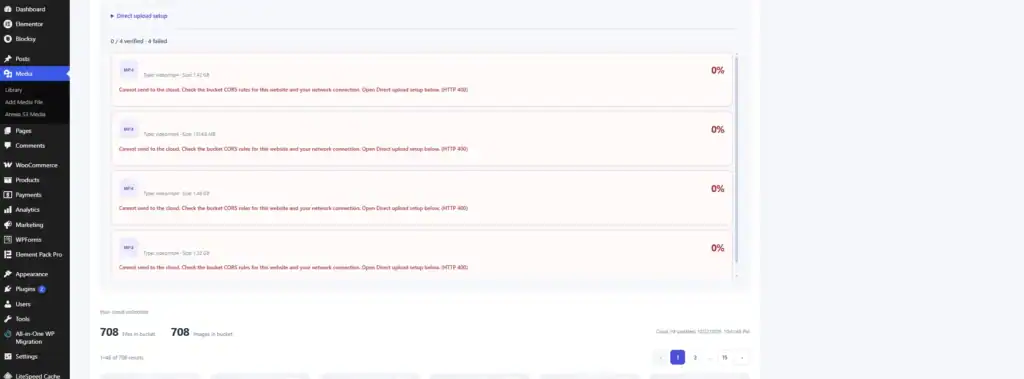
When trying to upload a file to your Google Cloud, you might encounter an error such as “Cannot send to the cloud. Check the bucket CORS rules for this website and your network connection. Open Direct upload setup below. (HTTP 400)”
To resolve this, do the following.
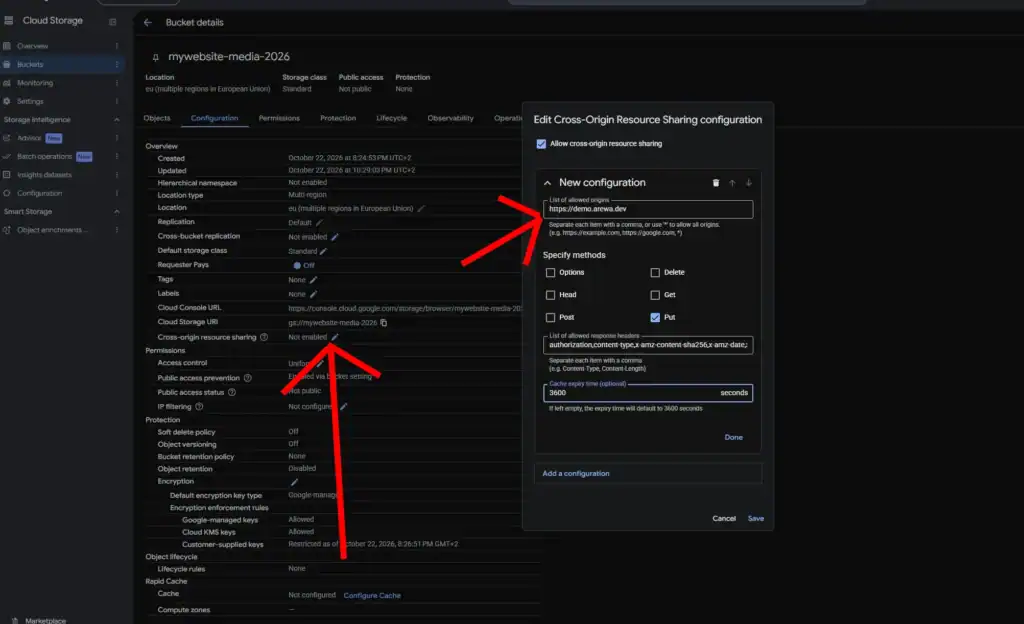
- Click on your bucket.
- Click on Configuration.
- Find “Cross-origin resource sharing” and click the pencil icon.
- Check “Allow cross-origin resource sharing.”
- Click Add a configuration.
- Add your domain in “List of allowed origins.”
- Check Put.
- In List of allowed response headers, paste this line with the values separated by commas: “
authorization,content-type,x-amz-content-sha256,x-amz-date,x-amz-security-token- In Cache expiry time, enter 3600.
- Click Done within the configuration.
- Click Save in the bottom right corner to save the changes.
- Then, reload the WordPress page, open Cloud Files, and try uploading a small file. If it uploads successfully, try uploading a large video.
Error: Custom Domain Returns 403
A Cloudflare Worker that fetches Google Cloud Storage without authentication cannot read private objects.
Granting permissions to the WordPress service account does not automatically grant permissions to the Worker.
Use public objects for a public proxy or configure authenticated origin access for private delivery.
Conclusion
Google Cloud Storage is a flexible option for WordPress websites that need scalable cloud media storage.
With Arewa S3 Media Library, you can connect Google Cloud Storage using HMAC interoperability credentials, manage access through a dedicated service account, and configure your bucket for public or private media.
Once connected, the plugin can help you copy WordPress media, verify cloud objects, manage additional storage destinations, and browse cloud files directly from WordPress.
For the most secure setup, use a dedicated service account, restrict its permissions to the required bucket, and keep private media separate from publicly accessible files.
