How to Connect Amazon S3 to WordPress with Arewa S3 Media Library
Table of Contents
Amazon Simple Storage Service (Amazon S3) is an object storage service provided by Amazon Web Services (AWS). It allows websites to store and retrieve images, videos, documents, backups, and other files without relying entirely on local hosting storage.
If you manage a WordPress website with a growing media library, Amazon S3 can provide scalable storage for your uploaded files.
Arewa S3 Media Library integrates Amazon S3 directly into WordPress, allowing you to connect your AWS account, discover S3 buckets, copy existing media, configure public or private file delivery, and manage cloud files from your WordPress dashboard.
In this tutorial, you will learn how to configure Amazon S3 securely and connect it to Arewa S3 Media Library.
Step 1: Create or Sign In to Your AWS Account
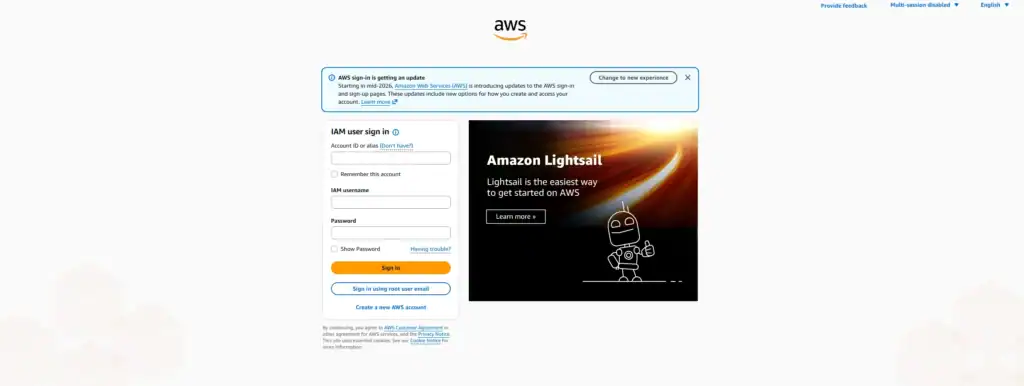
Visit the official Amazon Web Services website:
Click Create an AWS Account if you do not already have one.
During registration, AWS may ask for:
- Your email address.
- An AWS account name.
- Contact information.
- A payment method.
- Identity verification.
AWS offers free-tier benefits for eligible accounts and services, but Amazon S3 usage can generate charges depending on storage, requests, data transfer, and other features.
Once registration is complete, sign in to the:
AWS Management Console
https://console.aws.amazon.com
You will use the AWS Console to create an S3 bucket and configure the credentials required by WordPress.
Security recommendation: Enable multifactor authentication (MFA) on your AWS account and avoid using root-account access keys for WordPress integrations.
Step 2: Open Amazon S3
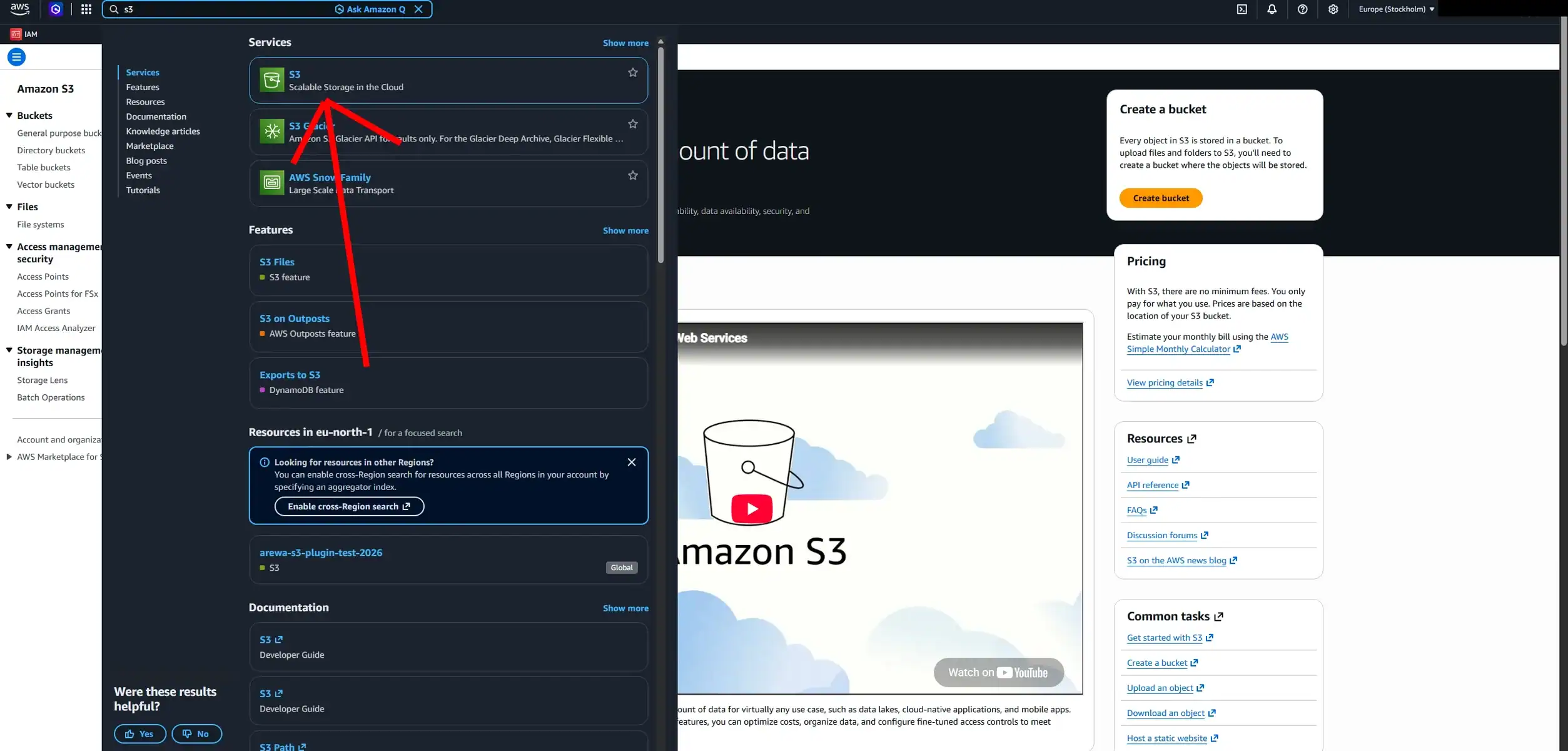
From the AWS Management Console:
- Locate the search bar at the top.
- Type S3.
- Select S3 – Scalable Storage in the Cloud.
- Open the Amazon S3 dashboard.
You should see the available bucket management options.
Click:
General purpose buckets → Create bucket
For a typical WordPress media library, a general purpose S3 bucket is an appropriate starting point.
Step 3: Choose an AWS Region
Before creating your bucket, select the AWS Region where you want your files stored.
AWS Regions are geographical locations containing AWS infrastructure.
Examples include:
| AWS Region | Region Code |
|---|---|
| Europe (Stockholm) | eu-north-1 |
| Europe (Ireland) | eu-west-1 |
| Europe (London) | eu-west-2 |
| Europe (Frankfurt) | eu-central-1 |
| US East (N. Virginia) | us-east-1 |
| US West (Oregon) | us-west-2 |
Which Region Should You Choose?
Consider the geographical location of your website visitors, your compliance requirements, and the cost of the selected region.
For example, if your website primarily serves European visitors, you may choose a European region.
If your visitors are mainly in Africa, compare the available regions based on actual latency and pricing rather than assuming the closest region will always perform best.
Important: An S3 bucket’s region cannot simply be changed after creation. Moving data to another region generally requires copying or migrating the objects.
Record your selected region because it will help when troubleshooting your WordPress connection.
Step 4: Create Your Amazon S3 Bucket
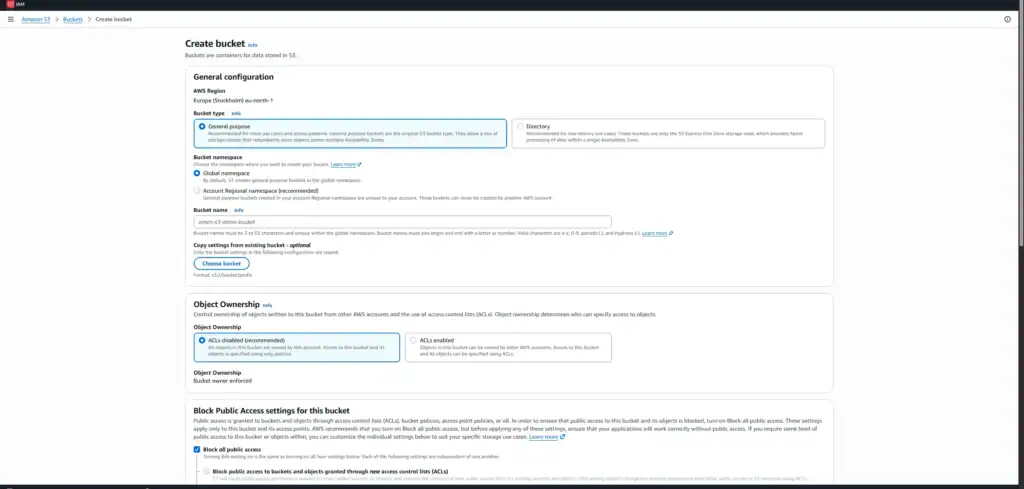
In the S3 dashboard, click Create bucket.
Select Bucket Type
Choose:
General purpose
Enter a Bucket Name
Under Bucket name, enter a globally unique name.
Example:
mywebsite-wordpress-media-2026
Amazon S3 bucket names must follow AWS naming requirements and cannot duplicate an existing bucket name within the applicable namespace.
Use lowercase letters, numbers, and hyphens for a simple, compatible name.
Object Ownership
- Under Object Ownership, choose:
- ACLs disabled (recommended)
- This uses the bucket-owner-enforced ownership model.
- With ACLs disabled, permissions are managed through IAM policies, bucket policies, and other AWS access controls rather than individual object ACLs.
- This is generally preferable for modern WordPress integrations.
Block Public Access
- Find:
- Block Public Access settings for this bucket
- For a private media bucket, keep:
- Block all public access — Enabled
- This prevents common configurations that would otherwise make bucket objects publicly accessible.
- You can still upload and manage files through properly authorized AWS API requests.
- You can also deliver private objects using presigned URLs.
- Do not disable Block Public Access merely to make the plugin connect. IAM credentials allow the plugin to access a private bucket.
Bucket Versioning
- Under Bucket Versioning, you can choose whether Amazon S3 should retain multiple versions of objects.
- For a basic WordPress media integration, you may leave versioning disabled.
- For websites requiring additional protection against accidental overwrites or deletion, versioning may be useful.
- Remember that retaining multiple versions can increase storage costs.
Default Encryption
- Amazon S3 automatically encrypts new object uploads at rest.
- For a standard integration, the default server-side encryption with Amazon S3 managed keys (SSE-S3) is generally sufficient.
- More advanced encryption configurations may require additional IAM or AWS KMS permissions.
Create the Bucket
- Review your settings and click:
- Create bucket
- Your S3 bucket is now ready.
- However, WordPress cannot connect yet because you still need to configure AWS permissions and generate credentials.
- Bucket Key: Default
- Advanced settings
- Object Lock
- Disable
- Enable
Step 5: Create an IAM Policy for Your S3 Bucket
AWS Identity and Access Management (IAM) allows you to control which users and applications can access AWS resources.
Instead of giving WordPress unrestricted access to your AWS account, create a policy limited to the storage operations your plugin requires.
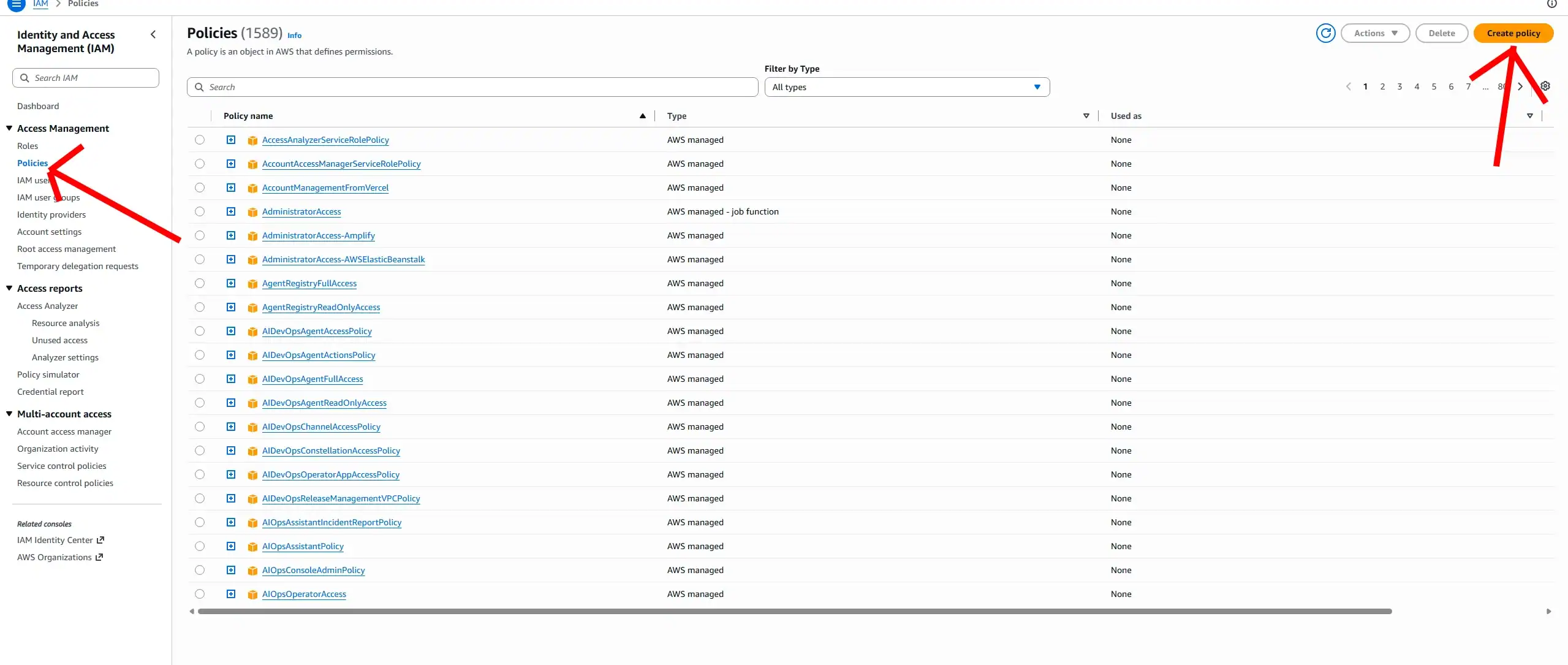
Open IAM
- In the AWS Console search bar, type:
- IAM
- Open:
- IAM – Access management → Policies
- Click:
- Create policy
Select the JSON Editor
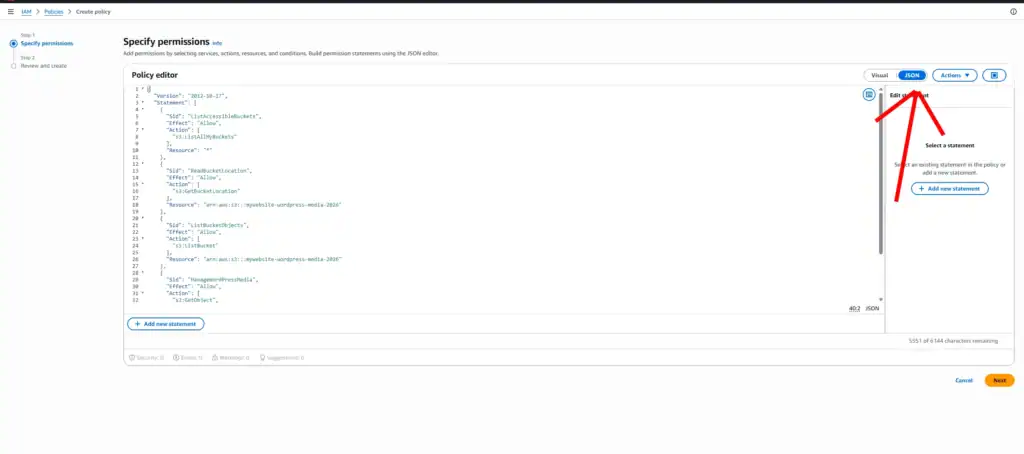
- AWS allows you to build a policy using its visual editor or JSON.
- For this tutorial, choose:
- JSON
- Replace the sample policy with the following example.
Example IAM Policy
Replace mywebsite-wordpress-media-2026 with your actual S3 bucket name.
{
  "Version": "2012-10-17",
  "Statement": [
    {
      "Sid": "ListAccessibleBuckets",
      "Effect": "Allow",
      "Action": [
        "s3:ListAllMyBuckets"
      ],
      "Resource": "*"
    },
    {
      "Sid": "ReadBucketLocation",
      "Effect": "Allow",
      "Action": [
        "s3:GetBucketLocation"
      ],
      "Resource": "arn:aws:s3:::mywebsite-wordpress-media-2026"
    },
    {
      "Sid": "ListBucketObjects",
      "Effect": "Allow",
      "Action": [
        "s3:ListBucket"
      ],
      "Resource": "arn:aws:s3:::mywebsite-wordpress-media-2026"
    },
    {
      "Sid": "ManageWordPressMedia",
      "Effect": "Allow",
      "Action": [
        "s3:GetObject",
        "s3:PutObject",
        "s3:DeleteObject",
        "s3:AbortMultipartUpload"
      ],
      "Resource": "arn:aws:s3:::mywebsite-wordpress-media-2026/*"
    }
  ]
}
What Do These Permissions Mean?
- s3
- Allows the plugin to discover bucket names available to the AWS account.
- s3
- Allows the plugin to determine the bucket’s AWS Region.
- s3
- Allows the plugin to list objects within the selected bucket.
- s3
- Allows the plugin to read stored media files.
- s3
- Allows the plugin to upload WordPress media to Amazon S3.
- s3
- Allows the plugin to delete cloud objects when a supported deletion operation is requested.
- s3
- Allows incomplete multipart uploads to be aborted.
Important Security Notes
This policy is an example for a WordPress media-management workflow, not a guarantee that every optional feature requires exactly these permissions.
If you do not need cloud deletion, you can remove s3:DeleteObject, although some plugin operations may then fail.
For more restrictive bucket discovery, consider whether your plugin can use manual bucket configuration without s3:ListAllMyBuckets.
Additional permissions may be needed for advanced multipart listing, object tagging, versioned objects, or AWS KMS encryption.
Avoid using unrestricted s3:* permissions when narrower permissions are sufficient.
Save the Policy
- Click:
- Next
- Enter a policy name.
- Example:
ArewaS3MediaLibraryPolicy- Optionally add a description:
S3 bucket permissions for Arewa S3 Media Library WordPress integration- Click:
- Create policy
- Your custom IAM policy is now available.
Step 6: Create an IAM User for WordPress
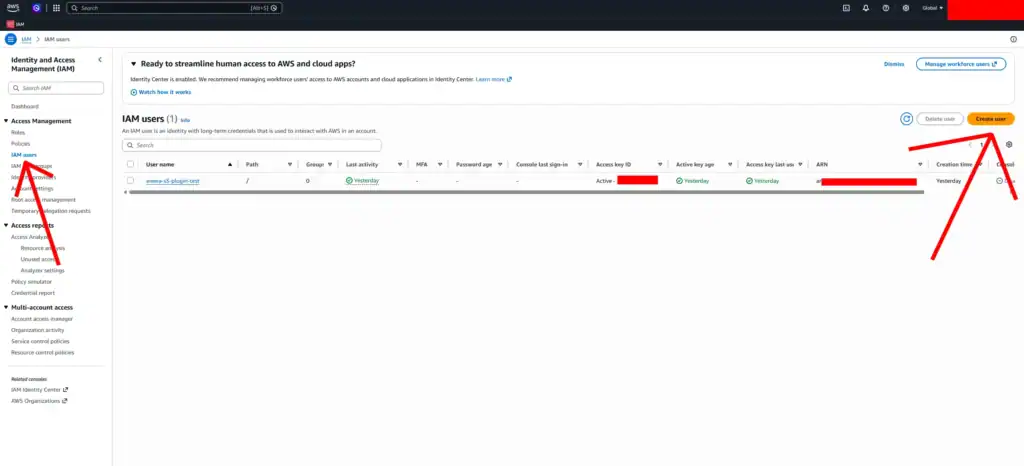
- Next, create a dedicated IAM user for Arewa S3 Media Library.
- From the IAM dashboard, navigate to:
- Access management → Users
- Click:
- Create user
Enter a Username
Example:
arewa-s3-media-wordpress
You can use another descriptive name.
Console Access
- You do not need to enable AWS Management Console access for this user.
- The WordPress plugin connects programmatically using AWS credentials.
- Leave console access disabled unless you have a separate administrative reason to enable it.
- Click:
- Next
Step 7: Assign Permissions to the IAM User
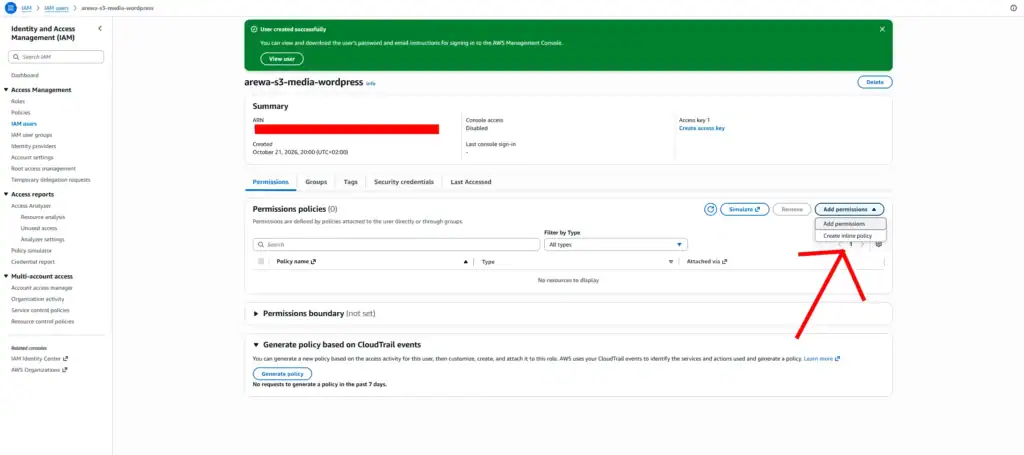
AWS displays the Set permissions screen.
You may see three options:
- Add user to group.
- Copy permissions.
- Attach policies directly.
For this dedicated integration, select:
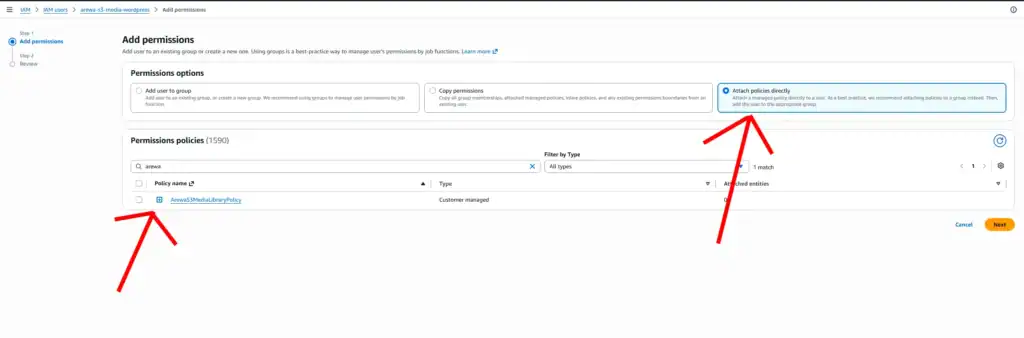
Attach policies directly
Find the policy you created:
ArewaS3MediaLibraryPolicy
Select its checkbox.
Click:
Next
Review the username and assigned policy.
Click:
Create user
Your IAM user has now been created with permissions limited to the configured S3 resources and actions.
For organizations managing multiple integrations, IAM groups or roles may be preferable to direct policy attachments.
Step 8: Generate an AWS Access Key ID and Secret Access Key
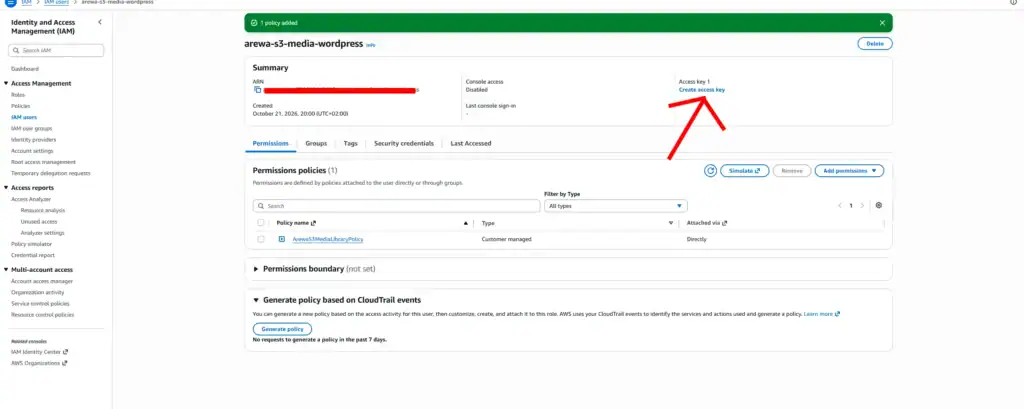
After creating the IAM user, you must generate credentials for the plugin.
8.1 Open Your IAM User
Navigate to:
IAM → Users → arewa-s3-media-wordpress
Open the user details.
Select the:
Security credentials
tab.
8.2 Create an Access Key
Scroll to:
Access keys
Click:
Create access key
AWS may ask how you intend to use the credentials.
Select the use case that accurately describes your application.
For a WordPress website hosted outside AWS, this may be:
Application running outside AWS
AWS may display security recommendations concerning long-term access keys.
Review the warning and proceed only if access keys are appropriate for your hosting environment.
8.3 Save Your Credentials
AWS generates two values:
Access Key ID
Example format:
AKIAEXAMPLEACCESSKEY
Secret Access Key
A longer secret string used to authenticate requests.
Copy both values securely.
The Secret Access Key is generally displayed only during creation.
Never publish your Secret Access Key in screenshots, documentation, GitHub repositories, or WordPress frontend code.
If a secret is exposed, deactivate and replace it.
Step 9: Connect Amazon S3 to Arewa S3 Media Library
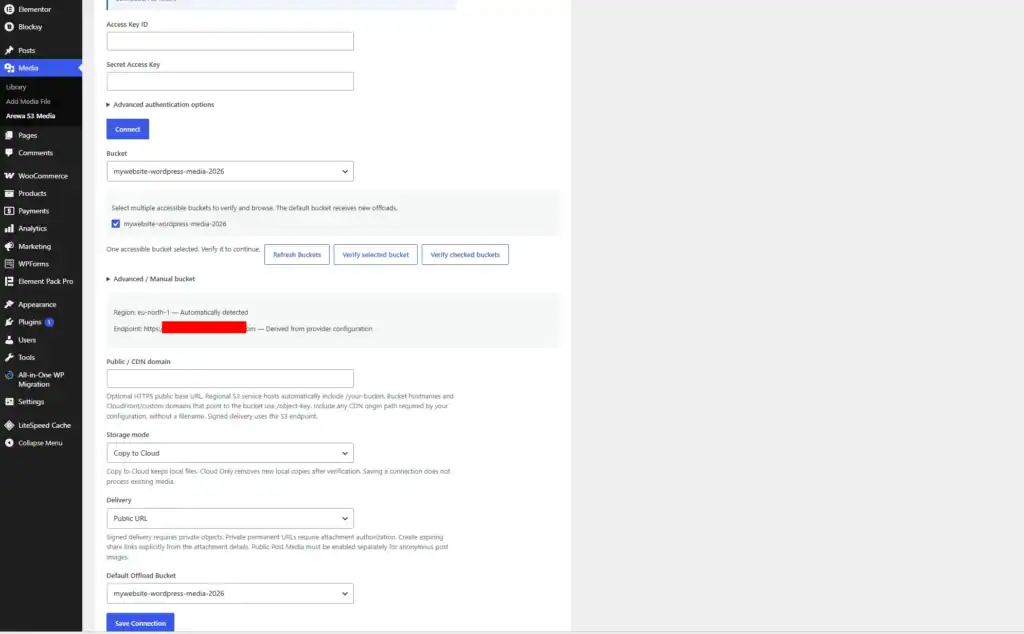
Now return to your WordPress dashboard.
Make sure Arewa S3 Media Library is installed and activated.
Navigate to:
Media → Arewa S3 Media → Connections
- Click:
- Add Connection
- The plugin opens the connection form.
Connection Name
- Enter:
Amazon S3- This name identifies the connection inside your WordPress dashboard.
Provider
Open the Provider dropdown and select:
Amazon S3
Access Key ID
Paste the Access Key ID generated for your IAM user.
Secret Access Key
Paste the corresponding Secret Access Key.
Your form should contain:
| Field | Example |
|---|---|
| Connection name | Amazon S3 |
| Provider | Amazon S3 |
| Access Key ID | Your AWS Access Key ID |
| Secret Access Key | Your AWS Secret Access Key |
Advanced Authentication Options
Below the credential fields, you will see:
Advanced authentication options
These settings are intended for additional authentication configurations supported by your plugin.
For a standard IAM user with a long-term access key, you generally do not need to change them.
If you use temporary AWS credentials, they may also require a session token.
Configure advanced authentication only according to the credential type and the options available in your installed plugin version.
Connect
Click:
Connect
Arewa S3 Media Library attempts to authenticate with AWS and retrieve the available S3 buckets.
After the credentials are accepted, the plugin may clear the visible key fields to protect sensitive information during setup.
This is expected behavior.
Step 10: Select Your Amazon S3 Bucket
After authentication, the plugin displays the accessible buckets.
Open the:
Bucket
dropdown.
Select your newly created bucket.
Example:
mywebsite-wordpress-media-2026
Click:
Verify selected bucket
The plugin checks whether the selected bucket is accessible using the configured AWS credentials.
Depending on your connection settings and plugin version, the region and endpoint can be resolved automatically from the selected bucket.
For example, a bucket located in Stockholm uses the region code:
eu-north-1
Its regional S3 endpoint follows this pattern:
https://s3.eu-north-1.amazonaws.com
If verification succeeds, continue to the delivery and storage configuration.
If verification fails, check your IAM permissions, bucket name, region, and AWS credentials.
Step 11: Configure Storage and Delivery
Once your bucket has been verified, complete the connection configuration.
Storage Mode
Choose the storage mode that fits your website.
Local: Keep media on the WordPress server without automatically copying new uploads to S3.
Copy to Cloud: Copy media to Amazon S3 while preserving local originals.
Cloud Only: Use S3 as the intended primary media destination. Local files remain available initially and can be removed through the verified cleanup workflow.
For a first test, Copy to Cloud is a useful choice because it preserves the local originals.
Delivery Method
Choose one of the plugin’s delivery options.
Public URL: For media intended to be publicly accessible. Your S3 public-access configuration or delivery infrastructure must permit anonymous access.
Signed URL for anyone with the link: For private files accessed through temporary signed links.
Signed URL for authorized users: For media that requires WordPress authorization before access is granted.
For private WordPress media, keep S3 Block Public Access enabled and use an appropriate signed delivery option.
Public / CDN Domain
Leave this field empty if you do not have a configured public media domain.
If you later connect Amazon CloudFront or another compatible public delivery service, you can configure the appropriate hostname.
Do not assume that a public CDN hostname will support S3 presigned URLs without additional configuration.
Default Offload Bucket
Choose the bucket that should receive new WordPress media uploads.
Click:
Save Connection
Your Amazon S3 connection is now saved.
Step 12: Test Your Amazon S3 Connection
Before copying your entire media library, perform a small test.
- Open the WordPress Media Library.
- Upload a test image.
- Wait for the upload and offload processing.
- Check the file in the Amazon S3 console.
- Confirm that the expected object exists.
- Open the media URL using your selected delivery method.
If you configured private delivery, test the file while authorized and then verify that an unauthenticated request cannot access the private object without a valid signed URL.
This helps confirm that the connection works before you migrate large numbers of files.
Step 13: Copy Existing WordPress Media to Amazon S3
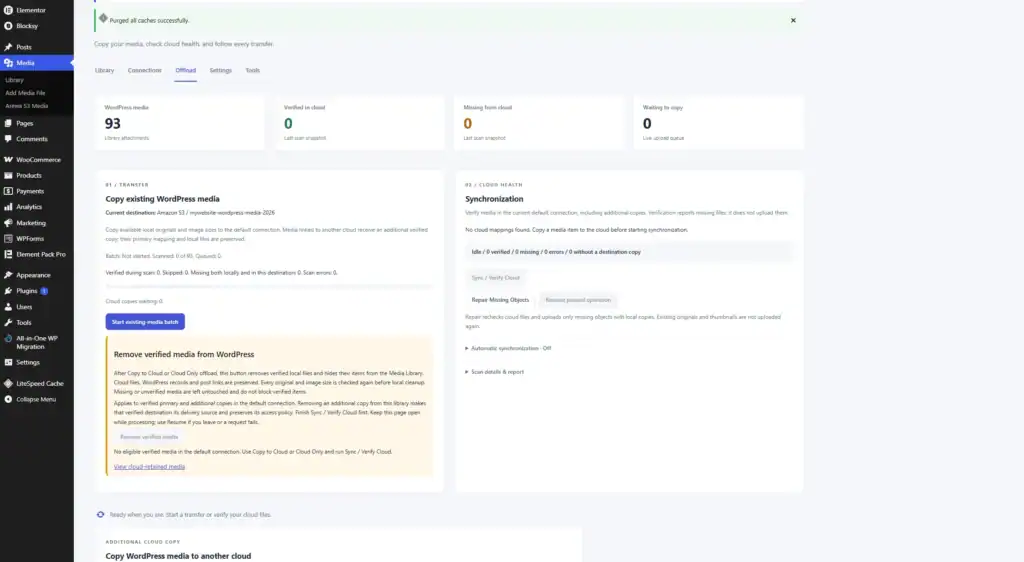
If your website already contains media, you can transfer eligible files to the connected S3 bucket.
Navigate to:
Media → Arewa S3 Media → Offload
Find:
Copy existing WordPress media
Click:
Start existing-media batch
The plugin scans existing WordPress attachments and submits eligible files for cloud copying.
The process may take time depending on the number and size of files, hosting performance, and background processing.
The existing-media batch targets the current default media storage connection.
For a separate destination, use the additional cloud-copy workflow instead.
Step 14: Verify Your Cloud Files
After the transfer finishes, locate the Synchronization section.
Click:
Sync / Verify Cloud
The plugin checks expected cloud copies and reports their status.
Review the results before making any changes to local storage.
If missing cloud objects are detected, use:
Repair Missing Objects
when local source files are available and eligible for repair.
You can also review individual attachments under:
Media status
A verified cloud copy should be confirmed before any local original is removed.
Step 15: Remove Verified Local Files (Optional)
If you selected Cloud Only and want to free hosting disk space, use the plugin’s verified cleanup workflow.
Before doing so:
- Complete the cloud transfer.
- Run Sync / Verify Cloud.
- Confirm that required originals and image sizes are verified.
- Test important public or signed media URLs.
- Maintain a separate backup.
Then use:
Remove verified media
This option is intended to remove eligible verified local files while preserving the associated WordPress records and cloud references.
Do not use this cleanup operation when your goal is to retain local originals.
Step 16: Browse Amazon S3 Files from WordPress
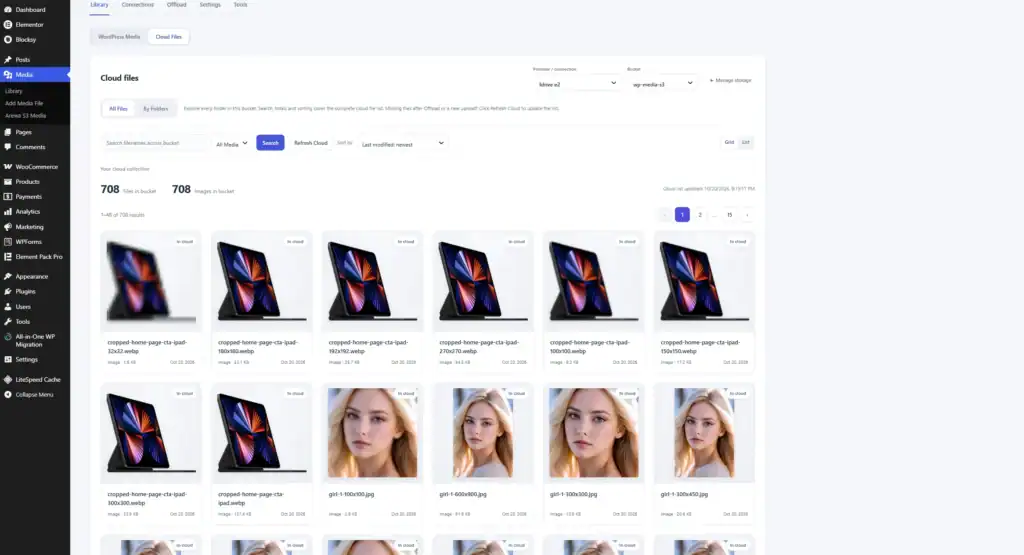
You can also browse your connected S3 bucket without opening the AWS Console.
Navigate to:
Media → Arewa S3 Media → Library → Cloud Files
Select your Amazon S3 connection and bucket.
The Cloud Files interface provides:
All Files: Browse cloud objects with filenames, previews, file information, search, sorting, and pagination.
By Folders: Navigate files using their folder-style S3 object paths.
This allows you to explore the cloud storage collection from your WordPress dashboard.
Step 17: Configure Amazon CloudFront for Public Media (Optional)
Amazon CloudFront is AWS’s content delivery network.
It can deliver public WordPress media from an S3 bucket using a custom domain.
Unlike direct public S3 access, CloudFront can access a private S3 origin using Origin Access Control (OAC).
Create a CloudFront Distribution
- In the AWS Console, search for:
- CloudFront
- Open the CloudFront dashboard and start creating a distribution.
- Choose your Amazon S3 bucket as the origin.
- Use the regular S3 bucket origin rather than an S3 website endpoint when configuring OAC.
Configure Origin Access Control
- Create or select an Origin Access Control for your S3 origin.
- Configure CloudFront to sign origin requests.
- AWS will provide guidance for updating your S3 bucket policy so CloudFront can read the required objects.
- A typical OAC bucket policy grants
s3:GetObjectto the CloudFront service principal and restricts access to your distribution’s ARN. - Keep S3 Block Public Access enabled.
Configure a Custom Domain
To use a domain such as:
media.example.com
you generally need:
- A CloudFront distribution.
- A suitable AWS Certificate Manager (ACM) certificate in
us-east-1. - The hostname configured as an alternate domain name on the distribution.
- A DNS record pointing the hostname to CloudFront.
Follow the CloudFront domain configuration instructions for your DNS provider.
Add the CDN Domain to WordPress
After the CloudFront distribution and custom domain are working, return to:
Arewa S3 Media → Connections → Edit
Enter the configured hostname under:
Public / CDN domain
Example:
Save your connection.
Important: CloudFront OAC protects the S3 origin from direct anonymous access, but it does not automatically make viewer requests private.
If the CloudFront distribution serves objects publicly, visitors can still access those files through CloudFront.
For restricted media, use a compatible viewer-authorization system such as CloudFront signed URLs or cookies, or retain the plugin’s private S3 signed delivery workflow.
Step 18: Troubleshooting Amazon S3 Connection Problems
Access Denied
An Access Denied error usually means that AWS rejected an operation due to permissions or another access-control setting.
Check the IAM policy, bucket policy, and any applicable organization restrictions.
Buckets Are Not Displayed
Make sure the IAM credentials are valid and that the user has the permissions needed for bucket discovery.
For automatic account-wide bucket listing, s3:ListAllMyBuckets may be required.
Incorrect Region
Amazon S3 requests must use the appropriate region configuration.
If the bucket is in Stockholm, its region is eu-north-1, not eu-west-1.
Upload Failed
Check that the IAM user has s3:PutObject permission for the target object path.
If your bucket uses AWS KMS encryption or restrictive bucket policies, additional permissions or configuration may be required.
Private Images Do Not Load
Confirm that your selected delivery mode matches the bucket’s access configuration.
For private objects, use valid signed URLs or a compatible authenticated delivery system.
Public Images Return 403
If Block Public Access is enabled, anonymous requests to the S3 object endpoint will normally be denied.
Use an appropriately configured public delivery service, such as CloudFront, for public media without exposing the bucket directly.
Signed URLs Expire
Presigned URLs are temporary.
Generate new links when necessary and ensure that server time and AWS credentials are valid.
Conclusion
Connecting Amazon S3 to WordPress with Arewa S3 Media Library involves three main tasks: creating an S3 bucket, configuring secure AWS credentials, and connecting the bucket through the plugin.
By using a dedicated IAM user and a restricted policy, you can give WordPress access to the storage operations it needs without exposing your entire AWS account.
After connecting, Arewa S3 Media Library can help you offload WordPress media, verify cloud copies, manage additional storage destinations, and browse Amazon S3 files directly from WordPress.
For websites that need scalable storage, Amazon S3 provides a flexible foundation for both public and private media workflows.
Start using Amazon S3 with Arewa S3 Media Library to manage your WordPress media in the cloud.
